


Azure Functions Runtime is Unreachable
Overview
Like any cloud service, Azure Functions can occasionally experience errors. One of the more annoying ones is the "Azure Functions Runtime is Unreachable" error, which can be resolved by following the steps outlined in this article. Azure Functions is a potent serverless computing service provided by Microsoft Azure that enables developers to build and deploy event-driven, scalable, and cost-effective applications without the need to manage infrastructure.
What Causes the Azure Functions Runtime is Unreachable Error?
Functions app runtime errors can arise for a number of causes, some of the more common ones being:
- Lost access to storage account:
This issue may appear if the function app is unable to access the storage account. - Storage account deleted:
This error may appear if you have inadvertently erased the storage account. A new storage account must be made. - Storage account settings:
This error notice may appear if you entered incorrect passwords or erased certain settings. To identify the problem, check the program settings and storage account credentials. - Daily execution quota:
The function app will be momentarily deactivated if you have used up all of the allotted daily execution quota. To resolve the problem, raise the quota. - Network connectivity issues:
You may see this error if the function app has IP restrictions preventing inbound or internet traffic.
How to Solve Azure Functions Runtime is Unreachable Error?
Functions cannot be used if a storage account is destroyed because all function apps depend on it to function. Check the following components to fix this:
1. Check if The Storage Account Has Been Deleted
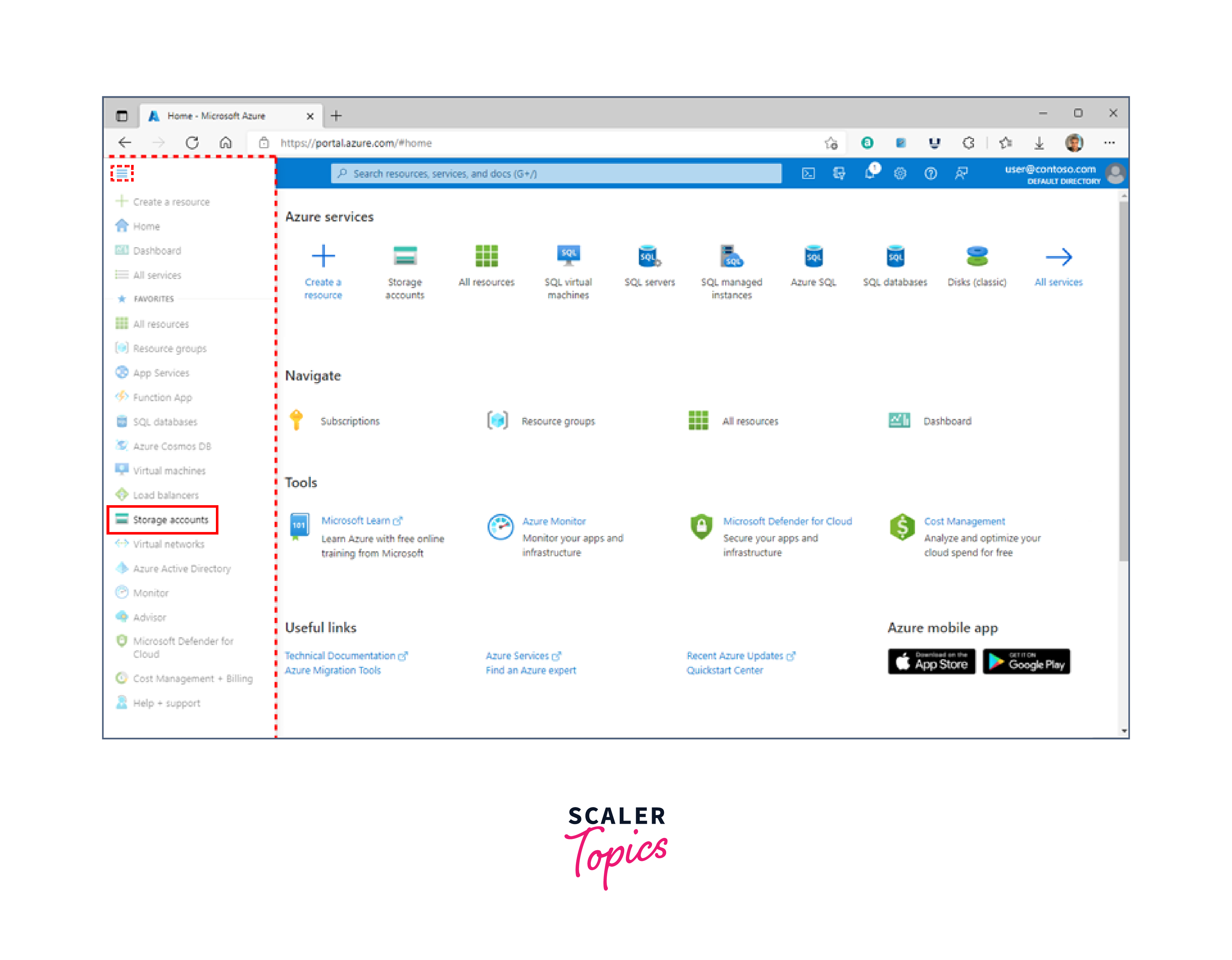
- First, go to the application settings and find your storage account.
- Now see if the name of a storage account appears in a connection string for WEBSITE_CONTENTAZUREFILECONNECTIONSTRING or AzureWebJobsStorage.
- To make sure the storage account is real, you can also search for it through the Azure site.
- You must create a new storage account if you are unable to locate the existing one.
- Next, swap out the connection strings for the storage.
- Additionally, make sure the function code is present; if not, you must deploy it once more.
2. Check if Storage Account Application Settings Are Deleted
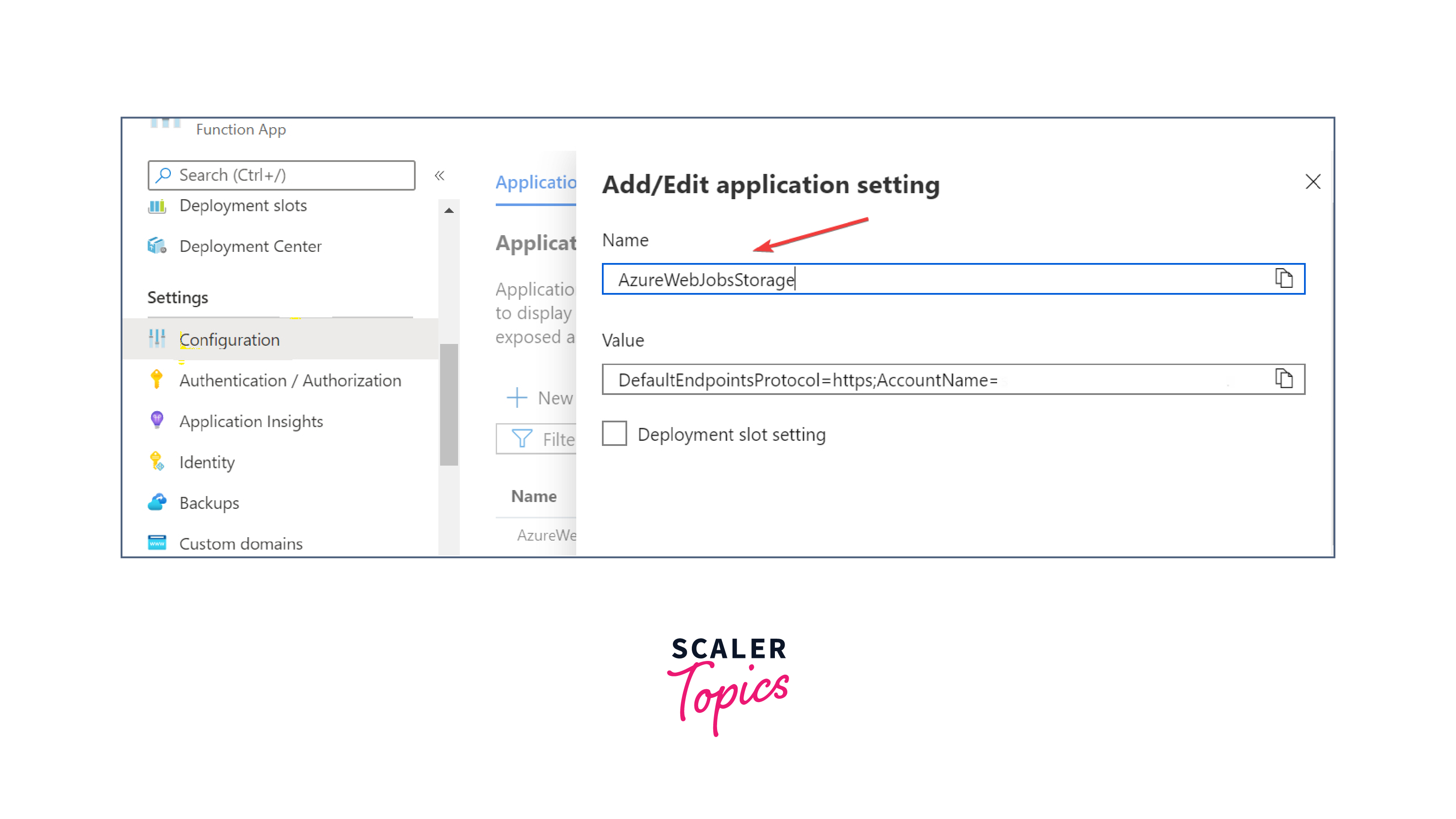
You might not locate the connection string if it was overwritten or removed. This might have occurred as a result of you specifying application parameters using deployment slots or Azure Resource Manager scripts. The following are the steps that you must take:
It is advised that you utilize the AzureWebJobsStorage element in order to prevent this problem. For any of the settings, do not enable the slot setting choices. These options need to be selected and current at the time of creation.
3. Verify that The Storage Account Is Reachable
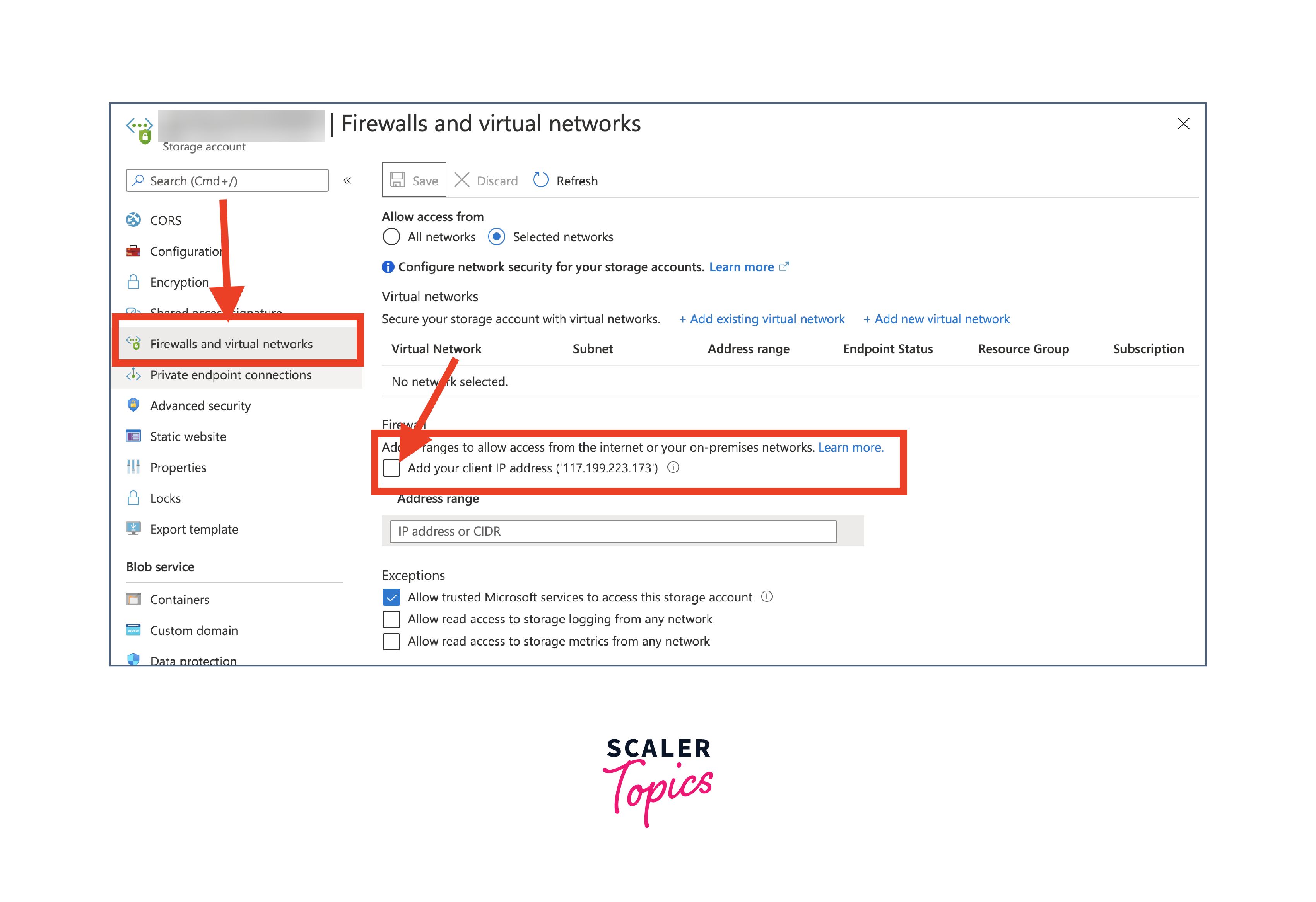 For it to function, the Azure function application needs access to the storage account. To fix the problem, you should perform the following:
- Make sure your storage account's firewall is turned off and that all traffic, both inbound and outbound, is permitted to reach the functions.
- As a default, set allowSharedKeyAccess to True.
- Verify that the appropriate network rules are in place for the Azure function app installation in the App Service Environment (ASE), permitting both inbound and outbound traffic to the storage account.
4. Daily Allotment of Executions Reached
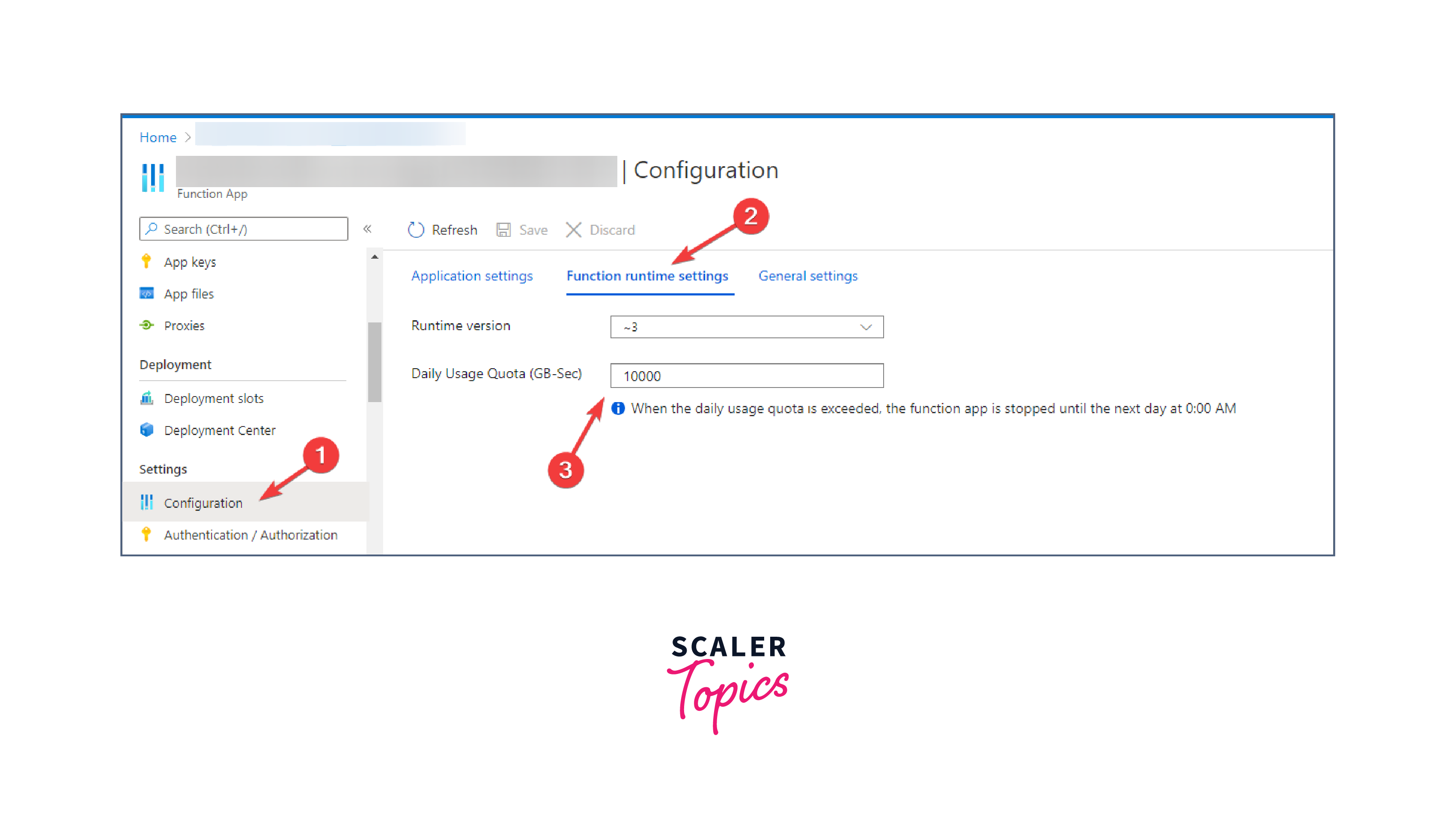
- Go to Settings on the Azure site.
- Select Function App Settings under Configuration.
- If you've used up all of the allotted amount, check the Daily Usage Quota.
- If so, restart your app and change or delete the daily quota. If that's not possible, though, you'll have to wait until the next day.
5. Verify the Function App's Firewall Settings
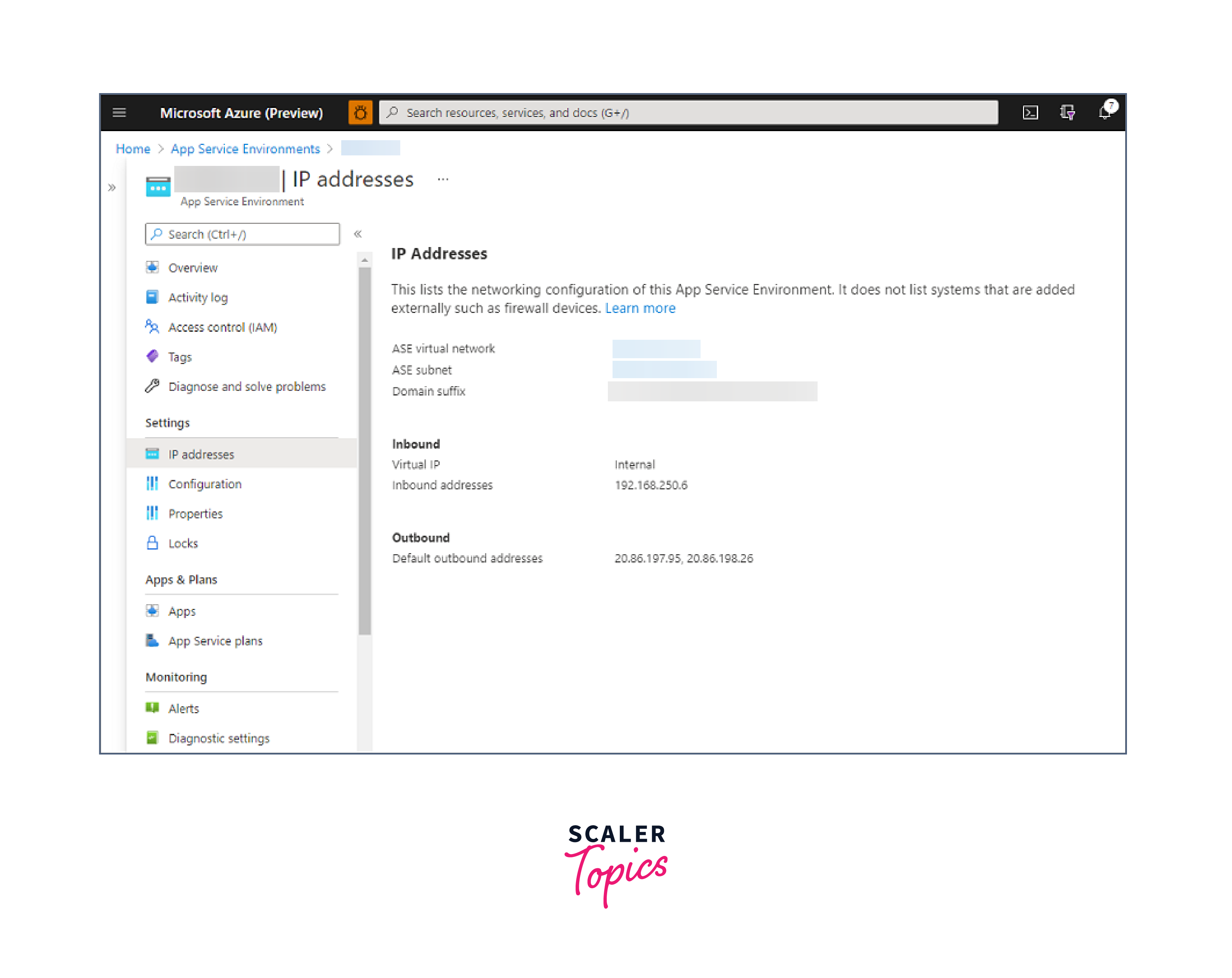
The function app may be restricted by a firewall; double-check these places to make sure:
- The App Service Environment in which your function app is housed makes advantage of internal load balancing and is configured to block incoming internet traffic.
- IP restrictions are in place on the function app to block internet access.
- Once you are aware of the limitations, navigate to the App Service Environment under the subnet's NSG (Network Security Group).
- Make sure the inbound rules are configured to allow traffic coming from the public IP address of the computer that you are using to access the application.
6. Linux Container Errors
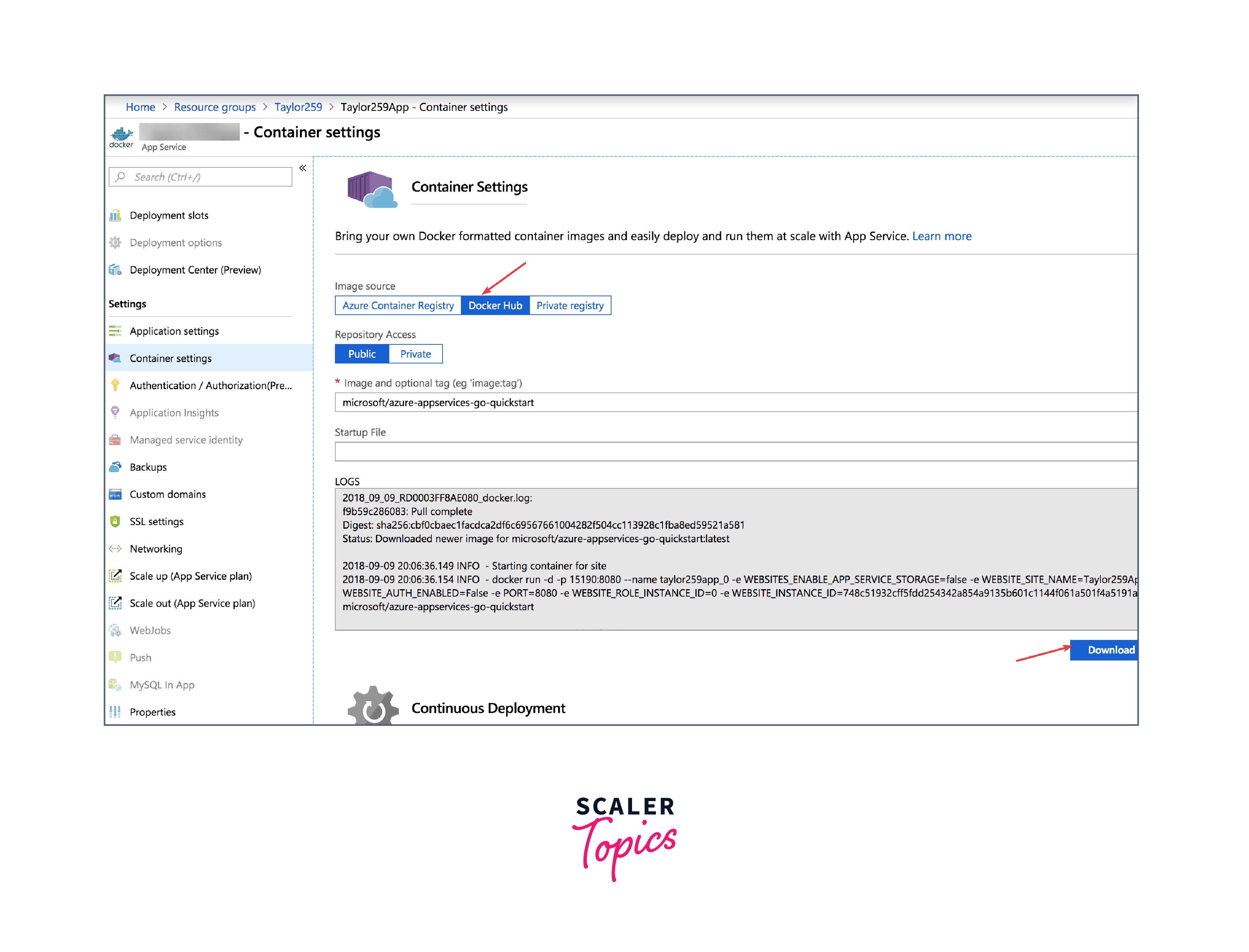
Apps that operate on Linux within a container may display an error if there is a problem with the container. To remedy this, take these actions:
- First, replace Function_App with the name of the app and click the following https link to access the function app's Kudu endpoint:
- After then, examine the contents on your PC by downloading and analyzing the Docker logs.
- Lastly, look through the logged errors to determine the error's cause.
Conclusion
- When Azure Functions are unable to communicate with the runtime environment, this error usually happens.
- Misconfigurations, resource constraints, runtime issues, and network problems are a few examples of causes.
- Examine and modify function app settings, resource utilization, network, and security parameters closely to fix the mistake.
- Diagnostics and monitoring are critical for identifying certain problems.
- It's crucial to regularly update the Azure Functions runtime and verify the state of Azure services.
- Rebooting or recycling resources can be a final resort to resolve transient problems and bring functionality back.