


What Is Azure AD Single Sign On?
Overview
Azure Active Directory (Azure AD) Single Sign-On (SSO) is a cloud-based identity and access management service by Microsoft. It enables users to securely access multiple applications and services with a single set of credentials, simplifying authentication and enhancing security. Azure AD SSO streamlines user access to resources, improving productivity and reducing the burden of managing multiple login credentials.
Azure AD SSO Example
Azure AD Single Sign-On (SSO) is a feature of Microsoft Azure Active Directory (Azure AD) that simplifies user access to various applications and services. With SSO, users can log in once using their Azure AD credentials, and they gain seamless access to multiple applications, both Microsoft and third-party, without the need to re-enter their credentials each time.
Azure AD SSO streamlines the user authentication process, enhances security, and improves user experience by eliminating the need for multiple usernames and passwords. It offers various SSO methods, including password-based SSO, federated SSO (using Security Assertion Markup Language or SAML), and social identity provider-based SSO. Organizations can configure SSO for a wide range of applications, making it a valuable component of identity and access management in the Azure ecosystem.
Let's say a company uses Azure AD to manage user identities and access to various applications and services. One of the applications they use is Microsoft 365, which includes services like Outlook, SharePoint, and Teams.
- User Login:
A user, John, starts his workday and logs into his computer. His login credentials are authenticated through Azure AD. - Access to Microsoft 365:
John wants to access his email using Outlook. He opens the Outlook application or goes to Outlook Online. Instead of entering his username and password again, he is seamlessly logged in because Azure AD has already authenticated him. This is the Azure AD SSO in action. - Access to Other Applications:
Throughout the day, John may need to access other applications and services within the company, such as SharePoint for document collaboration or Teams for video meetings. Each time he accesses these resources, Azure AD SSO eliminates the need for him to re-enter his credentials. He enjoys a seamless and secure experience. - Security and Control:
Azure AD provides administrators with centralized control over user access. They can enforce security policies, monitor user activity, and revoke access if needed, all from a single management interface.
In this example, Azure AD SSO simplifies the user's experience by providing a single authentication point for multiple applications, enhancing security, and reducing the need to remember and manage multiple sets of login credentials.
Advantages and Limitations of Azure Single Sign-On (SSO)
Advantages of Azure Single Sign-On (SSO) compared to other SSO providers:
- Integration with Microsoft Ecosystem:
Azure SSO seamlessly integrates with Microsoft products, simplifying access to Office 365 and Azure services. - Enterprise-Grade Security:
Azure SSO offers robust security features, including multi-factor authentication and conditional access policies. - Extensive Identity Services:
Azure provides a wide range of identity and access management solutions, making it suitable for complex enterprise environments.
Limitations:
- Microsoft-Centric:
Azure SSO is best suited for organizations heavily invested in Microsoft technologies, potentially posing challenges for those using a diverse range of platforms. - Licensing Costs:
Azure SSO's pricing can be complex, and costs may accumulate as you add additional features or users. - Learning Curve:
Implementing Azure SSO may require a learning curve for IT teams unfamiliar with Microsoft's services and configurations.
Azure Single Sign-On Options
Azure offers several Single Sign-On (SSO) options to cater to various identity and authentication needs. Here are some of the key SSO options in Azure:
- Azure AD Password-based SSO:
Users sign in with their username and password, and Azure AD handles the authentication. Password-based SSO can be used for Azure services and thousands of third-party applications integrated with Azure AD. - Federated SSO:
Azure AD supports federated authentication with on-premises Active Directory or other identity providers using protocols like Security Assertion Markup Language (SAML) or OpenID Connect. This allows users to access cloud resources using their on-premises credentials. - Azure AD Seamless SSO:
This option provides a truly seamless experience where users are automatically signed in to Azure AD-integrated applications when they are on their corporate network without the need to enter their credentials. - Azure AD Pass-through Authentication:
This solution allows users to sign in using their on-premises credentials, and Azure AD validates those credentials in real-time against on-premises Active Directory. - Azure AD B2B and B2C SSO:
Azure AD supports SSO for external users in Azure AD B2B collaborations and Azure AD B2C custom identity experiences. External users can use their identity providers or social accounts for SSO in your applications. - Managed Identity (Service Principals):
Azure provides managed identities that applications can use to authenticate with other Azure services securely, removing the need for storing and managing credentials. - Multi-Factor Authentication (MFA):
Azure AD offers MFA for an additional layer of security during the authentication process. Users can use factors like phone calls, SMS, or mobile app notifications for verification. - Conditional Access:
This feature allows administrators to set policies that control access based on specific conditions, such as user location, device health, or risk level. It can be used to enforce SSO requirements. - OAuth and OpenID Connect:
Developers can use Azure AD as an identity provider for custom applications by implementing OAuth 2.0 and OpenID Connect protocols. - Azure AD Application Proxy:
This feature allows on-premises applications to be published securely to the internet, enabling SSO and remote access without exposing the application directly.
How to Set Up Azure AD SSO?
Let's practice hands-on Azure AD SSO utilizing the detailed steps for developing a new SAML-based SSO application in Azure Active Directory.
Step - 1: Set Up the Prerequisites
Before enabling SSO, ensure you have the following prerequisites in place:
- Azure AD Subscription:
You need an Azure AD subscription, which serves as your identity and access management solution. - Azure Portal Access:
Ensure that you have access to the Azure Portal with the necessary permissions to configure SSO settings. - Target Applications:
Identify the applications for which you want to enable SSO. Each application should support SSO and provide integration options or SAML configuration details. - User Accounts:
Ensure that the user accounts who will be using SSO are properly created and managed in your Azure AD. User accounts should have the necessary roles and permissions to access the target applications. - Application Configuration:
Review the documentation or configuration details for each target application to understand the specific requirements for enabling SSO. Some applications may require you to create a service principal or configure SAML settings.
Step - 2: Enable the SSO Feature
-
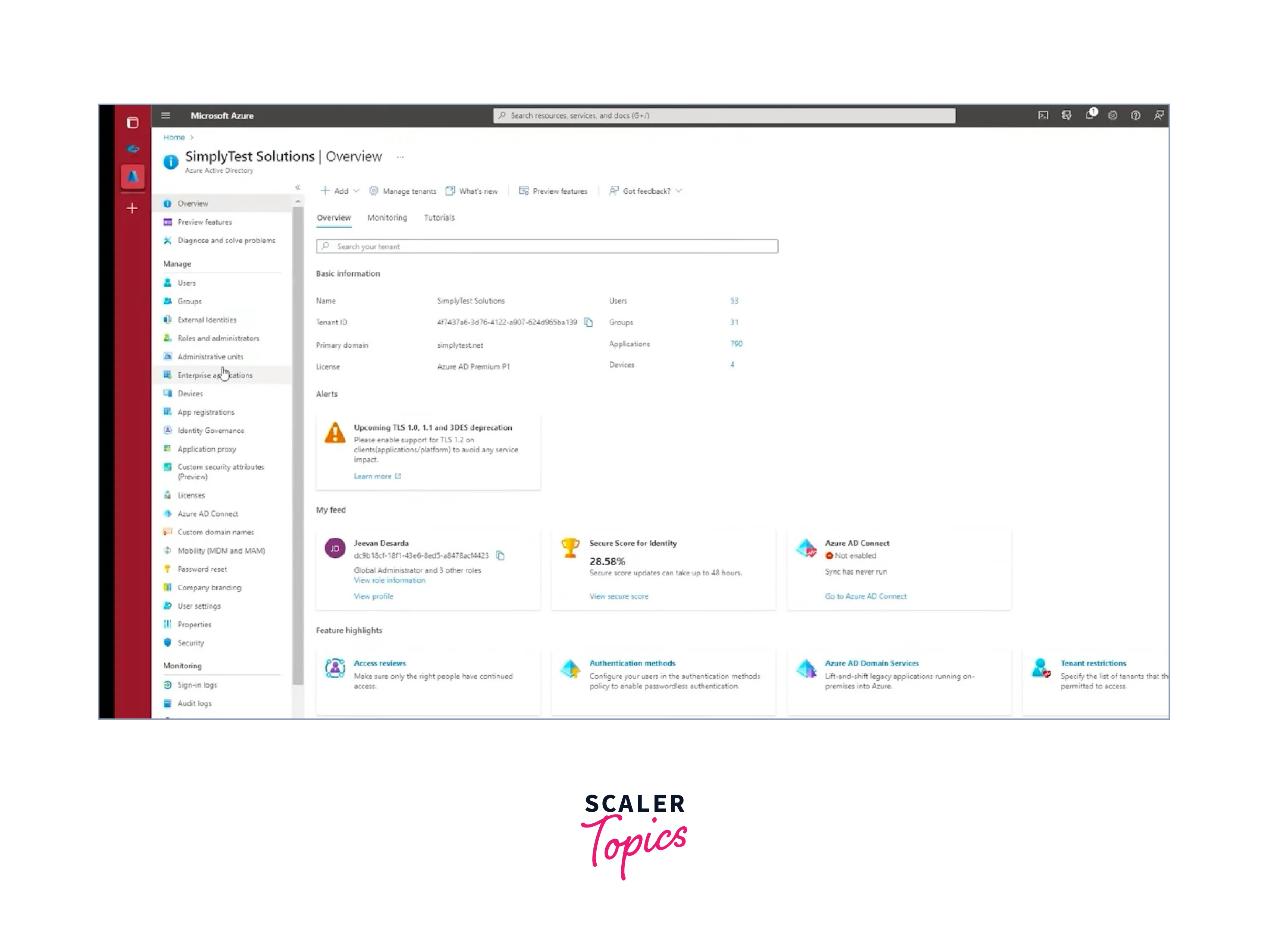
Go to Azure Portal in your web browser. Use the administrative Azure AD account you created to log in.
-
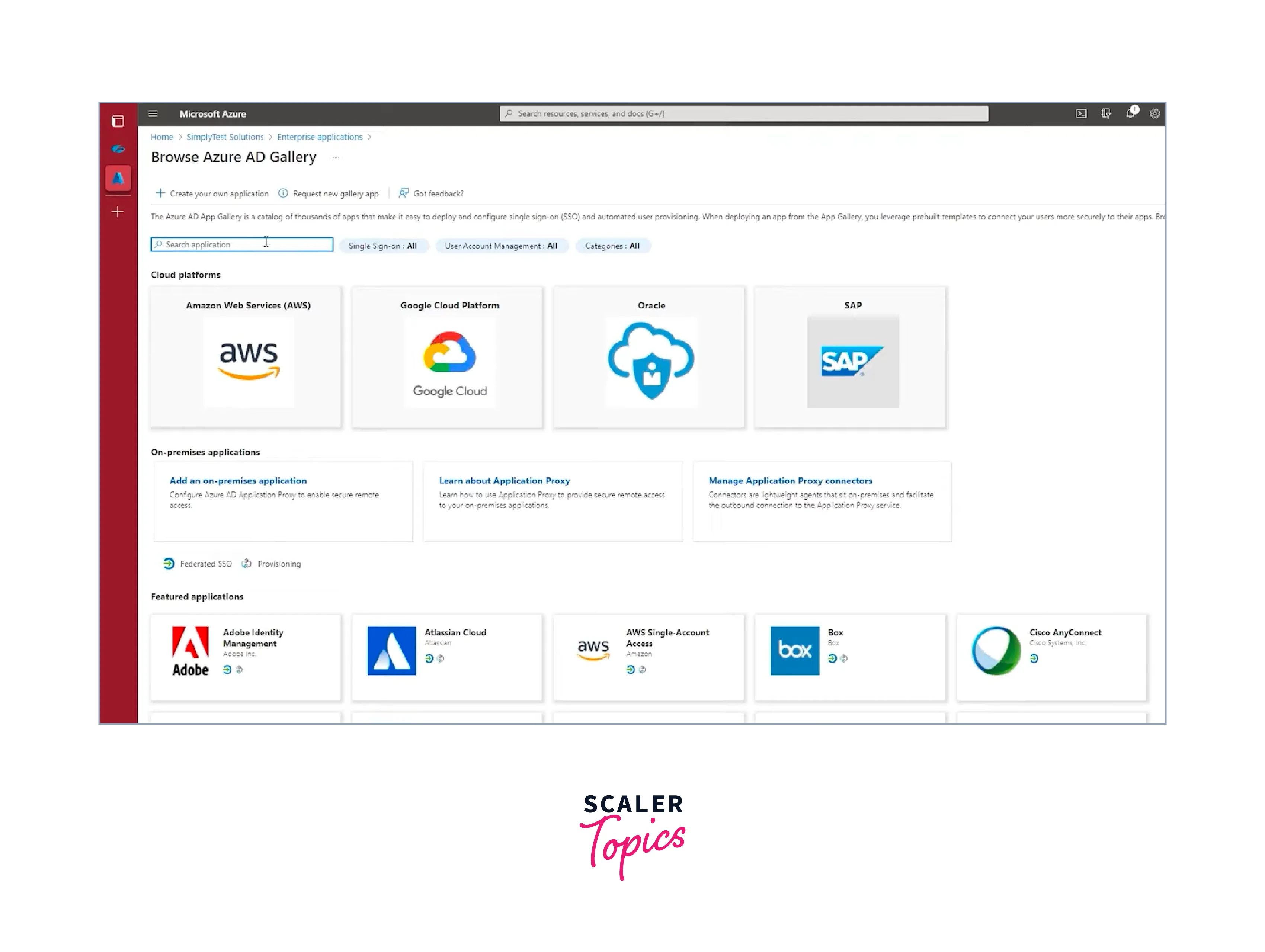
To create your application, click Create.
-
Enter a name for your application that is appropriate (such as "MySSOApp"). Choose "Non-gallery application" and then click "Create".
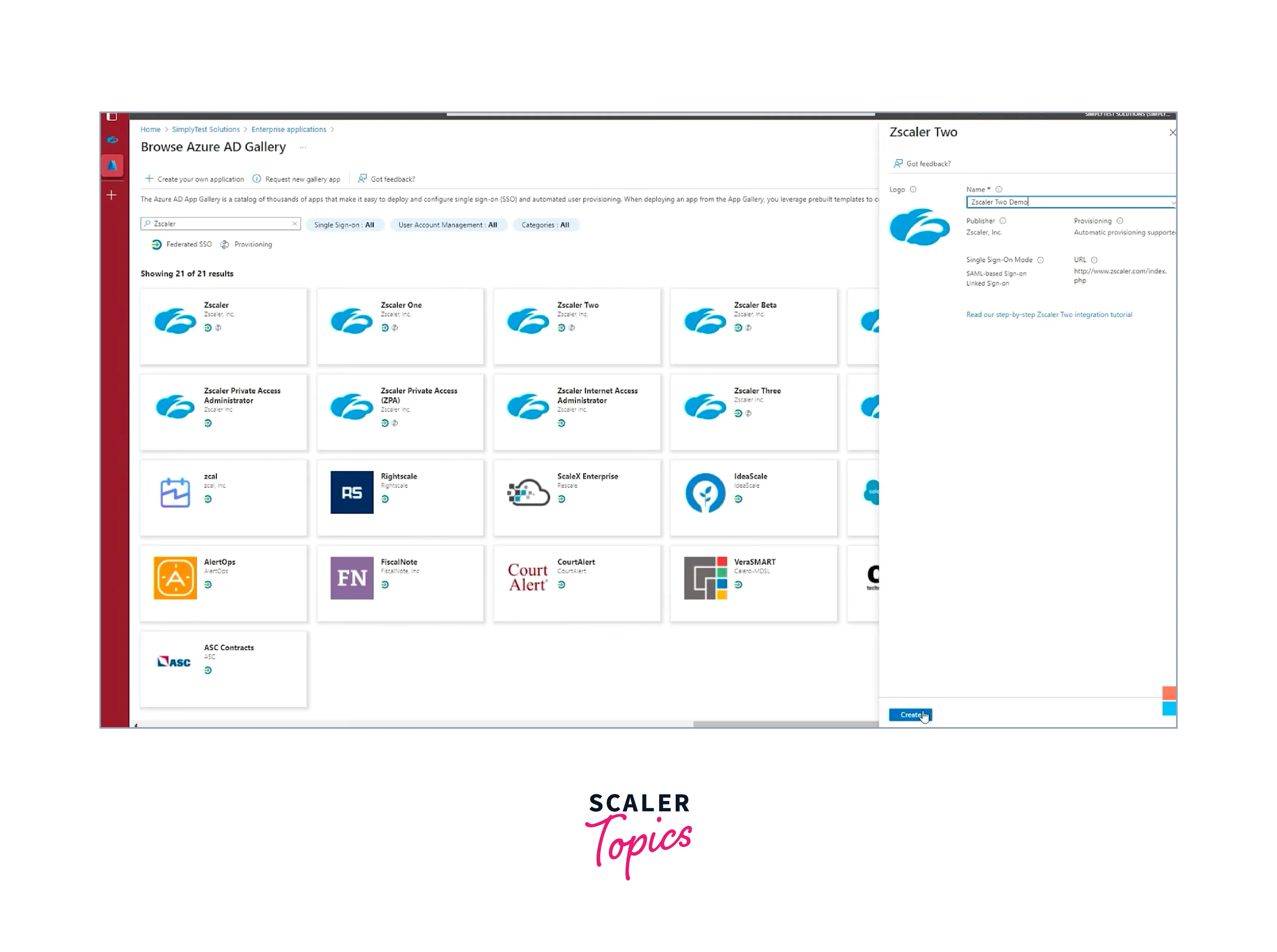
You will be taken to the application's "Overview" page after creating it.
-
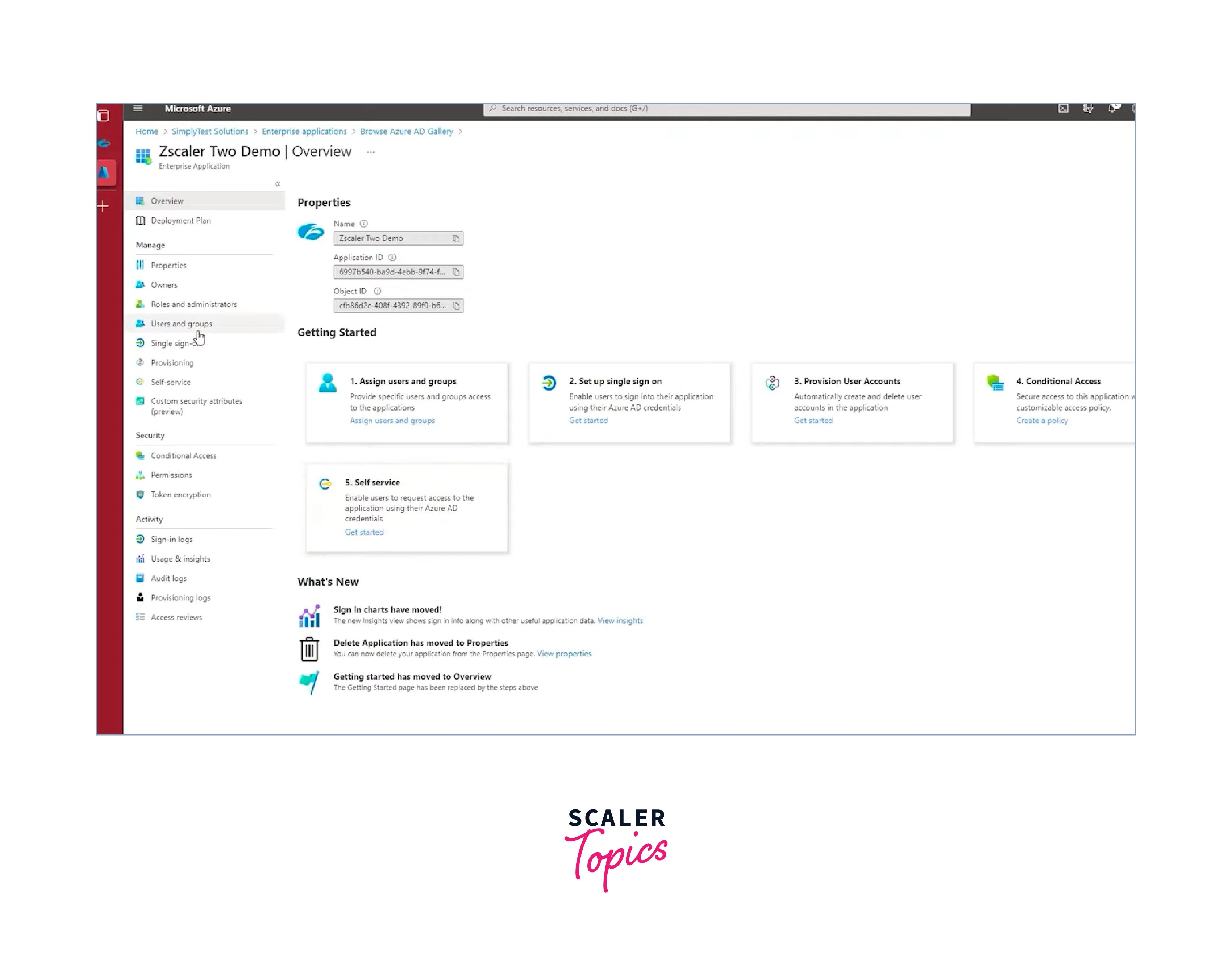
Go to the "Getting Started" menu item in the left menu. Select "Single sign-on" from the side menu or click "Configure single sign-on".
-
Choose "SAML" as the single sign-on mechanism on the "Configure Single Sign-On" page.
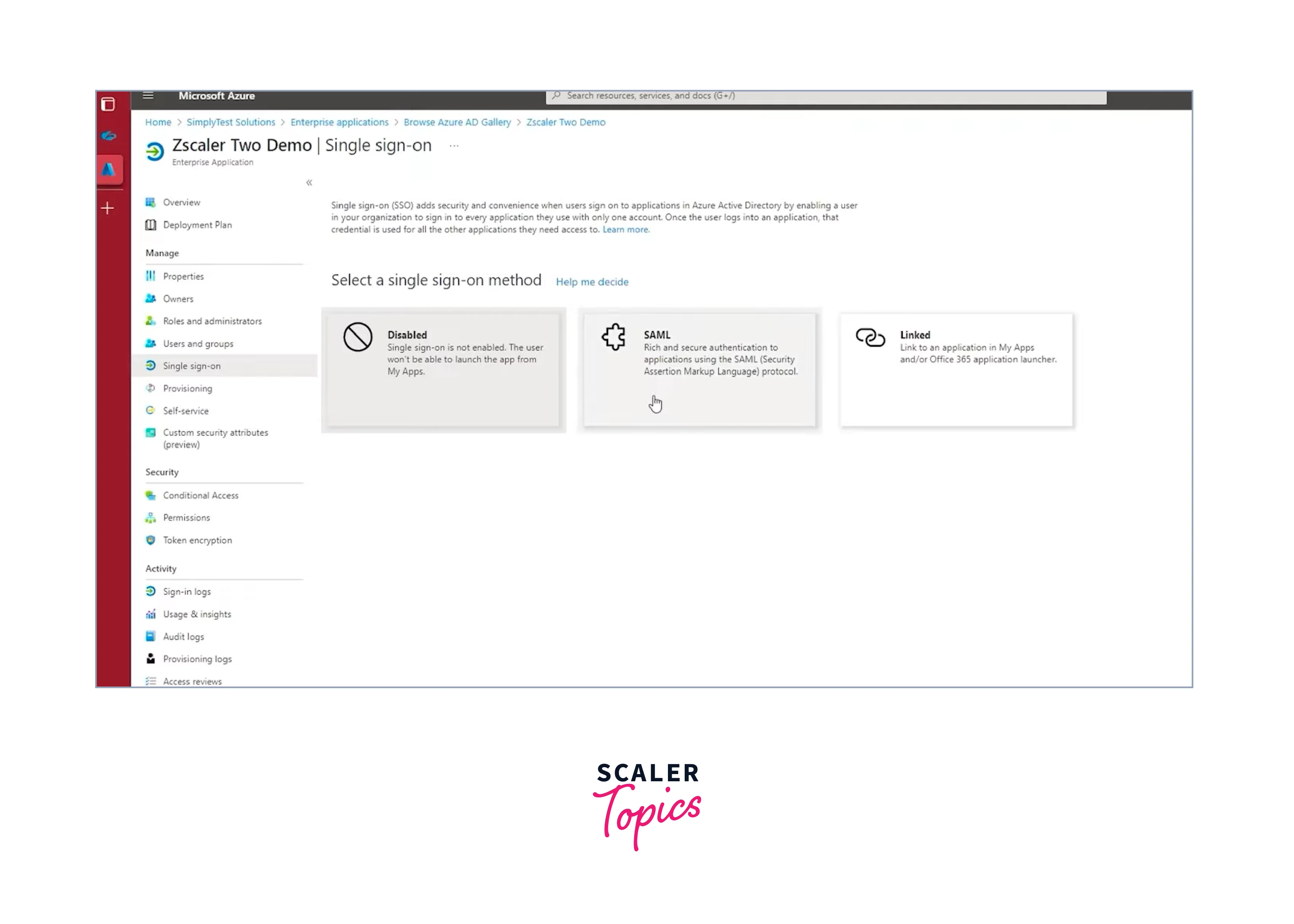
-
Click the pencil icon to make changes to "Basic SAML Configuration". You must enter the SAML-related parameters in the "Basic SAML Configuration" section. the following values are added:
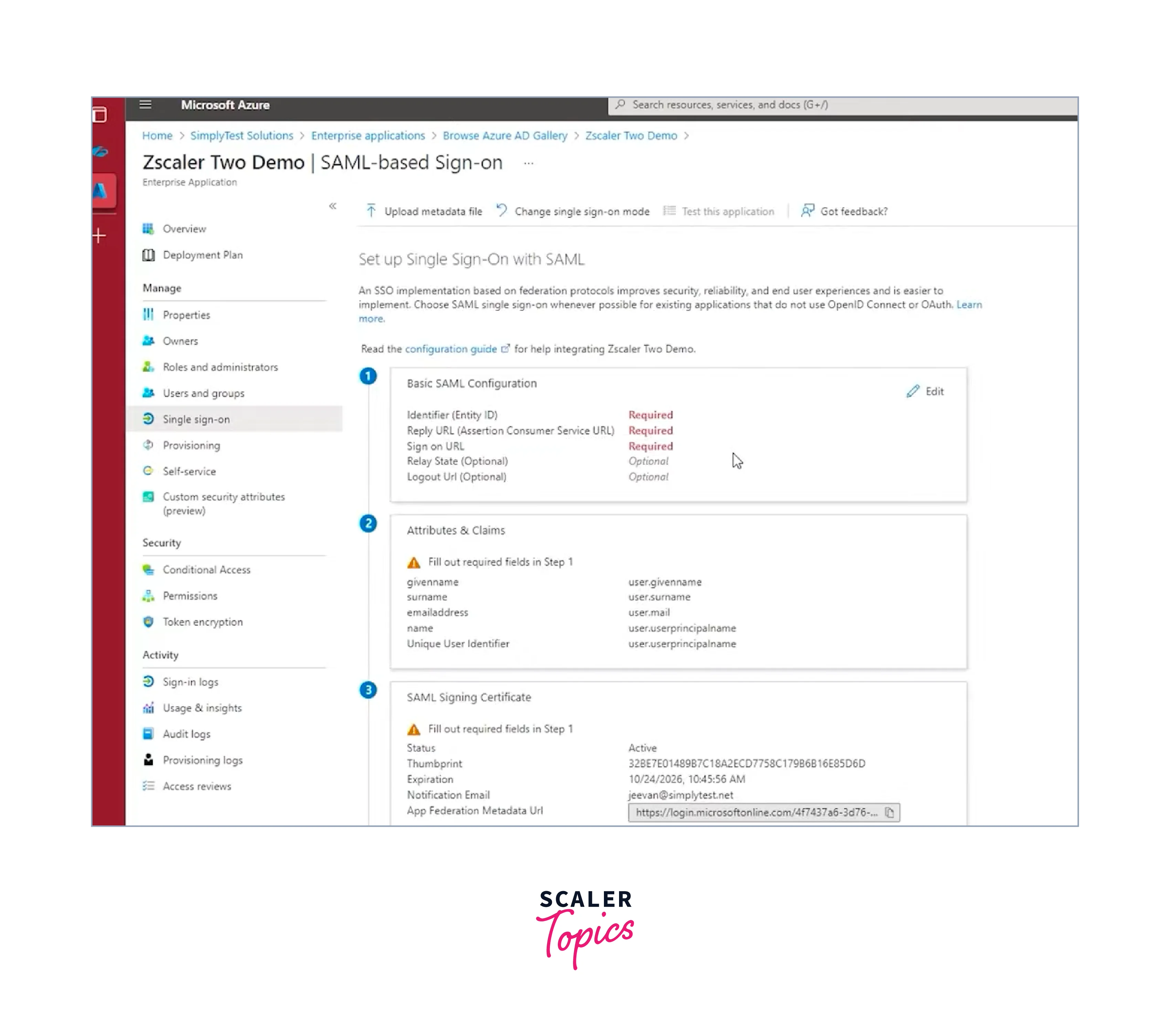
- Entity ID (Identifier):
Typically, this serves as your application's special identifier. This is typically contained in the SAML documentation for your application. - Response URL (Assertion Consumer Service URL):
After authentication, SAML assertions are transmitted to this URL. The endpoint in your application that manages SAML replies should match it. - Sign up here:
After a successful sign-on, users should be sent to this URL. It ought to serve as the main portal for your application.- The URL to which users are forwarded after logging out (optional).
- A parameter called "Relay State" that can be utilized for extra security or application-specific information.
- Entity ID (Identifier):
-
Click "Save" to store the Basic SAML Configuration after adding these values.
These instructions will walk you through the process of developing a new SAML-based SSO application in Azure Active Directory.
Common Pitfalls
Implementing Azure AD Single Sign-On (SSO) can be a complex process, and there are several common pitfalls to avoid:
- Inadequate Planning:
Failing to plan the SSO deployment thoroughly can lead to confusion and misconfigurations. Define your goals, understand your user base, and create a detailed plan before implementation. - Overlooking User Training:
Neglecting to train end-users about the new SSO process and its benefits can result in user resistance and support issues. Provide clear instructions and support resources to ensure a smooth transition. - Misconfiguring Application Integration:
Incorrectly configuring SSO for specific applications can lead to access issues and security vulnerabilities. Pay careful attention to the setup requirements for each app and follow best practices. - Neglecting Security Considerations:
Inadequate security measures, such as not enabling multi-factor authentication or overlooking conditional access policies, can expose your organization to risks. Always prioritize security when implementing SSO. - Failing to Monitor and Audit:
Once SSO is in place, it's essential to continuously monitor and audit user access and security settings. Ignoring this can lead to unnoticed issues and potential security breaches. - Not Backing Up Configuration:
Changes to SSO settings should be documented, and backups should be regularly created. Failing to do this can make it challenging to recover from misconfigurations or accidental changes. - Inadequate Testing:
Not thoroughly testing the SSO implementation with various user scenarios and applications can lead to unexpected problems after deployment. Rigorous testing is crucial for a smooth transition.
Comparison with Alternatives
Azure AD SSO vs. Alternatives in Identity and Access Management:
Okta:
-
Azure AD SSO:
- Strong integration with the Microsoft ecosystem.
- Built-in with Azure services.
-
Okta:
- Offers a broader range of application integrations.
- Strong focus on identity management and access control.
OneLogin:
-
Azure AD SSO:
- Seamless integration with Microsoft products.
- Extensive security features.
-
OneLogin:
- Known for its user-friendly interface and rapid deployment.
- Strong multi-factor authentication options.
Ping Identity:
-
Azure AD SSO:
- Well-suited for Microsoft-centric environments.
- Robust security options.
-
Ping Identity:
- Focuses on hybrid identity solutions.
- Offers a range of identity and access management services.
Google Identity Platform:
-
Azure AD SSO:
- Microsoft-oriented, ideal for Azure and Office 365 users.
- Advanced conditional access and identity protection.
-
Google Identity Platform:
- Tailored for G Suite and Google Cloud users.
- Strong identity services for the Google ecosystem.
The choice between Azure AD SSO and alternatives depends on an organization's specific needs, existing infrastructure, and preferences. Azure AD SSO excels in Microsoft-centric environments, while other solutions may offer broader application compatibility, user-friendliness, or specialization in certain aspects of identity and access management.
Conclusion
- Azure AD Single Sign-On (SSO) streamlines the user authentication process, allowing users to access multiple applications with a single set of credentials.
- Azure offers SSO through various methods, including password-based, federation-based, and social identity providers.
- Azure AD Seamless Single Sign-On simplifies user access by eliminating the need for passwords when accessing cloud-based applications.
- Azure AD Pass-Through Authentication authenticates users directly against on-premises Active Directory, enhancing security and reducing latency.
- Azure AD Multi-Factor Authentication (MFA) provides an additional layer of security by requiring multiple forms of verification for user access.