How to Create Button Animation in CSS?
 FREE
FREE

Overview
We will explore CSS button animations using HTML, and CSS in this Scaler Article. We will be learning the step-by-step process for creating button animations using CSS and the process will be completely beginner friendly.
Build an AI-First Career, Master the Complete Skillset
Choose from our industry-leading programs designed for career success
Modern Software and AI Engineering Program
Master full-stack development with AI integration


 +1000 more
Modern Data Science and ML with specialisation in AI
Advanced data science techniques with AI specialization
+1000 moreAdvanced AIML with Specialisation in Agentic AI
Deep dive into AIML with focus on Agentic systems
+1000 moreDevOps, Cloud & AI Platform Engineering
Build and manage AI-powered cloud infrastructure
+1000 moreAI Engineering Advanced Certification by IIT-Roorkee
Premier AI engineering certification from IIT-Roorkee

AI Forward Deployed Engineer Program
Full-stack engineering, production AI and client-facing consulting
+1000 moreHow to Create Button Animation in CSS?
Let’s see a step-by-step process of creating a simple button animation using CSS,
Step 1: Create Basic HTML Document
Step 2: Create a Button Tag
Create a button element with the class name .btn btn_1.
Output

Step 3: Apply Basic Stylings For the Button Element Inside the Style Element Within the Head Element
Apply basic stylings for the button element with CSS properties such as background color, margin, padding, border, outline, position, and cursor.
Output

How Scaler Transformed Careers in Different Fields
Scaler learners achieved 2.5x salary growth with average post-Scaler CTC reaching ₹23L.
 Google
 Amazon
 Microsoft
 Flipkart
 Adobe1200+ more
Step 4: Now, Let’s Create a Pop Button Animation
We will be using the pseudo-element (before) to create an animation effect and place this before element absolute to its parent element which is the button element with the class name btn btn_1 to have equal width and height, we will give it by assigning the top, bottom, left, right values to 0. Therefore, before pseudo-element will have its parent’s width and height. We are giving the z-index value as -1 because we want the before element to be next to the button element. Next, give the border property to the before pseudo-element with the appropriate border color and border size.
Step 5: Increase All the Borders Size of the Button Element Using the Calc Function
Now, hovering and focusing on the button element will create a pop button animation, for that we want to move all the button border positions (i.e., for top, bottom, left, and right properties) by using the calc function and move the border position by 2 times the original border position of the button. To have smooth animation, We will use the transition property.
Output
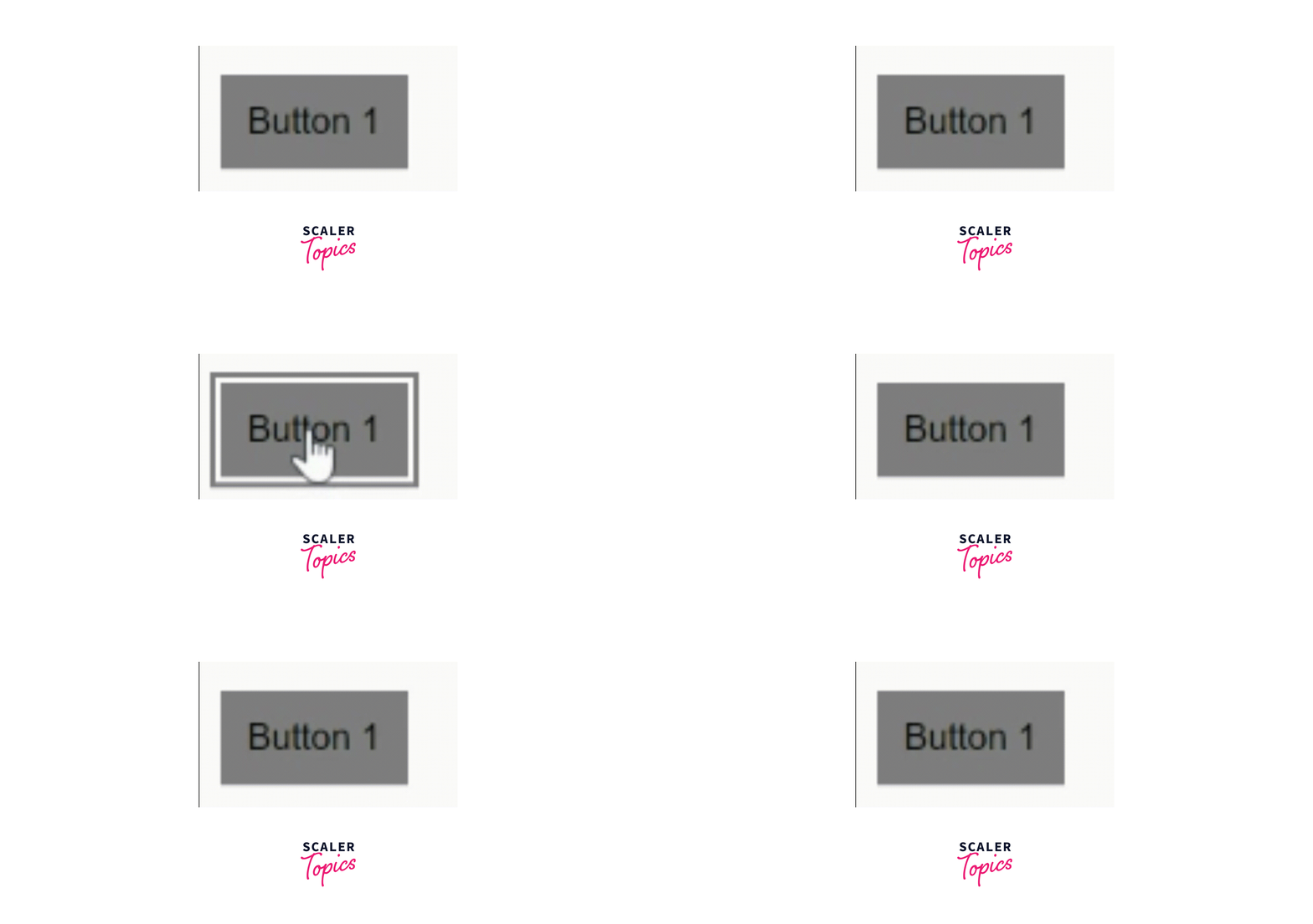
Complete Code
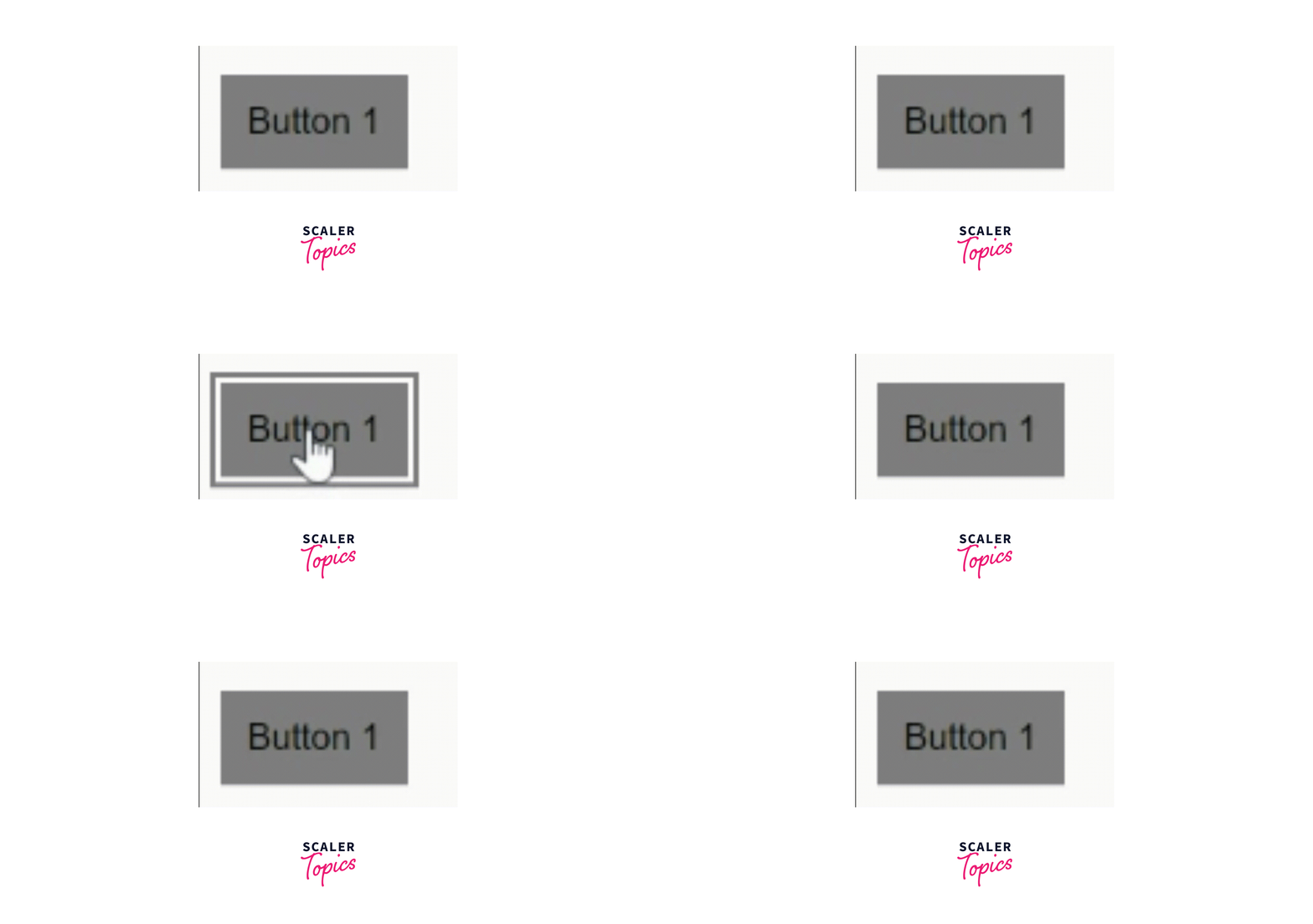
Output
Turn Learning into Career Growth
Examples of CSS Button Animations:
Let’s see some of the CSS button animations with code.
Example 1:
Output

Example 2:
Output

Conclusion
In this article we have seen a step-by-step procedure to create a button animation using CSS and also we have seen a few examples of button animations.
- We started by creating button elements and applying basic styling to the button using CSS.
- We need to create a animation effect to the button using CSS pseudo-element (i.e., before).
- Then, We have used transform and transition properties to create an animation effect and to have a smooth animation.