


Continuous Integration with Jenkins
Overview
Continuous integration is a developer practice that enables developers to often merge their code changes into a main repository, from which automated builds and tests are launched. This procedure is made easier by Jenkins, an open-source automation server that makes sure code is continuously merged and evaluated. In this blog, we will delve into various topics such as Automated Builds and testing, Code Quality Analysis, Continuous Integration Pipelines, failures, and best practices that we can follow.
Setting Up Jenkins for Continuous Integration
Before we can begin using Jenkins for CI, we need to set it up. Jenkins can be installed on various platforms, and once it's up and running, you can access its web interface to configure jobs, plugins, and pipelines. It's essential to ensure that Jenkins is configured correctly to match your development environment. Since every organization is moving towards containerization, we will be setting up Jenkins using Docker.
- Docker Installation: Follow Docker's official documentation guide to download the Docker on your Operating System.
- Verify Installation: Once installation is finished on your CMD or terminal, use the following command:
:bulb: Tip: You should see an output displaying the installed Docker version, confirming that Docker is up and running on your system.
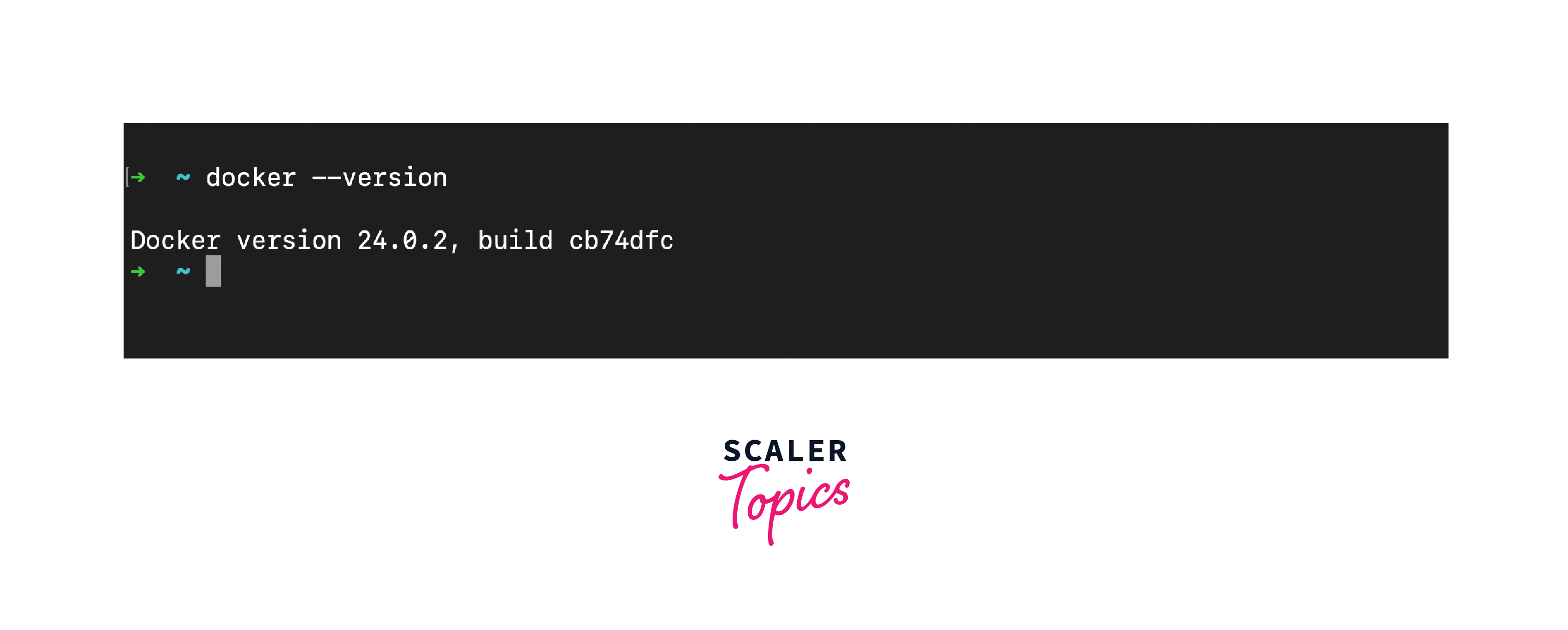
- Configure Docker Preferences (macOS and Windows): Docker Desktop offers preferences that allow you to customize resources like CPU and memory allocated to docker containers. Adjust these settings based on your system's capabilities and requirements.
- Start Docker: On macOS and Windows, the Docker Desktop can be started from the applications menu. On Linux, you might need to start the Docker service manually using the appropriate command.
- Pull the Official Jenkins Image: The official Jenkins Docker image is often recommended as it includes Jenkins pre-configured with essential plugins and security settings. Use the command to pull the Jenkins Image.
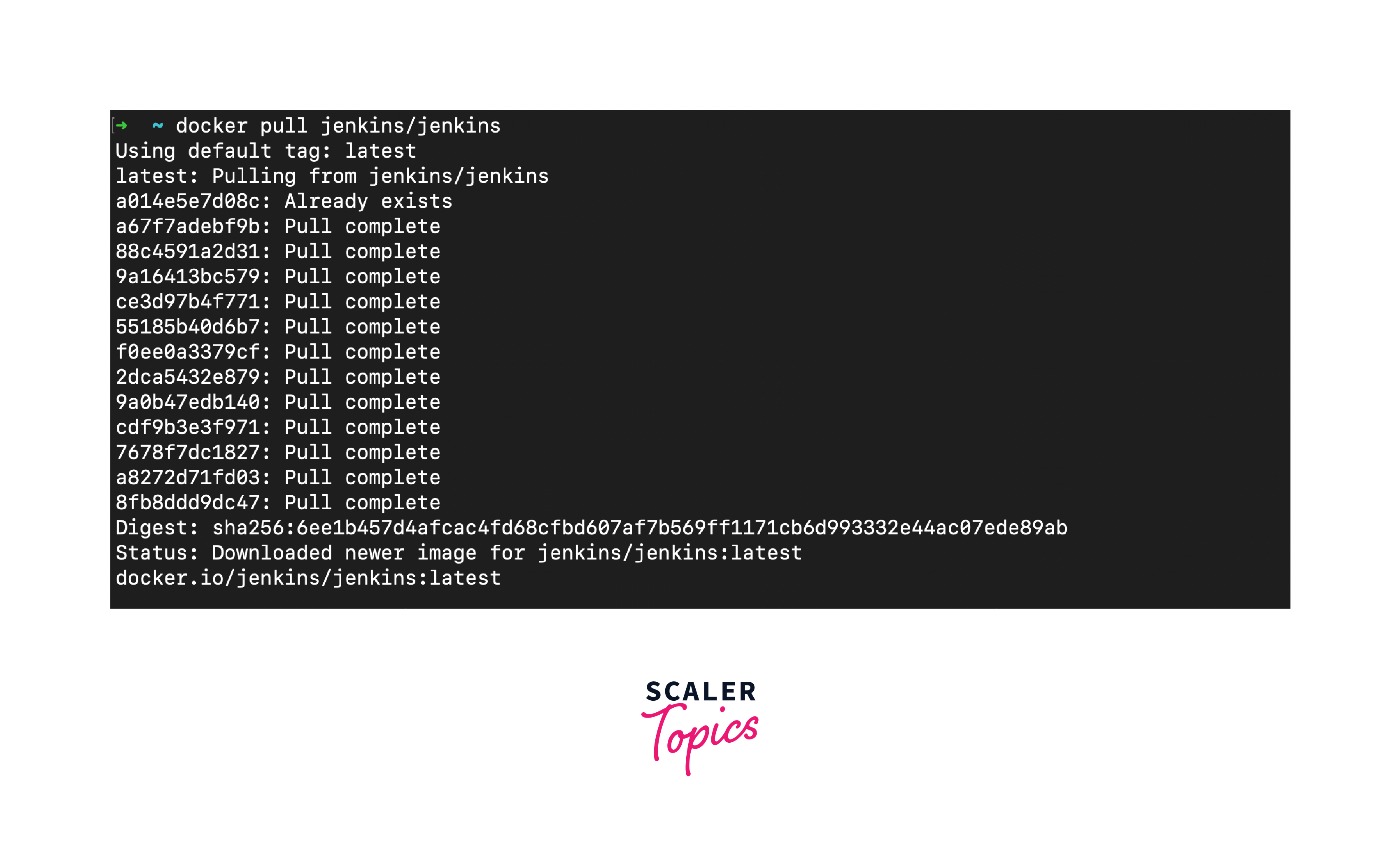
- Once the image is downloaded, to start it as a container use the following command::
- The '-d' flags are used for running in detached mode.
- The '-p' flags translate the container's ports to host ports for agent communication and web access.
- The '--name' flag gives the container a name for simple management.
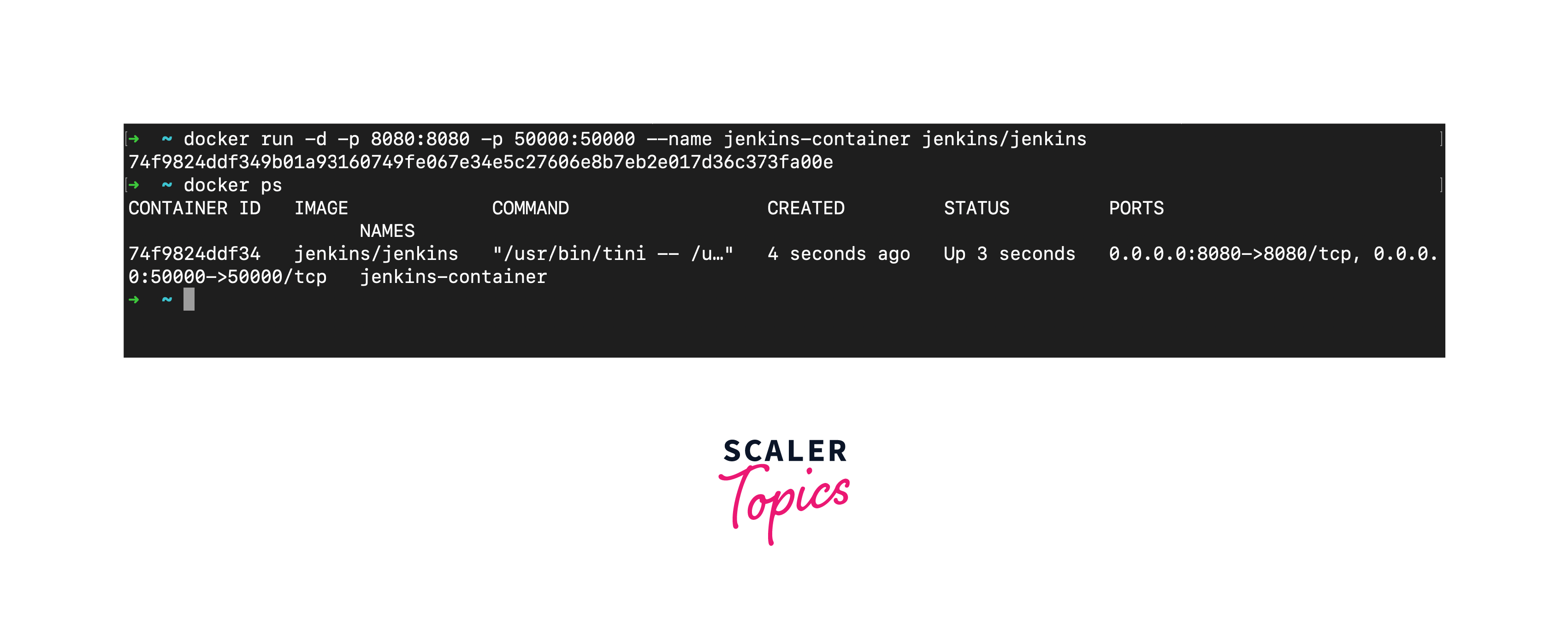
- Access Jenkins Web Interface: On your localhost http://localhost:8080 you will be prompted something like this. Which is prompted when you first start the Jenkins server.
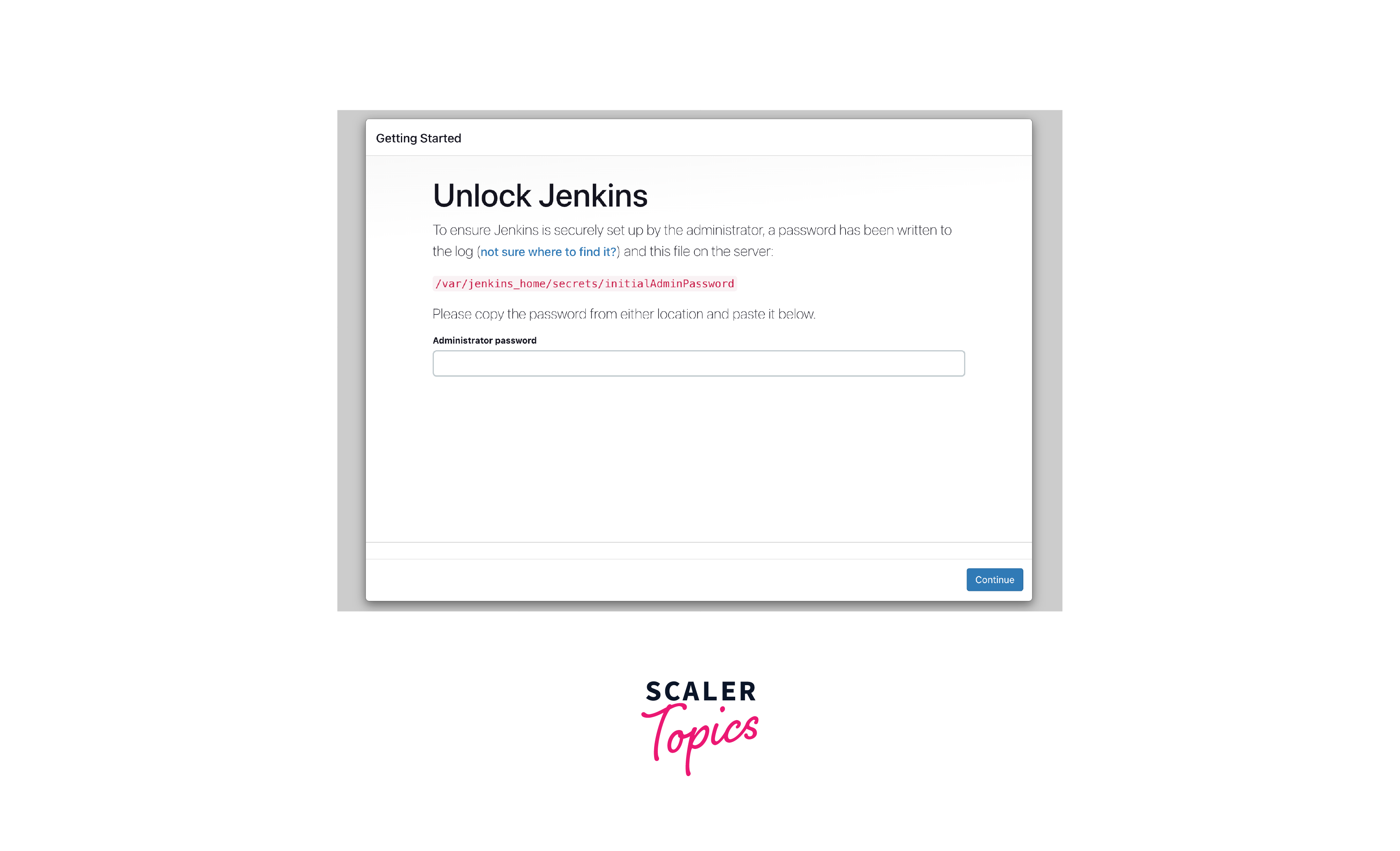
To obtain the initial admin password, use the following command:
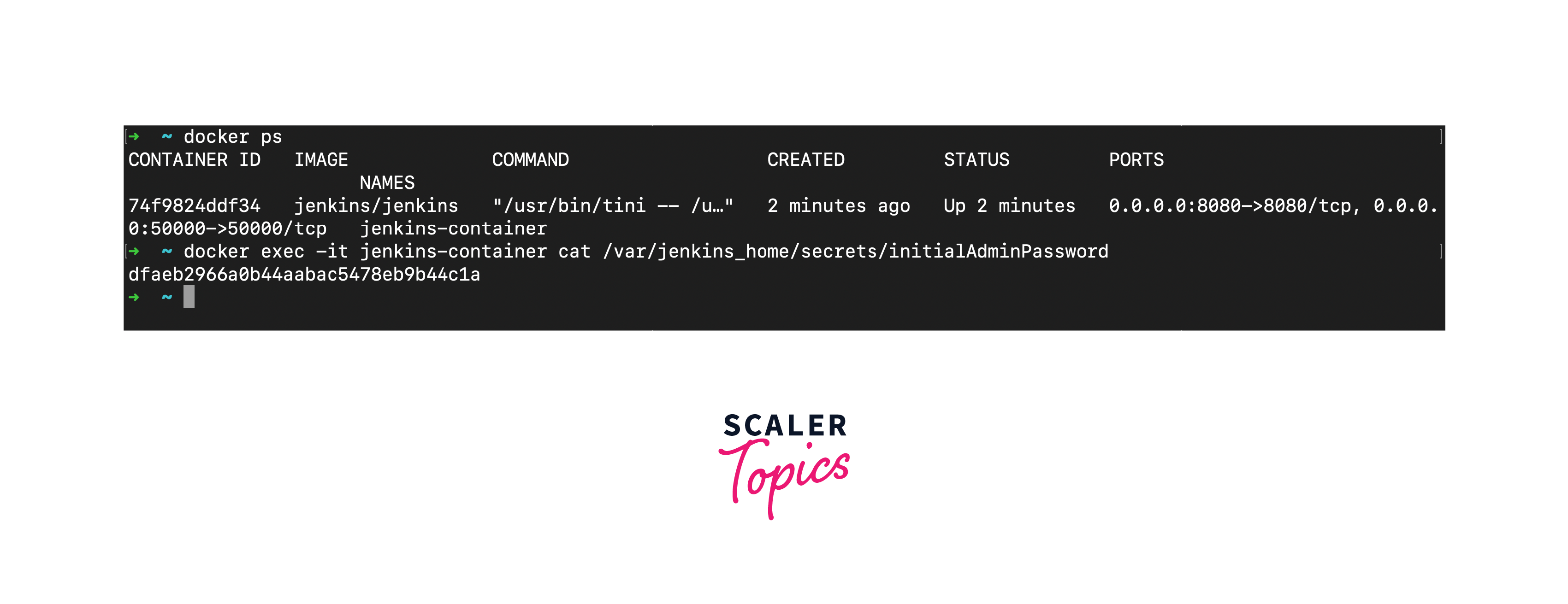
Copy and paste the provided password into the web interface to proceed.
Once done set up your login user and password and continue normally.
Jenkins Jobs for CI
Imagine Jenkins as the conductor of an orchestra, and the Jenkins jobs as the musicians. Each musician (job) has a specific role and plays their part in creating a harmonious symphony (CI/CD pipeline). Here are some of the key tasks that Jenkins jobs perform:
- Building Code: One of the primary tasks of a Jenkins job is to build your code. Building involves compiling your source code, resolving dependencies, and generating executable artifacts. A successful build ensures that your code is in a state where it can be tested and deployed.
- Running Tests: After the code is built, Jenkins jobs are responsible for running various types of tests, including unit tests, integration tests, and functional tests. The results of these tests determine the quality of your code and whether it meets your project's requirements.
- Artifact Management: Jenkins jobs can also handle artifact management. They can upload generated artifacts to a repository, making it easy to distribute and deploy your application to different environments.
- Deployment: In some cases, Jenkins jobs are configured to handle deployment tasks. This might involve deploying your application to staging environments for further testing or even automating production deployments in a Continuous Deployment (CD) setup.
Configuring Jenkins Jobs Correctly
Configuring Jenkins jobs correctly is pivotal to the success of your CI pipeline. Here are some key points and practices
- Job Naming: Use clear and descriptive names for your Jenkins jobs. This makes it easy for team members to understand their purpose at a glance.
- Parameterization: Whenever possible, parameterize your jobs. This allows you to reuse jobs for different branches, projects, or environments by passing parameters dynamically.
- Source Control Integration: Link your jobs to your version control system. Configure them to trigger when changes are detected in the repository. This automation ensures that code is built and tested as soon as new changes are pushed.
- Error Handling: Implement robust error handling and notifications. Jenkins jobs should notify relevant team members when they encounter failures, ensuring rapid issue resolution.
- Logging and Reporting: Use Jenkins' built-in logging and reporting capabilities to track job execution, view test results, and identify bottlenecks or areas for improvement.
By configuring Jenkins jobs correctly and following best practices, you can ensure that your CI process runs smoothly, enabling your team to focus on creating great software without worrying about manual, error-prone tasks.
Integrating Version Control with Jenkins
Integrating version control with Jenkins is akin to connecting the lifeblood of your software project with its heartbeat—the version control system is where your code lives, evolves and gets documented, while Jenkins serves as the automation engine that ensures the code remains healthy and deployable. Here's why this integration is pivotal:
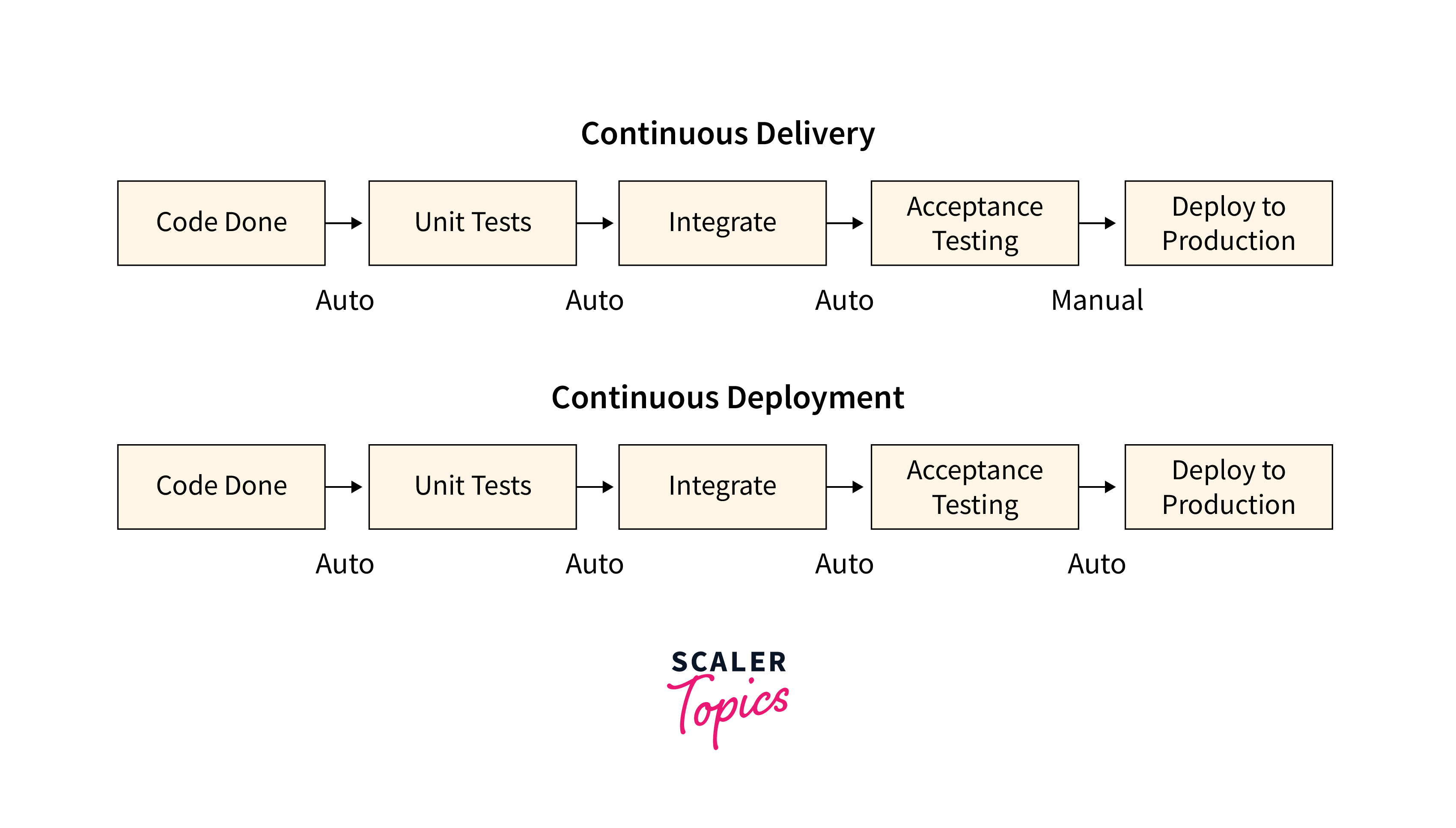
- Automated Triggers: Jenkins, integrated with your version control system, automatically initiates builds, tests, and deployments upon code changes, ensuring rapid feedback and minimal manual intervention.
- Consistency: Jenkins builds your codebase consistently from the version control system, ensuring all team members work with the latest code version and preventing divergence-related issues.
- Traceability: Jenkins links jobs to version control commits and branches, enhancing traceability to identify and address issues by tracking changes leading to specific build results.
- Collaboration: Jenkins integration promotes collaboration by enabling branch work, feature experimentation, and confidence pull request submissions with automated validation.
Seamless Integration with Jenkins
Jenkins is renowned for its flexibility and extensive plugin ecosystem, and this extends to its support for version control systems. Here's how you can seamlessly integrate your chosen version control system with Jenkins:
- Install Necessary Plugins: Choose and install the relevant version control system plugin in Jenkins (e.g., "Git Plugin" for Git).
- Configure SCM: In your job settings, select your SCM (e.g., Git, Subversion), provide the repository URL, and include credentials if needed.
- Specify Branches: Determine which branches trigger builds, whether it's all branches or specific ones like "master" or "develop."
- Build Configuration: Define actions for Jenkins to perform on code changes, such as building, testing, and generating artifacts.
- Set Notifications: Enable notifications for the team about build status and issues via email, Slack, or other notification plugins.
These steps establish a strong Jenkins integration with your version control system, enabling automated CI for improved collaboration, code consistency, and rapid feedback. This integration keeps your codebase reliable and always ready for development or production deployment.
Automated Build and Compilation
Jenkins offers excellent support for automated builds through various plugins and build tools. Here's how Jenkins typically handles automated build and compilation:
- Job Configuration: Define build steps, parameters, and triggers in your Jenkins job configuration.
- Build Tool Integration: Integrate Jenkins with build tools like Apache Maven, Gradle, Ant, or custom scripts to match project requirements.
- Build Environment: Specify a consistent build environment with the necessary software and dependencies for seamless builds.
- Artifact Archiving: Archive generated artifacts after successful builds for downstream pipeline stages like testing and deployment.
- Customization: Customize build configurations and set post-build actions, such as notifications or triggering additional jobs, to suit your project's needs.
Automated build and compilation involve essential steps:
- Compilation: Convert human-readable source code into machine-executable code using a compiler or interpreter.
- Dependency Resolution: Ensure all needed external libraries or frameworks are available and correctly linked.
- Artifact Generation: Create artifacts like binary executables or libraries as build output for use in testing and deployment.
Jenkins, with its robust plugin ecosystem and extensive build tool support, empowers teams to automate these critical tasks efficiently and reliably, ultimately leading to higher software quality and faster development cycles.
Automated Testing with Jenkins
Automated testing is a cornerstone of any modern software development process. Here's why it's necessary:
- Early Bug Detection: Immediate execution of automated tests upon code changes detects bugs early, reducing costs and simplifying fixes.
- Regression Testing: Automated tests safeguard against unintentional feature breakage as code evolves.
- Consistency: Automated tests maintain testing consistency, reducing the risk of human error.
- Documentation: Test suites serve as codebase documentation, guiding engineers on component operation and simplifying maintenance.
Now we know why automated testing is important but by using Jenkins you could use several other features and plugins to facilitate automated testing and make your testing easier and faster:
- Test Execution: Jenkins can execute tests by integrating with various testing frameworks and tools. For example, it can run JUnit tests for Java projects, PyTest for Python, or Selenium for web applications.
- Test Reports: After running tests, Jenkins collects and aggregates test results, making them accessible through its web interface. This allows you to quickly identify which tests have passed or failed.
- Notifications: Jenkins can notify relevant team members or stakeholders when tests fail, enabling prompt action to address issues.
- Parallel Testing: Jenkins supports parallel test execution, which significantly reduces test suite execution time, especially for large projects.
- Test Trend Analysis: Jenkins can track test results over time, enabling you to identify trends in test success and failure rates. This can help pinpoint areas of concern in your codebase.
Code Quality Analysis and Reporting
Code quality analysis is the process of evaluating source code to identify potential issues, security vulnerabilities, and deviations from coding standards. Here's why it's essential:
- Early Issue Detection: Code quality analysis tools can identify issues early in the development process, allowing developers to address them before they propagate into production code.
- Security: Identifying security vulnerabilities in code is crucial in today's threat landscape. Code quality analysis tools can flag potential security issues, helping you build more secure software.
- Maintainability: High-quality code is easier to maintain. It's more readable, less prone to bugs, and simpler to extend or modify as project requirements change.
- Compliance: Many industries and organizations have coding standards and compliance requirements. Code quality analysis ensures that your code aligns with these standards.
Jenkins seamlessly integrates with a variety of code quality analysis tools, some of the most notable being SonarQube, Checkmarx, and ESLint. Here's how Jenkins facilitates this integration:
- Plugin Ecosystem: Jenkins boasts a vast plugin ecosystem, including plugins for popular code quality analysis tools. You can easily install and configure these plugins to connect Jenkins to your chosen code analysis tool.
- Automated Analysis: Once configured, Jenkins can automatically trigger code quality analysis whenever code changes are detected in the version control system. This ensures that every code commit is analyzed for quality and security.
- Customizable Thresholds: Jenkins allows you to set customizable quality gates or thresholds. If code quality metrics fall below these thresholds, Jenkins can mark the build as unstable or even fail it, preventing the integration of poor-quality code.
- Reporting and Visualization: Jenkins provides reporting and visualization capabilities for code quality metrics. You can view trends, historical data, and detailed reports on code quality issues directly from the Jenkins interface.
By automating the analysis process and providing actionable insights, Jenkins ensures that code quality remains a top priority throughout the software development lifecycle, ultimately leading to more reliable and secure software products.
Continuous Integration Pipelines
Continuous Integration Pipelines serve as the backbone of an automated CI/CD process. They define the steps, stages, and actions that your code must go through before reaching production. Here's why they are indispensable:
- Orchestration: Pipelines automate the entire CI/CD workflow, ensuring consistent code movement from compilation to deployment.
- Consistency: Pipelines treat all code changes equally, reducing errors and ensuring a consistent process.
- Versioning: Pipeline configurations are versioned alongside application code, enabling change tracking and collaboration.
- Reusability: Modular pipeline templates can be reused across projects, enhancing consistency and reducing development effort.
Configuration and Workflow
To set up Declarative Pipelines in Jenkins, you typically follow these steps:
- Install Required Plugins: Ensure that you have the necessary plugins installed, such as the "Pipeline" plugin, to support Declarative Pipelines.
- Create a Jenkinsfile: Jenkins Pipelines are defined in a file called "Jenkinsfile" that resides in your project's version control repository. This file contains the pipeline configuration as code.
- Define Stages: In the Jenkinsfile, define the stages of your pipeline, specifying the actions to be performed in each stage (e.g., build, test, deploy).
- Triggers: Configure triggers to initiate the pipeline. Triggers can be manual (initiated by a developer) or automatic (e.g., triggered by code commits).
- View and Monitor: Jenkins provides a user-friendly interface to view and monitor pipeline executions. You can see the progress of each build, view logs, and access detailed reports.
Jenkins' support for Declarative Pipelines simplifies the process, making it accessible to both experienced and novice users. With pipelines in place, you can confidently manage your software projects, respond to changes efficiently, and deliver high-quality software to your users.
Handling Continuous Integration Failures
CI failures are an inevitable part of the software development process. They can be caused by a variety of reasons, including coding errors, environmental issues, or changes in dependencies. Here's why addressing CI failures promptly is vital:
- Rapid Feedback: CI aims to provide rapid feedback on code changes. Failures delay this feedback, potentially allowing issues to propagate further into the development process.
- Preventing Regression: A failed build or test suite can indicate that recent code changes have introduced regressions. Addressing these regressions quickly prevents the reintroduction of known issues.
- Resource Management: Failed builds or tests consume resources in your CI/CD environment. Cleaning up and resolving failures promptly ensures optimal resource utilization.
- Team Productivity: Developers rely on CI feedback to guide their work. When CI is unreliable due to frequent failures, it can disrupt the development workflow and reduce team productivity.
Hence Jenkins offers several features to help teams handle CI failures effectively:
- Robust Error Handling: Jenkins handles build/job failures by marking builds as unstable for minor issues, distinguishing them from complete failures.
- Custom Notifications: Use various notification options in Jenkins, such as email, Slack, or custom scripts, to alert the team about build or test failures.
- Post-Build Actions: Define actions in Jenkins for specific tasks after building failures, like notifications, report generation, or triggering additional jobs.
- Artifact Preservation: Jenkins preserves build artifacts, even after failures, enabling post-failure analysis and debugging.
- Quick Response: Timely notifications enable prompt issue identification and resolution, reducing downtime.
Handling Continuous Integration failures is an essential part of maintaining a healthy and efficient development workflow. Jenkins provides the tools and mechanisms necessary to detect, manage, and resolve failures promptly. By configuring robust error handling and timely notifications, development teams can ensure that CI failures are addressed swiftly, enabling them to deliver high-quality software with greater efficiency and confidence.
Continuous Integration Best Practices
- Automate Everything: Make automation central to CI by automating building, testing, and deployment. Automation ensures consistency, reduces errors, and speeds up feedback loops.
- Utilize Version Control: A robust version control system (e.g., Git, SVN) is essential for tracking changes, collaborating, and seamlessly integrating code changes into the CI pipeline.
- Optimize Builds: Prioritize efficiency for fast feedback. Implement incremental builds, caching, and parallelization to minimize build times.
- Comprehensive Testing: Establish a thorough testing strategy with unit, integration, and end-to-end tests running as an integral part of the CI pipeline to quickly identify regressions.
- Dependency Management: Isolate each CI build with its set of dependencies. Use dependency management tools (e.g., Maven, npm) to manage libraries.
- Parallelize Testing: Reduce test execution time by running test suites in parallel across multiple nodes or agents.
- Provide Timely Feedback: Offer prompt feedback to developers with build status indicators, notifications, and detailed reports.
- Enforce Naming Conventions: Maintain consistent naming conventions for projects, jobs, branches, and artifacts to improve organization.
- Monitor and Collect Metrics: Continuously monitor CI builds and pipelines to identify performance bottlenecks and areas for improvement.
- Pipeline as Code: Define CI/CD pipelines as code (e.g., Jenkins Pipeline DSL, YAML configurations) to make them versionable, repeatable, and easier to manage.
- Optimize Resource Usage: Adjust the scale of your CI infrastructure as needed, considering cloud-based or containerized agents for flexibility and resource efficiency.
Continuous Delivery and Deployment
Continuous Integration (CI) sets the foundation for a streamlined development workflow, but to truly optimize software delivery, we turn to Continuous Delivery (CD) and Continuous Deployment (CD). These practices extend CI by automating the deployment process, ensuring that code changes can be delivered to production reliably and efficiently. Jenkins, with its flexibility and extensibility, can seamlessly integrate with CD tools to achieve end-to-end automation.
Continuous Delivery vs. Continuous Deployment
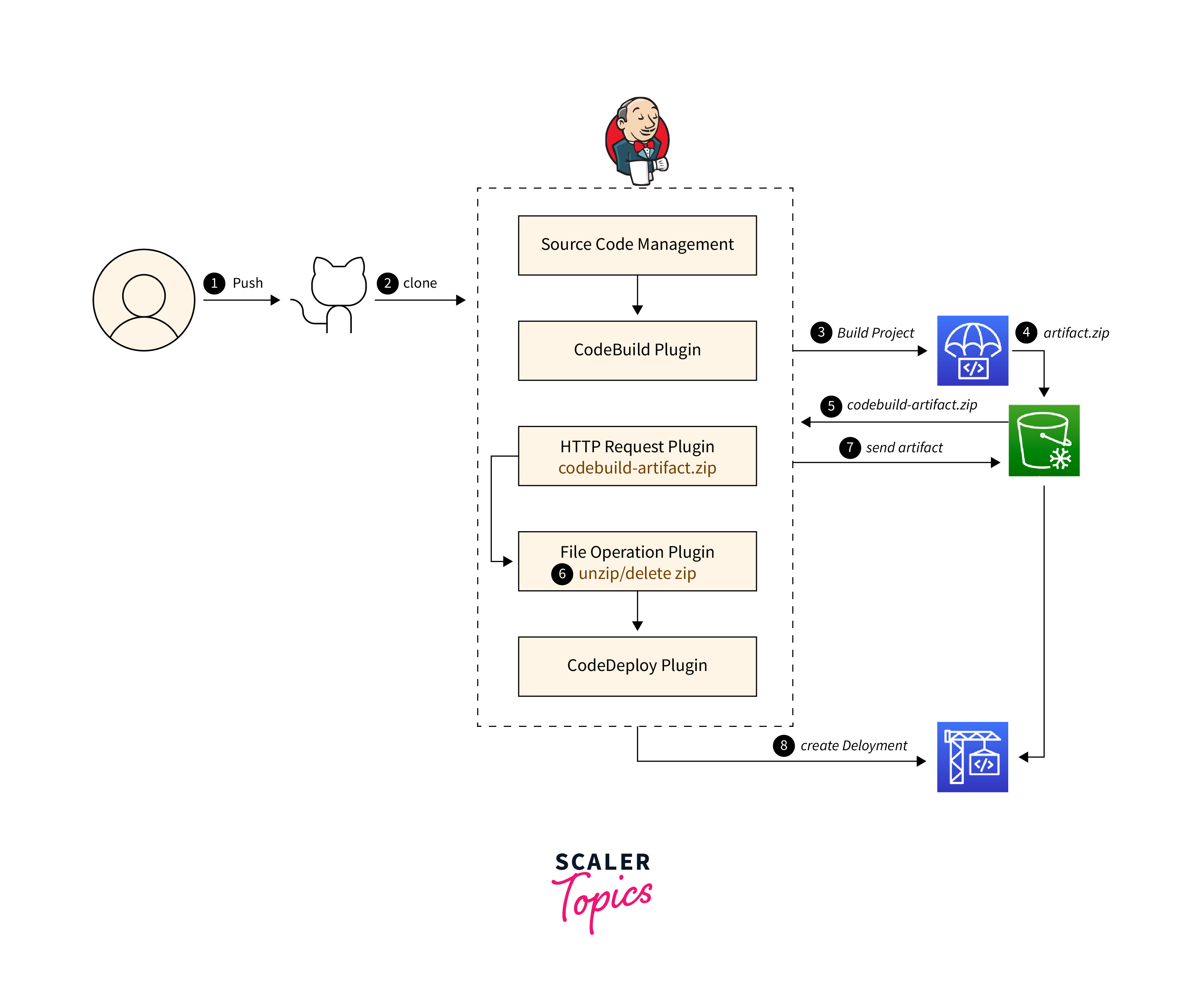
- Continuous Delivery (CD): In CD, every code change that passes CI is automatically prepared for deployment to production-like environments. However, the actual deployment to production is still a manual decision. CD ensures that code is always in a deployable state, allowing teams to deploy at any time with minimal risk.
- Continuous Deployment (CD): CD takes automation one step further. With CD, code changes that pass CI are automatically and immediately deployed to production without manual intervention. This approach requires a high level of confidence in your automated testing and deployment processes.
Jenkins in Continuous Delivery and Deployment
Jenkins plays a crucial role in orchestrating Continuous Delivery and Continuous Deployment pipelines. Here's how Jenkins can be integrated into your CD/CD process:
- Pipeline as Code: Jenkins Pipelines, defined as code in a "Jenkinsfile," allow you to describe your entire CD/CD process. This includes building, testing, packaging, and deploying your application.
- Integration with Deployment Tools: Jenkins can integrate seamlessly with CD tools like Kubernetes, Docker, and various cloud providers. These integrations enable you to automate deployment to different environments.
- Approval Gates: In a Continuous Delivery scenario, Jenkins can be configured to require manual approval before promoting code to production. This adds an extra layer of control.
- Environment Promotion: Jenkins can manage environment promotion, ensuring that code changes move seamlessly through development, testing, staging, and production environments.
- Rollback Automation: Jenkins Pipelines can include rollback procedures in case of deployment issues. This ensures that you have a clear plan for handling unexpected problems.
- Monitoring and Alerts: Jenkins can be configured to monitor application health after deployment. It can send alerts or trigger automatic rollbacks if it detects issues.
Continuous Delivery and Continuous Deployment, when integrated with Jenkins, offer the automation and reliability required to deliver software continuously and with confidence.
Conclusion
- Continuous Integration with Jenkins is a pivotal practice that empowers development teams to achieve rapid and reliable software delivery.
- Jenkins serves as the linchpin in this process, orchestrating the entire workflow, from code integration to deployment.
- It automates repetitive tasks, ensures code quality, and fosters collaboration among team members.
- With Jenkins, teams can embrace automation, reduce manual errors, and accelerate their software development lifecycle.
- Continuous Integration, when coupled with Continuous Delivery or Continuous Deployment, represents the pinnacle of modern software development practices.
- As you embark on your CI/CD journey with Jenkins, remember to adhere to best practices, automate relentlessly, and prioritize code quality.
- In doing so, you'll not only streamline your development process but also deliver high-quality software that meets the demands of today's fast-paced digital world.