


How to Delete Linux Partition?
Build an AI-First Career, Master the Complete Skillset
Choose from our industry-leading programs designed for career success
Modern Software and AI Engineering Program
Master full-stack development with AI integration


 +1000 more
Modern Data Science and ML with specialisation in AI
Advanced data science techniques with AI specialization
+1000 moreAdvanced AIML with Specialisation in Agentic AI
Deep dive into AIML with focus on Agentic systems
+1000 moreDevOps, Cloud & AI Platform Engineering
Build and manage AI-powered cloud infrastructure
+1000 moreAI Engineering Advanced Certification by IIT-Roorkee
Premier AI engineering certification from IIT-Roorkee

AI Forward Deployed Engineer Program
Full-stack engineering, production AI and client-facing consulting
+1000 moreOverview
Deleting a partition in Linux is a typical action that helps you to effectively manage your storage space. Whether you wish to delete an unnecessary partition or alter your disc layout, Linux has several tools to assist you. This comprehensive tutorial will walk you through the process of erasing a partition in Linux step by step, ensuring that you can complete the task with confidence. By following these steps, you can reclaim disc space, optimize your storage, and keep your system organized.
Introduction
Partitions are logical disc divisions that enable efficient data organization and administration. When installing or configuring Linux, you can create numerous partitions to divide your operating system files, user data, and other unique storage requirements. However, when your system grows and your needs change, you may need to delete a partition. Deleting a partition might help you free up space, consolidate partitions, or just change your disc structure to meet your requirements.
While removing a partition may appear to be a difficult procedure, Linux includes powerful tools and utilities to make the process easier. Please keep in mind that removing a partition results in permanent data loss. As a result, before beginning the deleting procedure, make a backup of any vital data. Furthermore, use caution and confirm that you have selected the correct partition to delete, as selecting the incorrect partition can result in unforeseen consequences.
In the following sections, we'll go over how to delete a partition in Linux, making sure you understand each step along the way. By the end of this article, you should be able to handle disc partitions in a Linux system safely and effectively.
Delete a Partition in Linux
Step 1: List Partition Scheme
-
Before proceeding with deleting a partition in Linux, it is essential to have a clear understanding of the current partition scheme on your system. Open a terminal and run the command fdisk -l.

-
This command lists all the available disks and partitions on your system, providing you with an overview of the current partition layout. Take note of the disk and partition names that you wish to delete or remove.
Step 2: Disk Selection
-
Identify the disk containing the partition which you wish to delete based on the information obtained from the previous step.
-
Here are the common disk names available on Linux:
Disk Type Disk name Common disk names IDE /dev/hd[a-h] /dev/hda, /dev/hdb SCSI /dev/sd[a-p] /dev/sda, /dev/sdb ESDI /dev/ed[a-d] /dev/eda XT /dev/xd[ab] /dev/xda -
Make sure you have a backup of any critical data on the partition as deleting a partition will result in data loss. Proceed with caution.
-
For selecting a particular disk, run the following available command:
-
Here we want to delete loop0 partition so we are selecting /dev/loop0 Disk.
A fdisk interface will appear for further steps.

Step 3: Delete Partitions
-
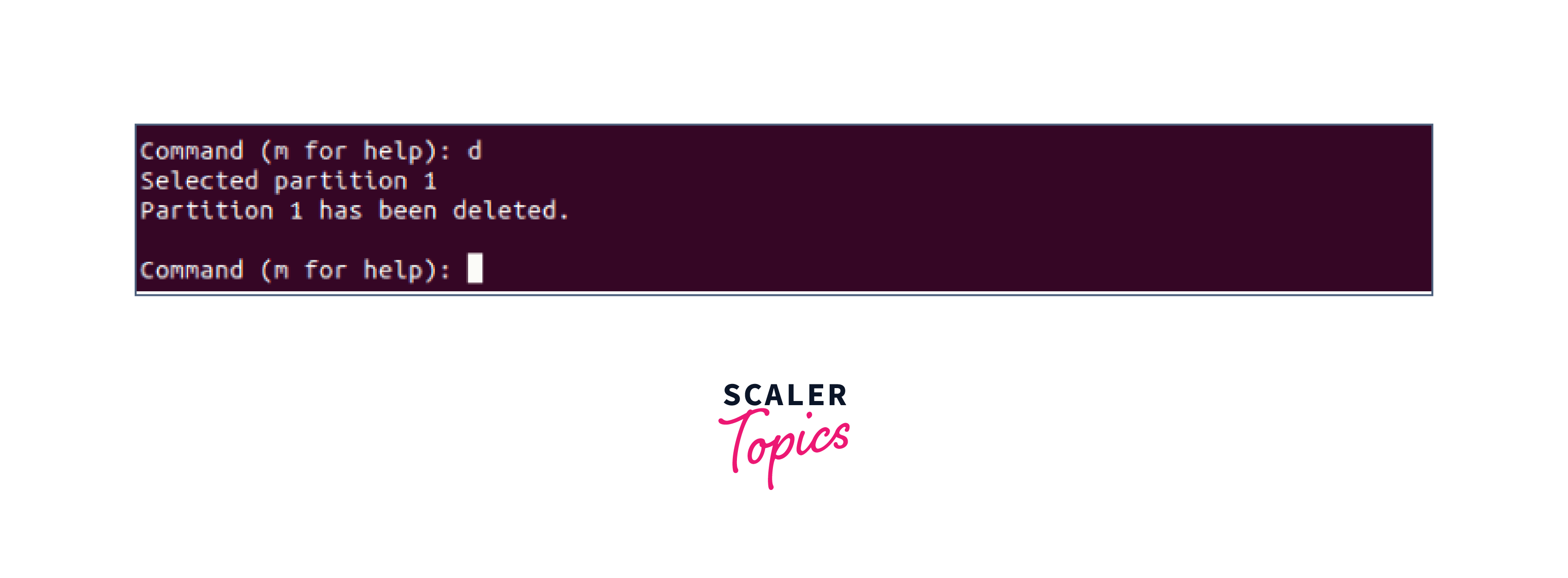
Once inside the fdisk interface, use the d command to delete a specific partition by selecting its number.
Step 4: Verify the Partition Deletion
-
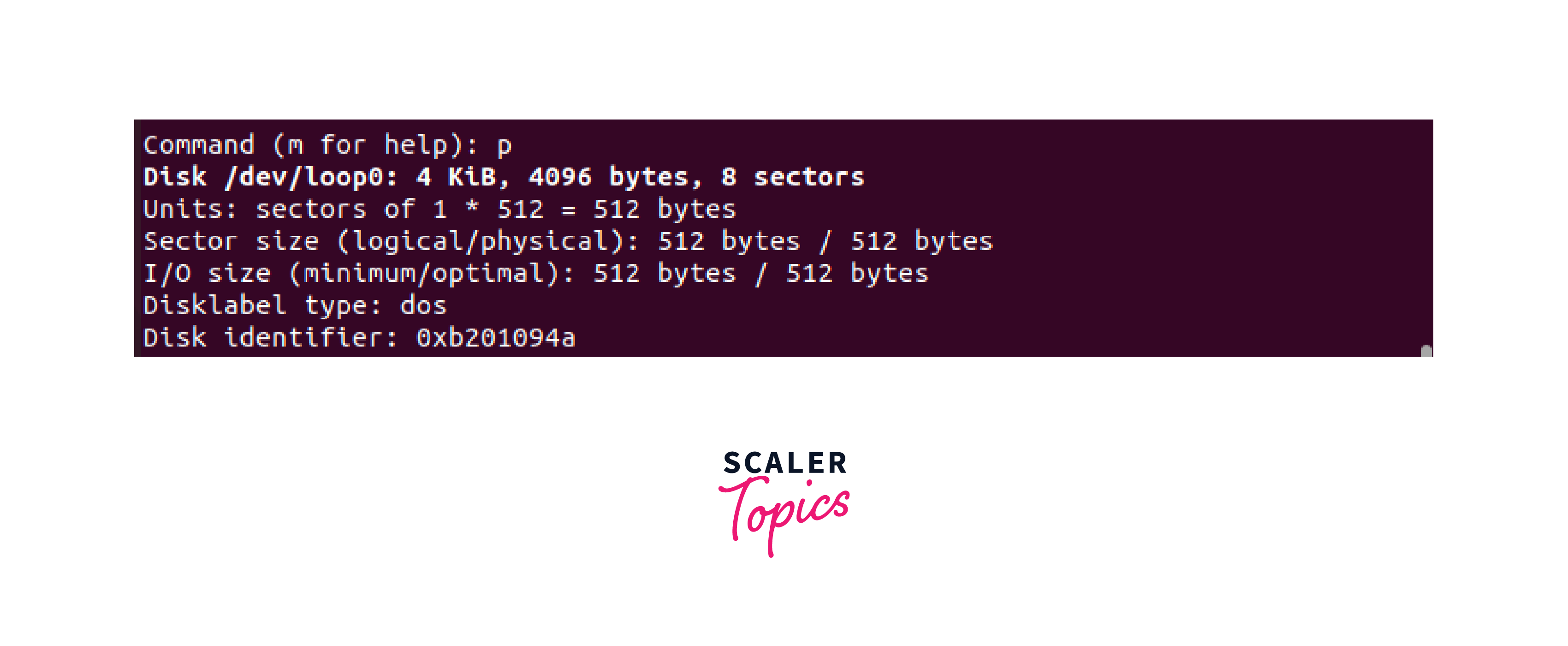
Make sure to Reload the partition table to ensure that the partition has been deleted or not from the system. for making it happen, run the command p in the partition terminal.
-
After running the following command. The terminal will print the structure of the disk that we selected earlier.
Step 5: Save Changes and Exit the Terminal
-
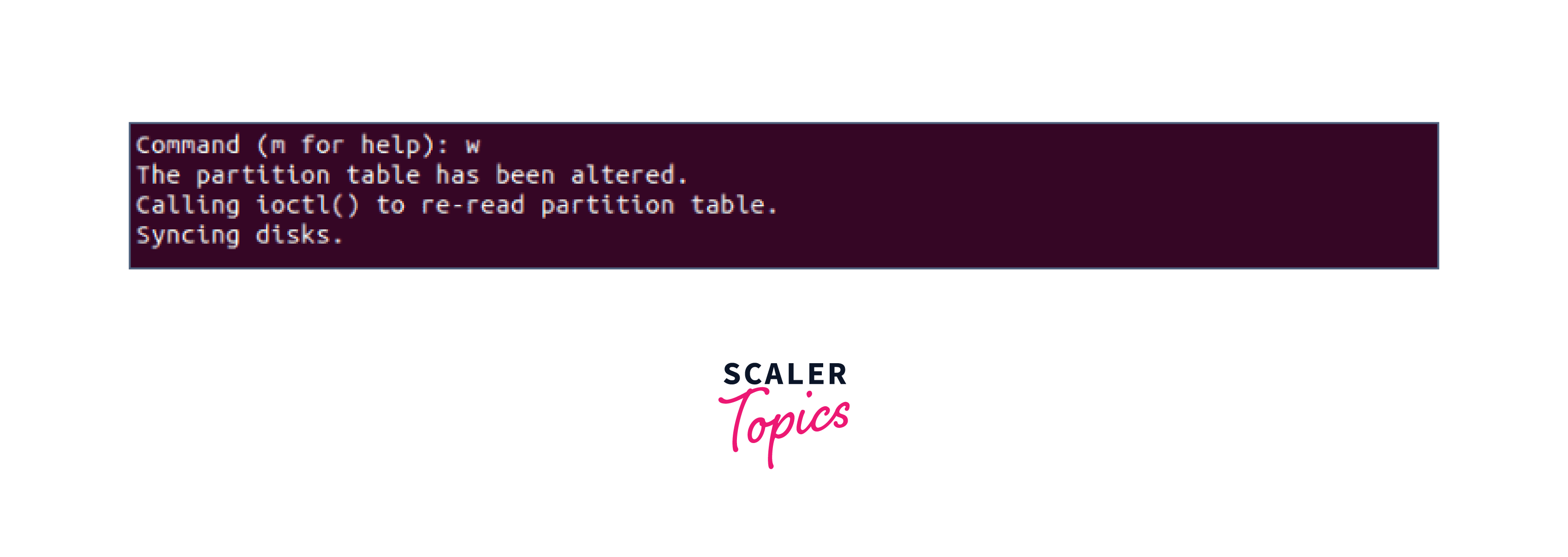
Once you have confirmed the successful deletion of the partition, make sure to save the changes made for the partition table. Inside the fdisk interface, use the w command to write the changes and exit the utility.
-
It is important to note that this step is irreversible, so make sure you have selected the correct partition for deletion.
How Scaler Transformed Careers in Different Fields
Scaler learners achieved 2.5x salary growth with average post-Scaler CTC reaching ₹23L.
 Google
 Amazon
 Microsoft
 Flipkart
 Adobe1200+ more
Conclusion
- Deleting a partition in Linux is a manageable process if approached with caution and attention to detail.
- By following the step-by-step guide outlined in this article, you can confidently remove unwanted partitions, reclaim storage space, and reconfigure your disk layout as needed.
- In this article, we learned how to delete Linux Partition using the following steps:
- List Partition Scheme
- Select the Disk
- Delete Partitions
- Verify Partition Deletion
- Save Changes and Quit




