


How To Use Geolocator In Flutter?
Geolocator Flutter enables real-time location tracking in apps, which is crucial for maps, e-commerce, and item tracking. This article explores permission acquisition, accessing last and current locations, and continuous location updates. Learn to create a Flutter app utilizing geolocator and geocoding packages for precise user location identification, enhancing app functionality.
Features
- Current Location:
Geolocator allows developers to retrieve the current location of a device, including latitude, longitude, altitude, and speed. - Location updates:
The device's location can be continuously updated with the help of Geolocator, enabling developers to monitor long-term changes in location. - Geofencing:
One can create geofences with Geolocator, which start an event when a user enters or leaves a particular area. - Distance calculations:
Geolocator provides a way to calculate the distance between two locations using the Haversine formula, which takes into account the curvature of the earth. - Location accuracy:
Geolocator allows developers to configure the accuracy of location data by setting the desired accuracy level. - Platform support:
Developers can create cross-platform applications that run on both the Android and iOS platforms thanks to Geolocator's support for both. - Permission handling:
Geolocator provides a way to request permission from the user before accessing their location data, ensuring that their privacy is protected.
Setting Up the Project
Create a new Flutter project: Open your preferred IDE and create a new Flutter project using the command line or IDE interface.
Add Geolocator to your project: Open the pubspec.yaml file in your Flutter project and add the following line to the dependencies section:
-
iOS Requirements for Geolocator Flutter:
We need to add the following permissions to the ios/Runner/Info.plist file in order to obtain the user's iOS device's current location. -
Android Requirements for Geolocator Flutter:
To get current location of user android device, we need to add the following permissions in android/app/src/main/AndroidManifest.xml. -
MacOs Requirements for Geolocator Flutter:
To access the device's location on macOS, you must add the following elements to your Info.plist file (found under macOS/Runner). Open your Info.plist file and enter the following information, updating the description to make it relevant to your App:Additionally, you must add the following entry to the Release.entitlements and DebugProfile.entitlements files. This adds your App to the list in the "System Preferences" -> "Security & Privacy" -> "Privacy" settings and declares that it wishes to use the device's location services.
A dictionary needs to be added to the Info.plist file before calling the requestTemporaryFullAccuracy(purposeKey: "YourPurposeKey") method.
The purposeKey supplied to the requestTemporaryFullAccuracy() method must match the second key, in this case YourPurposeKey. For various functions in your app, you can define several keys. The documentation provided by Apple has more details.
Note : The first time requesting temporary full accuracy access it might take several seconds for the pop-up to show. This is due to the fact that macOS is determining the exact user location which may take several seconds. Unfortunately, this is out of our hands.
- Web Requirements for Geolocator Flutter:
You must be using Flutter 1.20 or later to utilize the Geolocator plugin online. When you add the geolocator, Flutter will automatically add the recommended geolocator_web package to your application: Dependency on your pubspec.yaml for 6.2.0. The following methods of the geolocator API are not supported on the web and will result in a PlatformException with the code UNSUPPORTED_OPERATION:- getLastKnownPosition({ bool forceAndroidLocationManager = true })
- openAppSettings()
- openLocationSettings()
Note : Geolocator Web is available only in secure_contexts (HTTPS). More info about the Geolocator API can be found here.
- Windows Requirements for Geolocator Flutter:
To use the Geolocator plugin on Windows you need to be using Flutter 2.10 or higher. Flutter will automatically add the endorsed geolocator_windows package to your application when you add the geolocator: ^8.1.0 dependency to your pubspec.yaml.
Geolocation API
-
Current location:
To determine the device's current location, you invoke the getCurrentPosition method. You can enhance the results by including the following conditions in the formula:- desiredAccuracy:
the precision of the location information that your app wishes to obtain; - timeLimit:
the maximum amount of time allowed to locate the present location. After the time limit has expired, a TimeOutException will be raised and the call will be cancelled. There is no default restriction in place.
- desiredAccuracy:
-
Last known location:
If no location data is available, the getLastKnownPosition function can return a null value; nevertheless, it can also be used to access the device's last known position: -
Listen to location updates:
The getPositionStream method can be used to obtain a stream from which you can receive position updates and listen for changes in location. You can enhance the results by including the following conditions in the formula:- accuracy:
the precision of the location information that your app wishes to obtain; - distanceFilter:
the shortest horizontal distance (measured in metres) a gadget must travel before an update event is produced; - timeLimit:
the longest interval between location updates permitted. A TimeOutException will be thrown and the stream will be stopped after the time limit has passed. There is no limit set by default.
- accuracy:
-
Location service information:
To check if location services are enabled you can call the isLocationServiceEnabled method:You can use the getServiceStatusStream method to keep an eye out for changes in service status. To receive updates on the status of the location service, this will return a Stream<ServiceStatus> that may be listened to.
-
Location accuracy (Android and iOS 14+ only) :
You can call Geolocator() to find out if a user has enabled Precise location fetching or Approximate location fetching.the method getLocationAccuracy(). If the user has enabled approximate location fetching or exact location fetching, respectively, this will return a Future<LocationAccuracyStatus> that, when finished, includes a LocationAccuracyStatus.reduced or LocationAccuracyStatus.precise. Before the user has given permission, the method will return LocationAccuracyStatus.reduced when calling getLocationAccuracy. Since LocationAccuracyStatus.precise is the default value for iOS 13 and below, the method getLocationAccuracy will always return that value on those versions of iOS.The table below outlines the accuracy options per platform:
Android iOS lowest 500m 3000m low 100m 1000m medium 100-500m 100m high 0 - 100m 10m best 0 - 100m ~0m bestForNavigation 0 - 100m Optimized for Navigation -
Permissions:
The 'checkPermission' method will return the 'LocationPermission.denied' status when utilizing the web platform and the browser does not implement the JavaScript Permissions API. The 'getCurrentPosition' and 'getPositionStream' APIs are still available on the web platform, though.You can call the 'checkPermission' function to see if the user has previously given permission to find the device's location:
You can use the'requestPermission' method to ask for permission to view the device's location:
The 'checkPermission' and'requestPermission' methods could produce the following outcomes for geolocator flutter:
Permission Description denied The user has declined to allow others to access the location of the device. You may request authorization once more because this is the first authorization status. deniedForever The location of the device cannot ever be known. Until the user modifies the permission in the app's settings, the permission dialogue won't appear when asking for permission. whileInUse The ability to access the device's location is only provided when the App is being utilized. always Even when the App is open in the background, access to the device's location is permitted.
Note : When checking permissions, Android can only return whileInUse, always, or denied. When checking permissions, it is not possible to tell if a permission is denied permanently due to Android OS restrictions. The geolocator can only do this using a workaround because of the requestPermission function.
Basic Location App
Output should look like this :
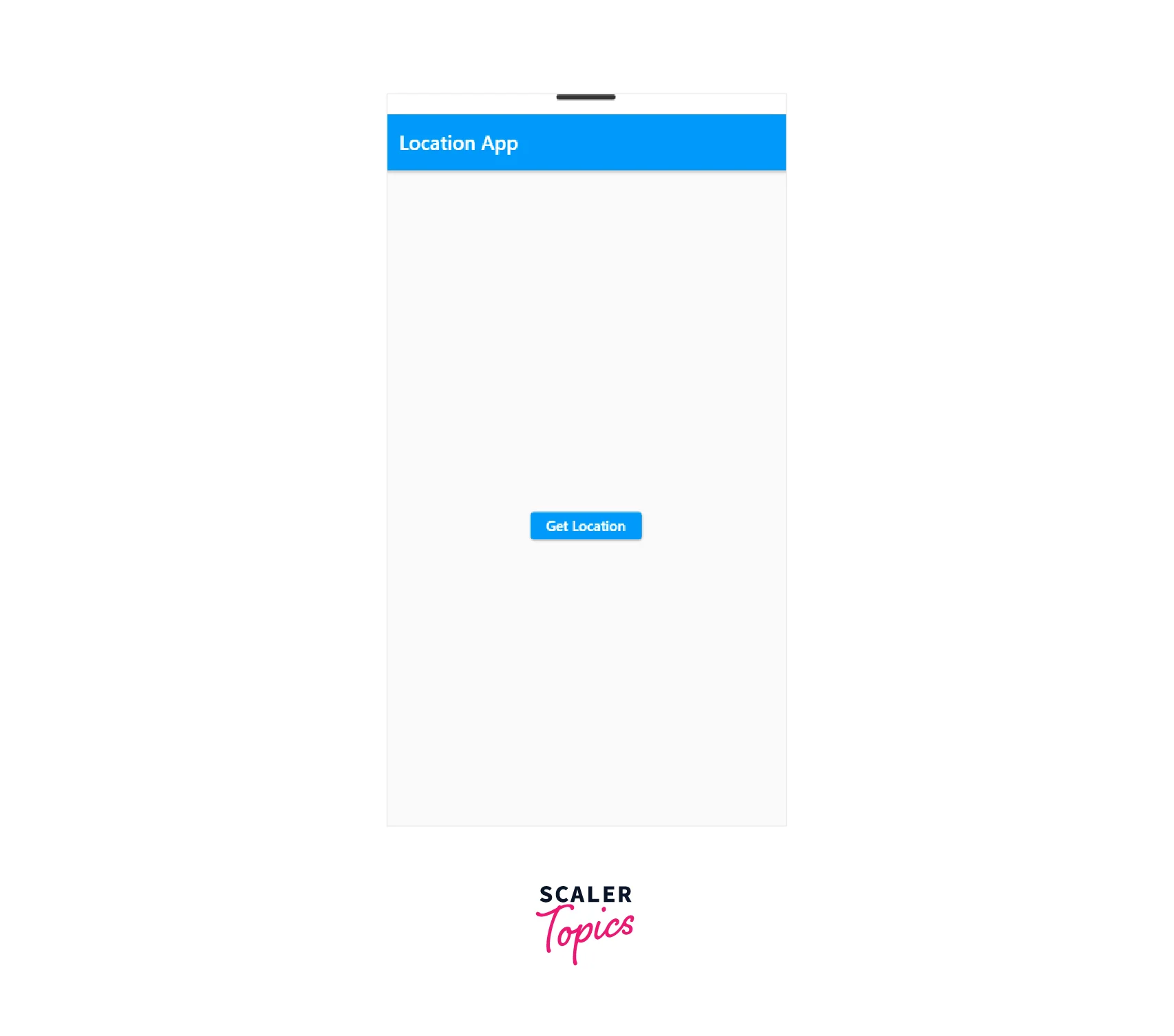
click on the button to get :

Conclusion
- Geolocator Flutter offers developers a variety of tools for working with location data. Developers may quickly acquire a device's current location with Geolocator, get regular location updates, create geofences, and determine travel times between sites.
- Geolocator enables developers to easily handle location updates, request user permission for location, and configure the accuracy of location data.
- Geolocator also provides the latitude and longitude of the current device location and can also be represented in human readable format.