Head Command in Linux
The Linux head command, a core utility, outputs the top lines of files or piped data, displaying by default the first 10 lines. Useful for previewing or extracting data, it can be adjusted with arguments for specific needs, complementing the Tail command.
Syntax of the Head Command in Linux
The syntax of the head command in Linux is as follows:
The head command takes one or more file names as arguments. If no file name is provided, it reads from standard input. The command-line options can be used to modify the behavior of the 'head' command.
Build an AI-First Career, Master the Complete Skillset
Choose from our industry-leading programs designed for career success
Modern Software and AI Engineering Program
Master full-stack development with AI integration


 +1000 more
Modern Data Science and ML with specialisation in AI
Advanced data science techniques with AI specialization
+1000 moreAdvanced AIML with Specialisation in Agentic AI
Deep dive into AIML with focus on Agentic systems
+1000 moreDevOps, Cloud & AI Platform Engineering
Build and manage AI-powered cloud infrastructure
+1000 moreAI Engineering Advanced Certification by IIT-Roorkee
Premier AI engineering certification from IIT-Roorkee

AI Forward Deployed Engineer Program
Full-stack engineering, production AI and client-facing consulting
+1000 moreOptions of the Head Command in Linux
The head command in Linux has several command-line options that can be used to modify its behavior.
Among the most frequently used options are:
- -n: This option specifies the number of lines that will be displayed. For example, head -n 20 file.txt will display the first 20 lines of the file 'file.txt.'
- -c: This option is used to specify the number of bytes to be displayed. For example, head -c 100 file.txt will display the first 100 bytes of the file 'file.txt.'
- -q: This option is used to suppress the display of file names when displaying multiple files.
- -v: This option displays the file name tag when displaying multiple files.
How to Use the Head Command in Linux with Examples
Let's take a look at some examples of how the head command can be used in Linux:
To explain how to use the Linux head command, let's generate a text file named flowers1.txt that contains 14 names of flowers.
Let's add the details to the file now.
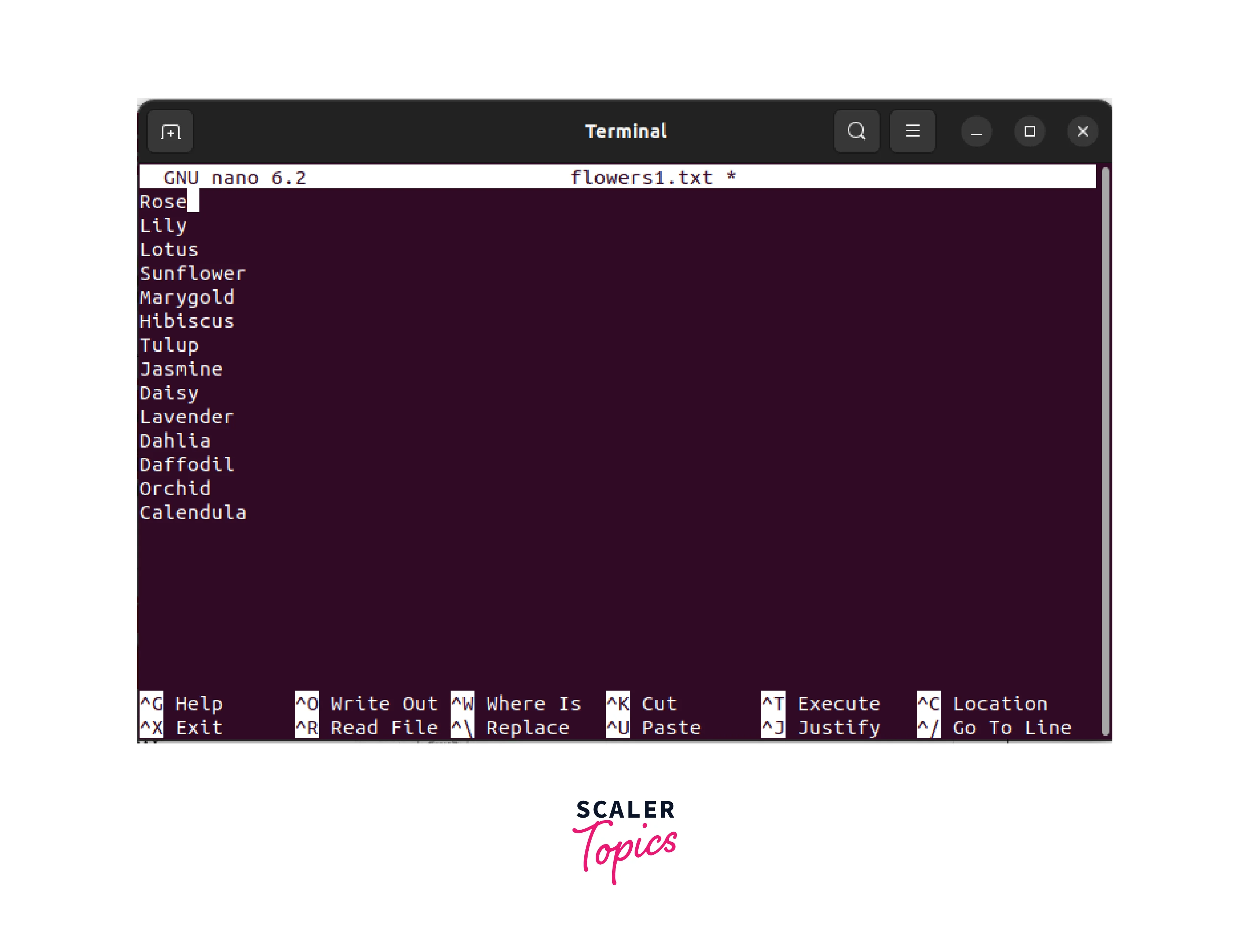
Save and close the file by pressing click Ctrl+X followed by Y.
Use the cat command to view the file content.
You can run the head command with the sample file already open by typing the command
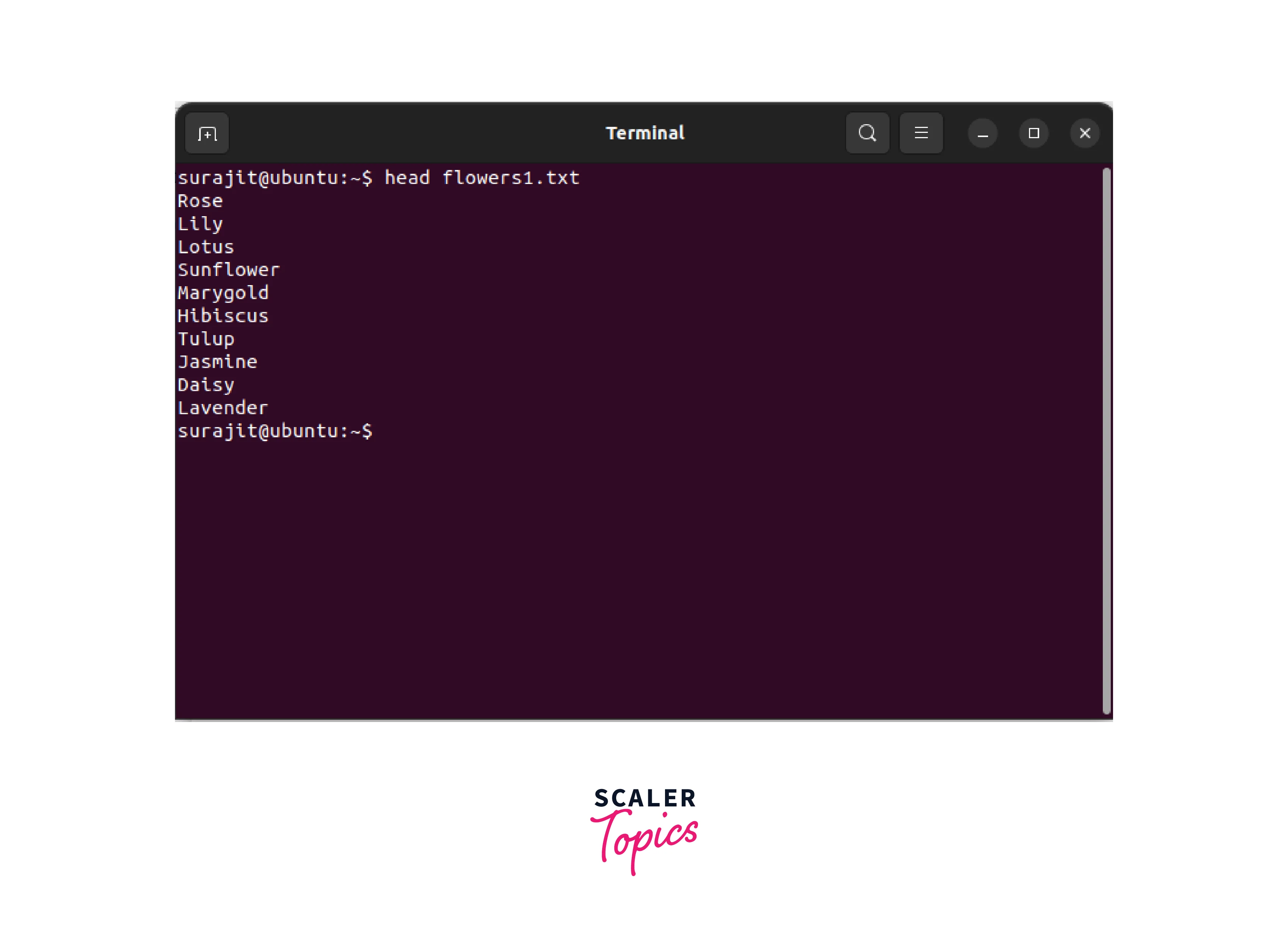
As discussed earlier in the introduction, the head command in Linux displays the first ten lines of the file, hence the above image shows that the head command has listed the first ten lines of the file.
Displaying a Specific Number of Lines
To display a specific number of lines from a file, use the -n option followed by the number of lines to be displayed. For example, the following command will display the first five lines of the file 'file.txt':

Displaying a Specific Number of Bytes
To display a specific number of bytes from a file, use the -c option followed by the number of bytes to be displayed. For example, the following command will display the first 100 bytes of the file 'file.txt':

Displaying the File Name Tag
To display the file name tag when displaying multiple files, use the -v option. For example, the following command will display the first ten lines of the files 'file1.txt' and 'file2.txt', along with their file name tags:

How Scaler Transformed Careers in Different Fields
Scaler learners achieved 2.5x salary growth with average post-Scaler CTC reaching ₹23L.
 Google
 Amazon
 Microsoft
 Flipkart
 Adobe1200+ more
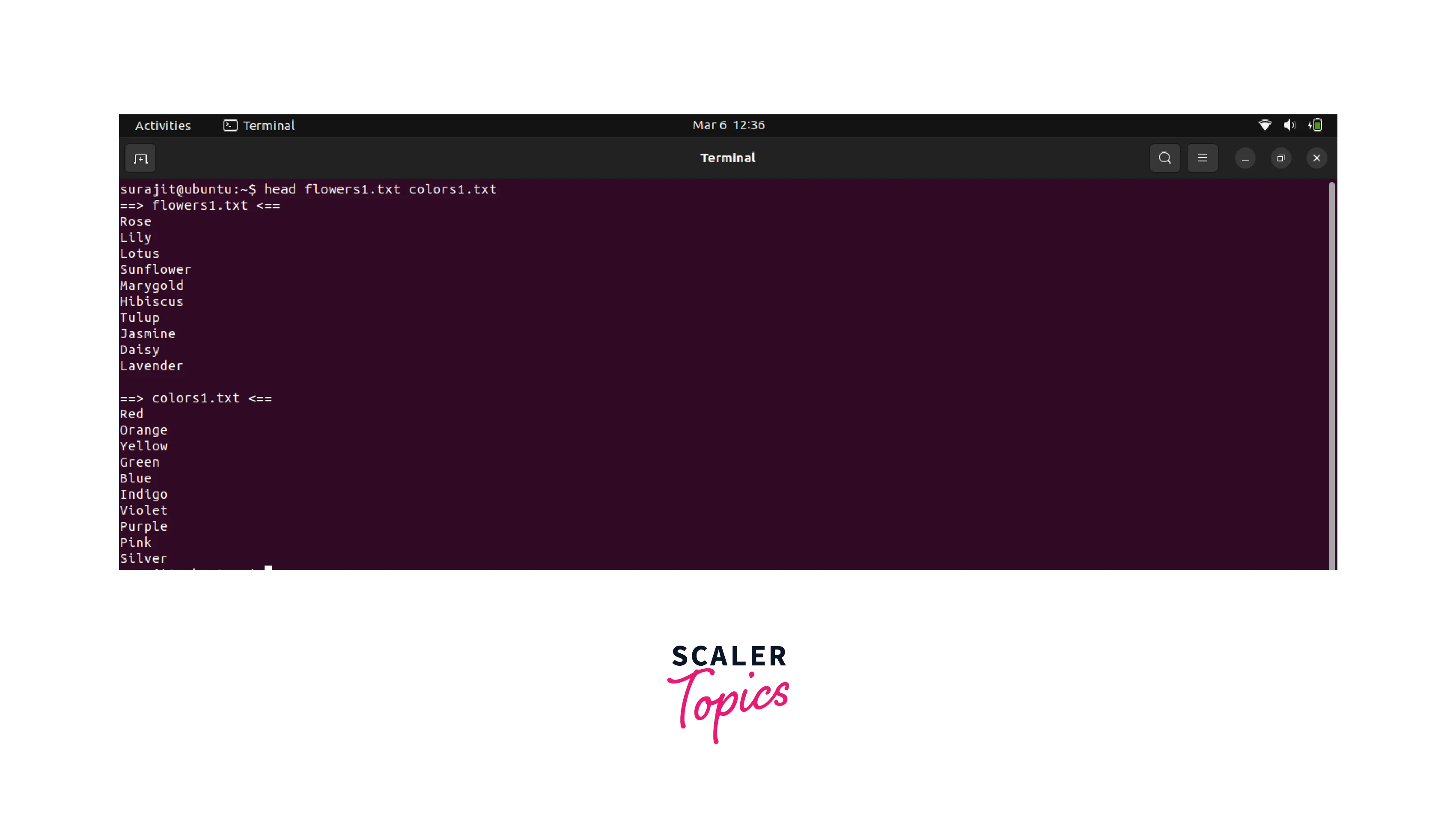
Displaying Multiple Files
To display the first few lines of multiple files, provide their names as arguments to the 'head' command. By default, the head command will display the first ten lines of each file. For example, the following command will display the first ten lines of the files 'file1.txt' and 'file2.txt':
Redirecting Output to A Text File
To save the output of the head command to a text file, use the output redirection operator >. For example, the following command will save the first five lines of the file 'file.txt' to a new file 'output.txt':

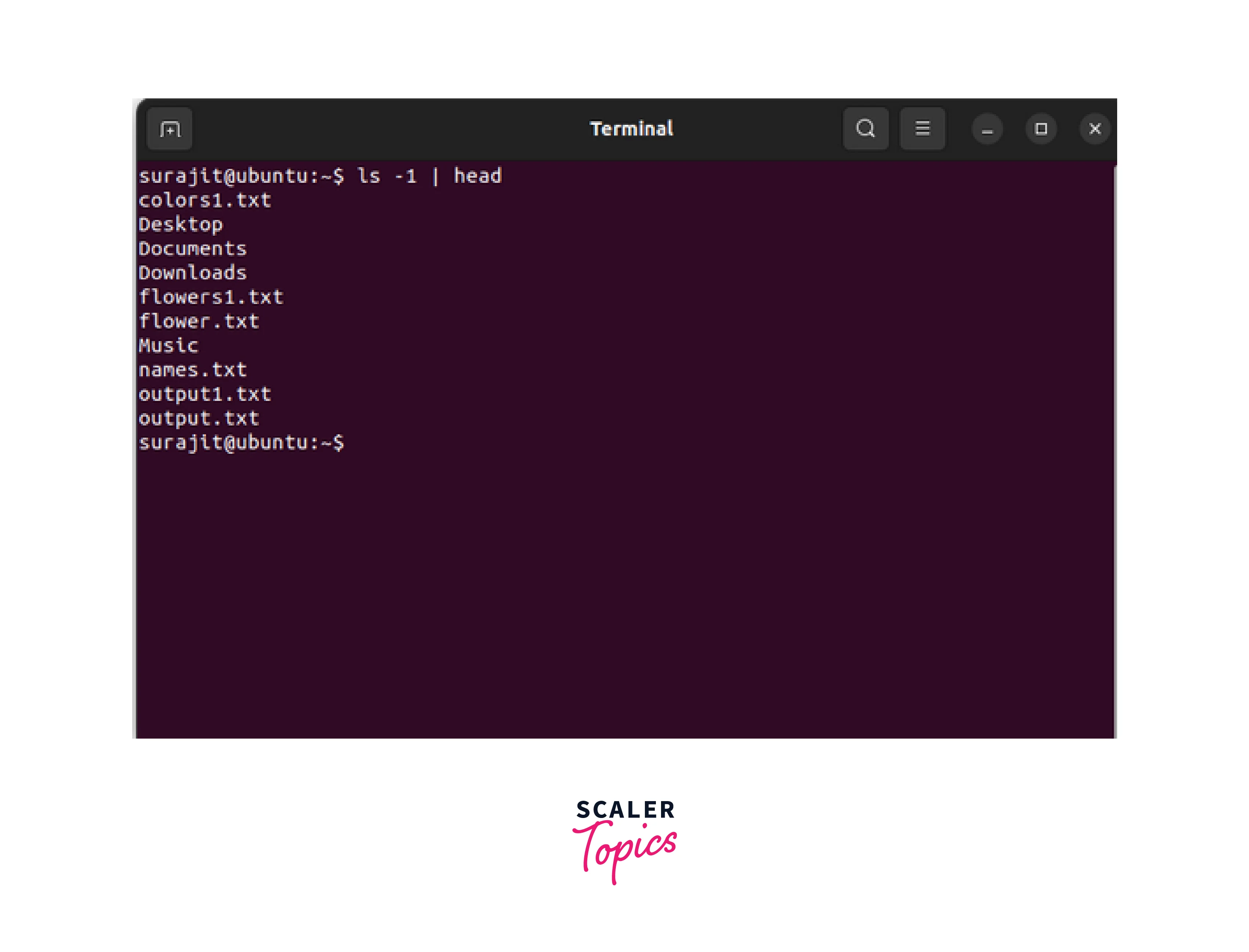
Using Head Command with Pipe
The head command can also be used with a pipeline to filter out specific information from a larger output. For example, the following command will display the first ten lines of the output from the ls command:
Turn Learning into Career Growth
Conclusion
- The head command in Linux is a valuable tool for previewing files or extracting specific information from a larger output.
- The default behavior of the head command is to display the first ten lines of a file or output from a pipeline.
- The number of lines or bytes to be displayed can be specified using command-line options.
- The -n option is used to specify the number of lines to be displayed, while the -c option is used to specify the number of bytes to be displayed.
- The -q option can be used to suppress the display of file names when displaying multiple files, while the -v option is used to display the file name tag.
- The head command can be used with multiple files, and the output can be redirected to a text file.
- The head command can also be used with a pipeline to filter out specific information from a larger output.
Overall, the head command is a simple yet powerful tool commonly used in Linux for quick previewing files or filtering out specific information from a larger output.
MCQs
What is the Default Number of Lines Displayed by The Head Command in Linux?
- 5
- 10
- 15
- 20
Answer: B
How Do You Display the First 50 Bytes of A File Named "sample.Txt" Using the Head Command in Linux?
- head -n 50 sample.txt
- head -c 50 sample.txt
- head -b 50 sample.txt
- head -s 50 sample.txt
Answer: B
How Can You Display the First 10 Lines of Multiple Files Along with Their File Name Tags Using the Head Command in Linux?
- head file1.txt file2.txt
- head -q file1.txt file2.txt
- head -v file1.txt file2.txt
- head -n 10 file1.txt file2.txt
Answer: C