


How to Find IP Address in Linux?
Linux is a well-known and frequently used operating system noted for its dependability, security, and versatility. It is used to power a wide range of devices, including servers, personal computers, and embedded systems. When working with the Linux operating system, it is frequently required to determine a system's IP address. The Internet Protocol (IP) address is a unique identifier that allows devices to communicate with one another over a network.
There are numerous methods in Linux for determining a system's IP address. These methods can be used to configure network settings, troubleshoot connectivity issues, or set up services that require specific IP configurations. Each strategy has its own merits and is appropriate for different situations.
In this post, we will look at four typical ways for locating an IP address in Linux. Several command-line approaches will be demonstrated using ip addr, and ifconfig commands.
Using "hostname" Command
The hostname command in Linux provides the name of the system. By combining it with the --ip-address option, we can retrieve the IP address associated with the hostname. This method is straightforward and does not require any additional tools or configurations.
To find the IP address using the hostname command, open a terminal and type the following command:
When you execute this command, it will display the IP address of the system. The output may include both IPv4 and IPv6 addresses, depending on the network configuration.

The hostname command retrieves the IP address associated with the system's hostname by querying the DNS (Domain Name System) or the /etc/hosts file. It provides a quick and convenient way to obtain the IP address without the need for additional commands or tools.
Build an AI-First Career, Master the Complete Skillset
Choose from our industry-leading programs designed for career success
Modern Software and AI Engineering Program
Master full-stack development with AI integration


 +1000 more
Modern Data Science and ML with specialisation in AI
Advanced data science techniques with AI specialization
+1000 moreAdvanced AIML with Specialisation in Agentic AI
Deep dive into AIML with focus on Agentic systems
+1000 moreDevOps, Cloud & AI Platform Engineering
Build and manage AI-powered cloud infrastructure
+1000 moreAI Engineering Advanced Certification by IIT-Roorkee
Premier AI engineering certification from IIT-Roorkee

AI Forward Deployed Engineer Program
Full-stack engineering, production AI and client-facing consulting
+1000 moreUsing "ip addr" Command
The ip addr command is a versatile tool for network configuration in Linux. It provides detailed information about network interfaces, including IP addresses. To find the IP address using this command, open a terminal and execute the following:
The command will display a list of network interfaces along with their associated IP addresses.

Additionally, the ip addr command can be combined with other options to perform various network-related tasks, such as assigning IP addresses, adding or removing network interfaces, configuring routing tables, and more. However, these tasks require additional parameters and are beyond the scope of a simple explanation.
Using the "ifconfig" Command
The ifconfig command is another useful tool for network configuration in Linux. While it is still commonly used, it is being replaced by the ip command in newer Linux distributions. To find the IP address using ifconfig, open a terminal and run the following command:
The command will display a list of network interfaces along with their associated IP addresses.
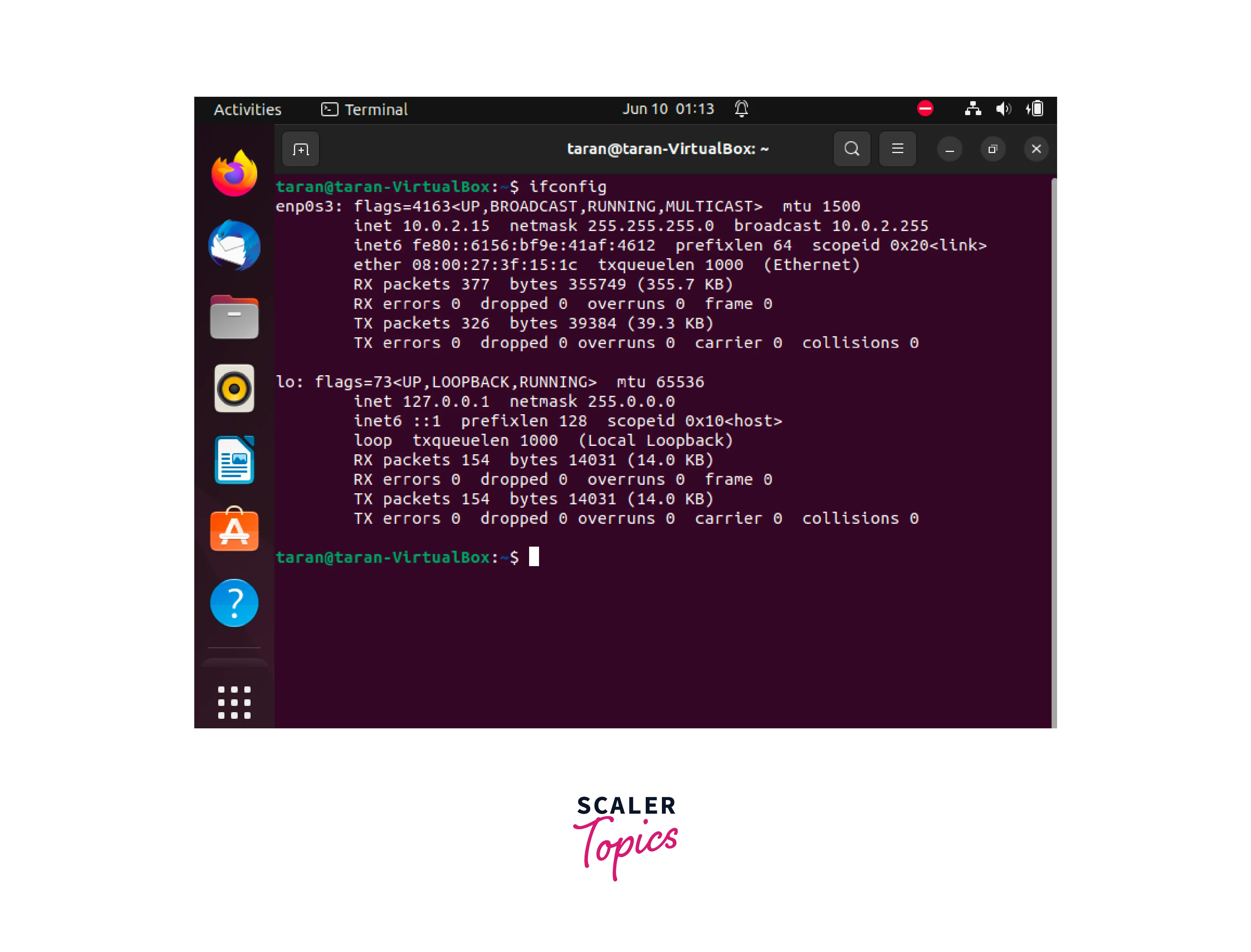
While ifconfig is still available, it is recommended to start using the ip command for network interface configuration and management tasks, as it offers more comprehensive functionality and is actively maintained.
Using a GUI
Linux distributions frequently include graphical tools for managing network settings. These programs usually feature the ability to view the system's IP address. The placement and appearance of the graphical user interface (GUI) may differ based on the Linux distribution and desktop environment utilized. We can check our IP address by following these steps:
-
Enter Settings within the search bar of the Application Menu.
-
Then, search for Network tab and press on the settings icon, i.e., Advanced Wired Settings.

-
It will open a pop-up window along with wired settings details. Here we can check both our IPv6 address and IPv4 address.

How Scaler Transformed Careers in Different Fields
Scaler learners achieved 2.5x salary growth with average post-Scaler CTC reaching ₹23L.
 Google
 Amazon
 Microsoft
 Flipkart
 Adobe1200+ more
How to Find a Public IP Address in Linux?
A public IP address is the address assigned to an internet-connected device. It identifies the device on the global network uniquely. Finding the public IP address in Linux is important for a variety of purposes, including remote access, firewall configuration, and network problems.
Here's a method using the curl command:
-
Open a terminal on your Linux system.
-
Type the following command and press Enter:
The curl command is a powerful tool for making HTTP requests, and in this case, we're using it to fetch the public IP address.
-
After executing the command, the output will display the public IP address of your Linux system.

What are Private and Public IP Addresses?
Turn Learning into Career Growth
Private IP Addresses
Private IP addresses are used within private networks that are not directly accessible from the internet, such as home or workplace networks. They are used for internal network communication between devices. Private IP addresses are assigned from specified address ranges defined by the Internet Assigned Numbers Authority (IANA). Some examples of regularly used private IP address ranges are:
- 10.0.0.0 to 10.255.255.255 (10.0.0.0/8)
- 172.16.0.0 to 172.31.255.255 (172.16.0.0/12)
- 192.168.0.0 to 192.168.255.255 (192.168.0.0/16)
Public Ip Addresses
Public IP addresses are assigned by internet service providers (ISPs) and are globally unique. They allow devices to communicate with other devices on the internet. Public IP addresses are visible and accessible from anywhere on the internet.
It's important to note that public IP addresses are limited in number, especially under the IPv4 addressing scheme. As the number of devices connected to the internet continues to grow, the transition to IPv6, which provides a significantly larger address space, is underway to accommodate the increasing demand for IP addresses.
Learn More
Conclusion
- It is often necessary to identify the IP address of a system. The IP address is a unique identifier that allows devices to communicate with each other over a network.
- In Linux, there are several methods available for finding the IP address of a system.
- In this article, we learned how to check IP Address in Linux using various methods:
- Using the hostname Command
- Using the ip addr Command
- Using the ifconfig Command
- Using a GUI
- We also learned how to Find a Public IP Address in Linux using the curl command
- We also understood what are Private and Public IP Addresses in Linux




