


How to Check Kernel Version in Linux?
How to Check Kernel Version in Linux?
The Linux kernel version refers to a specific release of the Linux kernel software. The kernel is the core component of the Linux operating system, serving as a bridge between the hardware and software layers. It provides essential services and functionality to the operating system and the applications that run on it. There are various kernel versions available in Linux, and there may be instances when you need to check the version of the Linux kernel installed on your system. Checking the kernel version can be particularly useful when troubleshooting hardware issues or for general system maintenance. The Linux kernel's versioning technique consists of three numerals separated by periods, generally in the form "x.y.z". Here is a description of each element:
Major Version (x):
The Linux kernel's major version represents significant updates and changes to the kernel. It denotes significant architectural changes, introduces new features, and brings significant performance and functionality improvements. In some cases, upgrading to a new major version may necessitate compatibility changes. To summarise, a major version represents significant updates and improvements to the Linux kernel.
Minor Version (y):
The Linux kernel's minor version represents smaller updates, bug fixes, and feature enhancements within a given major version. These updates usually include new hardware support, security patches, and performance improvements. Minor version updates are designed to be backwards compatible, which means they can be applied to the same major version without causing problems.
Patch Level (z):
The patch level of the Linux kernel denotes incremental updates and bug fixes for a specific minor version. Patch updates are primarily concerned with addressing software bugs, addressing security flaws, and improving overall stability. These updates are backwards compatible, which means they can be applied to the same major and minor versions without causing compatibility issues.
To check the Linux kernel version you can use the following method.
Transform Your Career
Choose from our industry-leading programs designed for career success
Modern Software and AI Engineering Program
Master full-stack development with AI integration


 +1000 more
Modern Data Science and ML with specialisation in AI
Advanced data science techniques with AI specialization
+1000 moreAdvanced AIML with Specialisation in Agentic AI
Deep dive into AIML with focus on Agentic systems
+1000 moreDevOps, Cloud & AI Platform Engineering
Build and manage AI-powered cloud infrastructure
+1000 moreAI Engineering Advanced Certification by IIT-Roorkee
Premier AI engineering certification from IIT-Roorkee

a) Using uname Command
The uname command in Linux is used to gather information about the system and its kernel. It stands for "Unix Name" and offers several options to display different types of information.

In the above example, the kernel version 5.15.0-73 represents
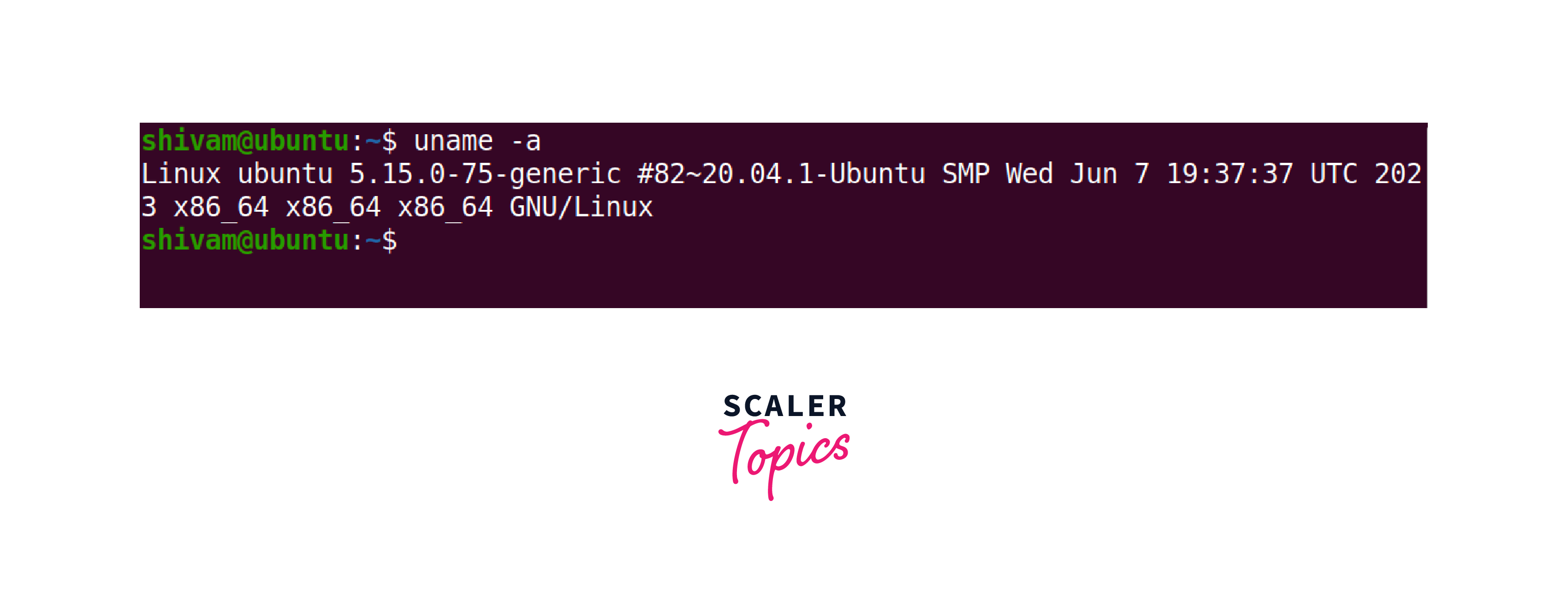
Alternatively, if you want more detailed information about the kernel, you can use the following command:
This will display additional information such as the kernel version, release date, system architecture, and more.
b) Using hostnamectl Command
To check the kernel version in Linux we can use the hostnamectl command.

This command provides information about the hostname and related settings of the system. To check only the kernel version using the hostnamectl command, you can use the grep command to filter the output.

c) Using /proc/version File
The /proc/version file in Linux contains valuable information about the Linux kernel version, compiler details, and build information. It acts as a virtual file that you can access to obtain kernel-related data. To check the kernel version in Linux we use it to display the content of the proc/version file. To check the kernel version in Linux using the /proc/version file, open a terminal and enter the following command:
The output will contain details on the Linux kernel version, the compiler version, and the build information.

Scaler Placement Report and Statistics
Scaler learners achieved 2.5x salary growth with average post-Scaler CTC reaching ₹23L.
d) Using dmesg Command
The dmesg command in Linux displays the kernel ring buffer messages. It enables you to see and analyze the system and kernel messages that are generated during the boot process or while the system is running. To check the kernel version in Linux using the dmesg command, open a terminal and enter the following command:

Learn More
Basic Linux Commands with Examples
Conclusion
To check the kernel version in Linux, you can use the following methods:
- Using the uname command:
- Run uname -r to display the kernel version.
- Run uname -a for more detailed information about the kernel, including the release date and system architecture.
- Using the hostnamectl command:
- Run hostnamectl to view system information, including the kernel version.
- Run hostnamectl | grep 'Kernel:' to display only the kernel version.
- Using the /proc/version file:
- Run cat /proc/version to view the kernel version, compiler version, and build information.
- Using the dmesg command:
- Run dmesg | grep Linux to filter the output and display the kernel version from the kernel ring buffer messages.
 Google
 Amazon
 Microsoft
 Flipkart
 Adobe1200+ more