


How to Check SD Card in Linux?
In Linux, safeguarding SD card health is vital for optimal device performance. Leveraging the robust command line interface, users can employ various tools to monitor read/write errors, detect bad sectors, and assess overall performance. Regular health checks ensure reliability in devices like cameras and Raspberry Pi, preventing potential data loss.
Transform Your Career
Choose from our industry-leading programs designed for career success
Modern Software and AI Engineering Program
Master full-stack development with AI integration


 +1000 more
Modern Data Science and ML with specialisation in AI
Advanced data science techniques with AI specialization
+1000 moreAdvanced AIML with Specialisation in Agentic AI
Deep dive into AIML with focus on Agentic systems
+1000 moreDevOps, Cloud & AI Platform Engineering
Build and manage AI-powered cloud infrastructure
+1000 moreAI Engineering Advanced Certification by IIT-Roorkee
Premier AI engineering certification from IIT-Roorkee

Commands to Check SD Card in Linux
To ensure proper functioning and diagnose issues with your SD card in Linux, you can use several command-line tools. These tools allow you to check the status, partition details, and file system integrity of the SD card. Here are some essential commands:
1. lsblk Command
The lsblk command lists block devices, including SD cards, attached to your Linux system. It provides an overview of the storage devices and their partitions, giving you a glance at the available SD card(s) and their respective mount points.
To use the lsblk command, open a terminal and type the following:

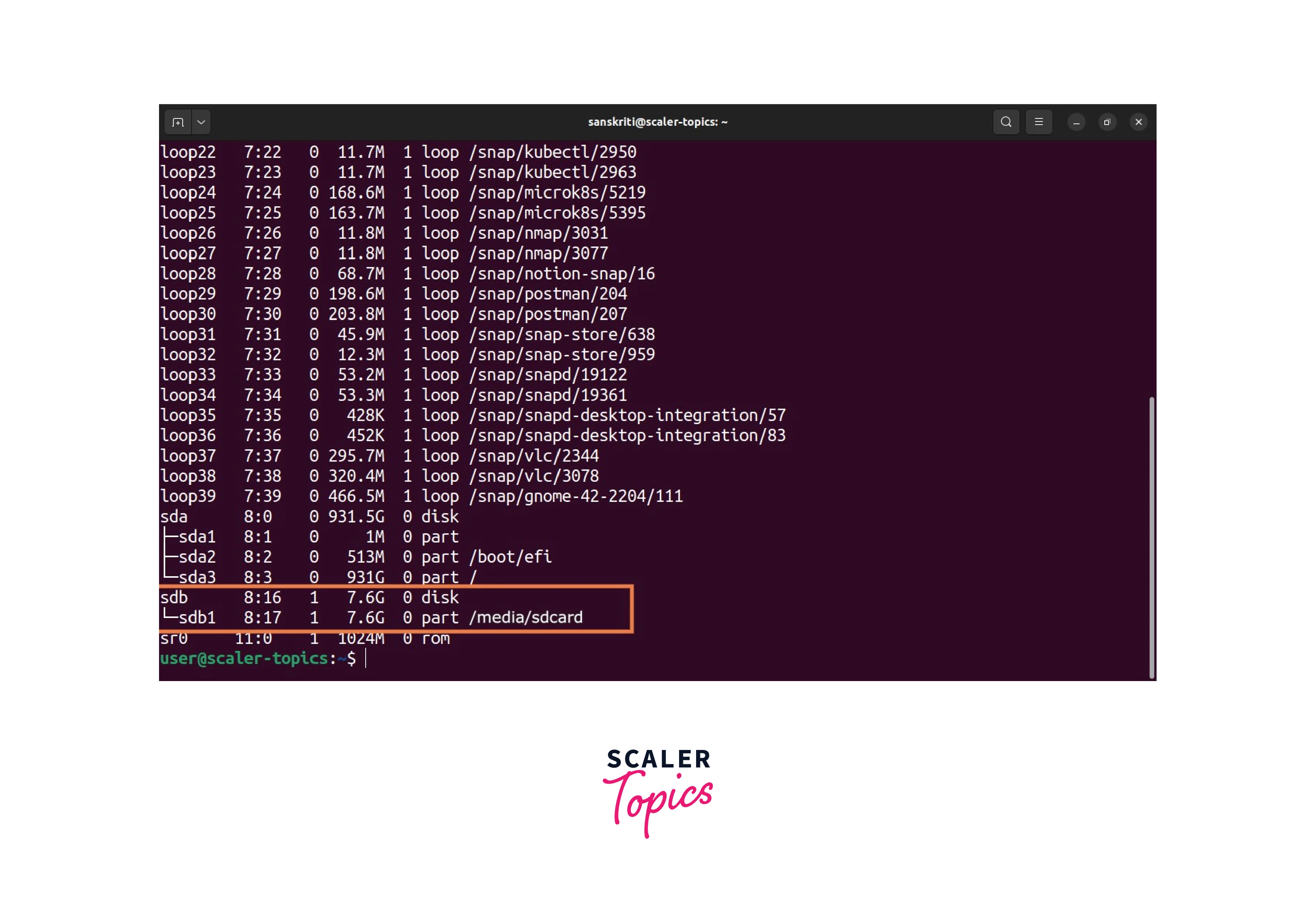
It will display a table-like structure showing the available block devices, sizes, and mount points. Look for the entry representing your SD card, usually identified as a device like /dev/sdX (where the letter "X" corresponds to your SD card).
In the above example, the SD card is listed as /dev/sdb.






2. fdisk Command
The fdisk command allows you to view and manipulate the partition table of a storage device, including your SD card. It is a powerful utility that can help you gather detailed information about the partitions on your SD card.
To use the fdisk command, open a terminal and type the following:
Replace "X" with the corresponding letter of your SD card device. This command will display the number of partitions, sizes, and the file system type used.
Example:

From the above example, we can see that the SD card has one partition (/dev/sdb1) with a file system type of FAT32 and a size of 7.6GB.
Scaler Placement Report and Statistics
Scaler learners achieved 2.5x salary growth with average post-Scaler CTC reaching ₹23L.
 Google
 Amazon
 Microsoft
 Flipkart
 Adobe1200+ more
3. fsck Command
The fsck command checks and repairs the integrity of a file system, including those on your SD card. It detects and fixes any file system errors that might have occurred due to improper handling or unexpected shutdowns.
To use the fsck command, open a terminal and type the following:
Replace "X" with the appropriate letter corresponding to your SD card device, and "1" with the partition number of your SD card (e.g., /dev/sdb1).
Example:

In the example above, the fsck command checks the FAT32 file system on /dev/sdb1 and reports that there are 9 files and 319 out of 194,681 clusters.
Conclusion
In this article, we explored various commands on how to check SD cards in Linux. By verifying the presence and information of SD cards, you can ensure proper functioning and compatibility with your Linux system. Let's summarize the key takeaways:
- Checking SD cards in Linux is essential for verifying their presence and gathering information about them.
- The fsck command allows you to view the partition table and information of the connected devices, including SD cards.
- The lsblk command provides a detailed overview of block devices, including SD cards, sizes, and mount points.
- The fsck command checks and repairs the integrity of a file system.
- Utilizing these commands helps ensure the proper functioning and compatibility of SD cards in Linux systems.
By employing these commands, you can effectively check and manage SD cards in your Linux system, ensuring their smooth operation and data accessibility.