How to Link to a Specific Part of a Page in HTML?
 FREE
FREE

Overview
Hyperlinks are known to connect two web pages. However, with a little tweaking here and there, hyperlinks can help us in linking contents on the same page as well. To be able to link to a specific part of a HTML page is super-easy and super-useful and allows the users to flow through a website page.
Build an AI-First Career, Master the Complete Skillset
Choose from our industry-leading programs designed for career success
Modern Software and AI Engineering Program
Master full-stack development with AI integration


 +1000 more
Modern Data Science and ML with specialisation in AI
Advanced data science techniques with AI specialization
+1000 moreAdvanced AIML with Specialisation in Agentic AI
Deep dive into AIML with focus on Agentic systems
+1000 moreDevOps, Cloud & AI Platform Engineering
Build and manage AI-powered cloud infrastructure
+1000 moreAI Engineering Advanced Certification by IIT-Roorkee
Premier AI engineering certification from IIT-Roorkee

AI Forward Deployed Engineer Program
Full-stack engineering, production AI and client-facing consulting
+1000 morePre-requisites
What are We Creating?
An anchor tag helps in creating a link, that allows the users to flow through a website page without unnecessary scrolling. It can be used to link to a different section of the same page or a specific part of another HTML page.
In this article, we shall delve into this feature that helps to skim-read easily.
Benefits of Using Jump Links with HTML
Below is the list of benefits of using Jump links with HTML:
- Adding Jump links make navigation across the website of an organization easier. It allows users to skip manual scrolling through a web page.
- Scrolling to find the desired information consumes a lot of time. However, jump links can improve the usability of a web page and enhance its efficiency.
- Organizing website elements and finding the desired content will get easier for the users with the help of Jump links.
How Scaler Transformed Careers in Different Fields
Scaler learners achieved 2.5x salary growth with average post-Scaler CTC reaching ₹23L.
 Google
 Amazon
 Microsoft
 Flipkart
 Adobe1200+ more
How to Link to a Specific Part of a Page HTML?
Specific Part of Same Page
Step 1 - Assigning a name
At the initial step we assign a name to the section of the page we want to jump to.
Step 2- Creating an anchor link
Then, we create an anchor tag, add an id attribute to it and specify the given name.
Alternatively a header or image or paragraph tag can be used in place of anchors as shown below:
Note: Each id can appear only once on a page.
Step 3- Creating a hyperlink
We can assign a href value to the anchor tag using the id of the link target, preceded by the #(hashtag/pound) symbol.
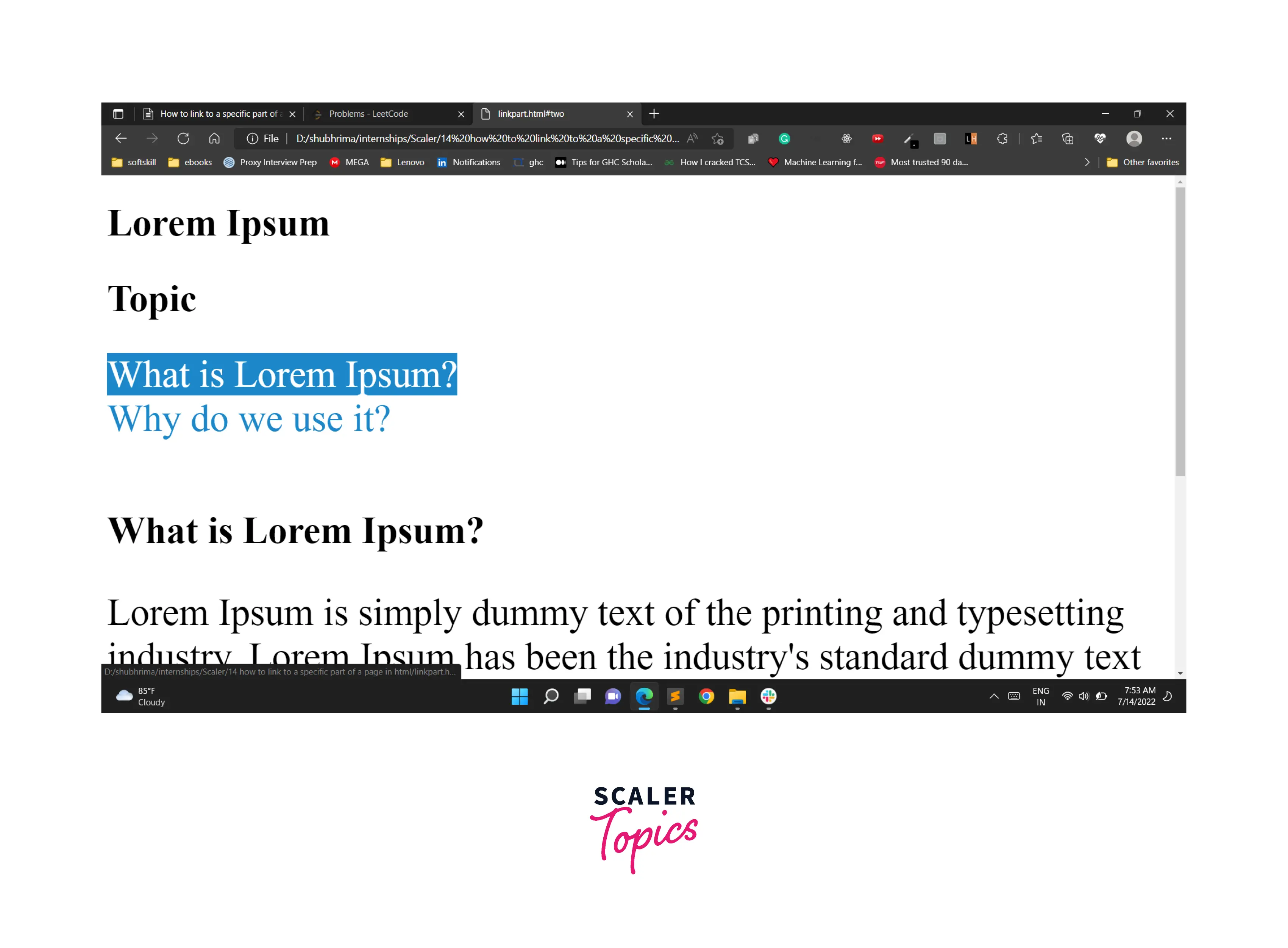
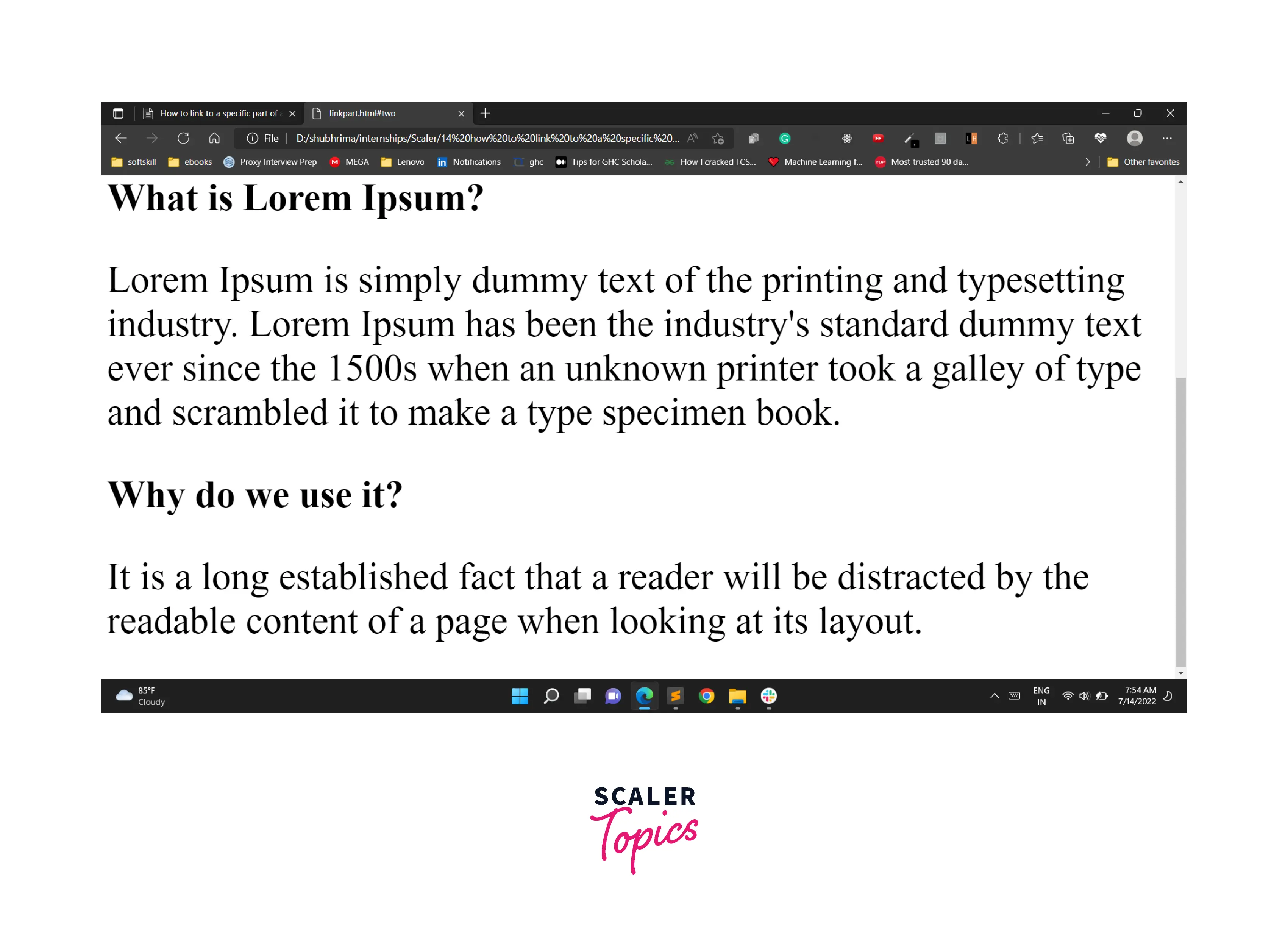
Finally, after adding the preferred text, you will be able to fly through the page sections.
Code
Output
Turn Learning into Career Growth
Specific Part of Different Page
- A name is assigned to the targeted section.
- The name is then set to the id attribute of the desired object.
- The href value for the anchor tag includes the name of webpage and the specified section.
How to Style a Jumping Anchor Link
It is possible to add styling to the jumping anchor using a <style> tag in the <head> element. Styling can be done using properties like background-color, color, text-decoration, etc. Let us look at the given code that adds style to the jumping anchor link.
Code
In the above code, text-decoration is set to none to remove the underline that is present in anchor tag elements by default. The color of text and background color are changed to a shade of blue and white respectively. To style elements more a hover effect is applied where color of text is set to white, and background color is set to a shade of blue.
Output
Before

After applying styles

Conclusion
- If you are stuck with how to link to a specific part of a page HTML, at first assign an id to the portion or object where you want to jump.
- Then, create an HTML anchor tag <a> or a jump link and assign the object name to the id attribute by adding a # at the start.
- Clicking on the added hyperlink will navigate you towards the specific part of the page where you want to jump.