


How to Restart Jenkins?
Overview
Jenkins is a widely-used automation server for streamlined CI/CD processes in software development. In this guide, we'll explore how to restart Jenkins effectively to apply changes and optimize performance. We'll cover various methods, including URL, Safe Restart Plugin, and CLI. By the end, you'll have the know-how to ensure a smooth development workflow.
Methods to Restart Jenkins
In this section, we will explore different methods to effectively restart Jenkins and ensure its smooth operation. Each approach caters to specific scenarios, providing flexibility to users based on their preferences and system requirements. Let's delve into the various ways we will cover:
- Restart Jenkins via URL
- Restart Jenkins via Safe Restart Plugin
- Restart Jenkins via CLI
- How to Restart Jenkins in Windows
By covering these various restart methods, you will be equipped with the necessary knowledge to handle different restart scenarios effectively. Let's proceed to explore each method individually in the subsequent sections.
Restart Jenkins Via URL
If you access the Jenkins dashboard through a web browser, restarting Jenkins can be achieved manually using specific URLs. To force restart Jenkins instantly, use the following command in the URL, which will halt ongoing builds and initiate an immediate restart:
[Jenkins_URL]/restart
However, if you prefer a safe restart, allowing ongoing builds to complete before the restart, the command differs slightly:
[Jenkins_URL]/safeRestart
Upon executing either command, you will be redirected to the dashboard, where a confirmation notification will appear. Simply click "Yes" to proceed with the restart.
To find the Jenkins URL, locate the port on which Jenkins runs on your system; the default port is usually '8080'. The Jenkins URL will display the hostname and port number.
When accessing Jenkins from your system, use the following commands in the URL bar:
http://localhost:8080/restart
http://localhost:8080/safeRestart
However, if you are accessing Jenkins from another system, modify the commands accordingly:
http://[system_hostname]:8080/restart
http://[system_hostname]:8080/safeRestart
By following these instructions, you can effortlessly restart Jenkins and manage ongoing builds to ensure a smooth development workflow.
Restart Jenkins Via Safe Restart Plugin
As mentioned earlier, you have the option to safely restart Jenkins using the convenient Safe Restart Plugin. If the plugin is already installed, you can easily initiate a restart directly from the dashboard's left menu bar.
However, if you haven't installed the Safe Restart Plugin yet, follow these step-by-step instructions to add it to your Jenkins environment:
- Log in to your Jenkins account and navigate to the dashboard.
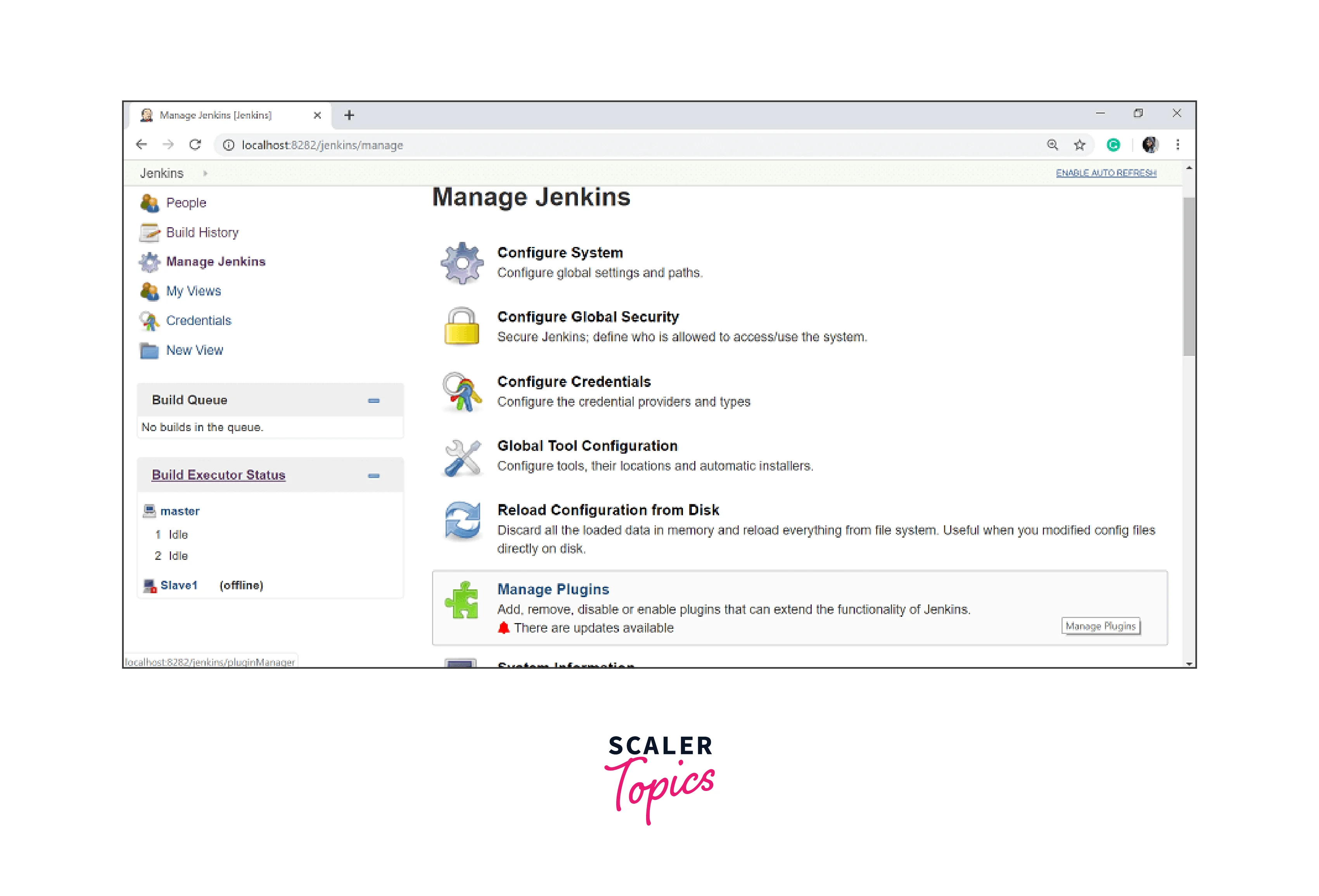
- Click on "Manage Jenkins" from the left menu bar.
- In the "System Configuration" section, select "Manage Plugins."
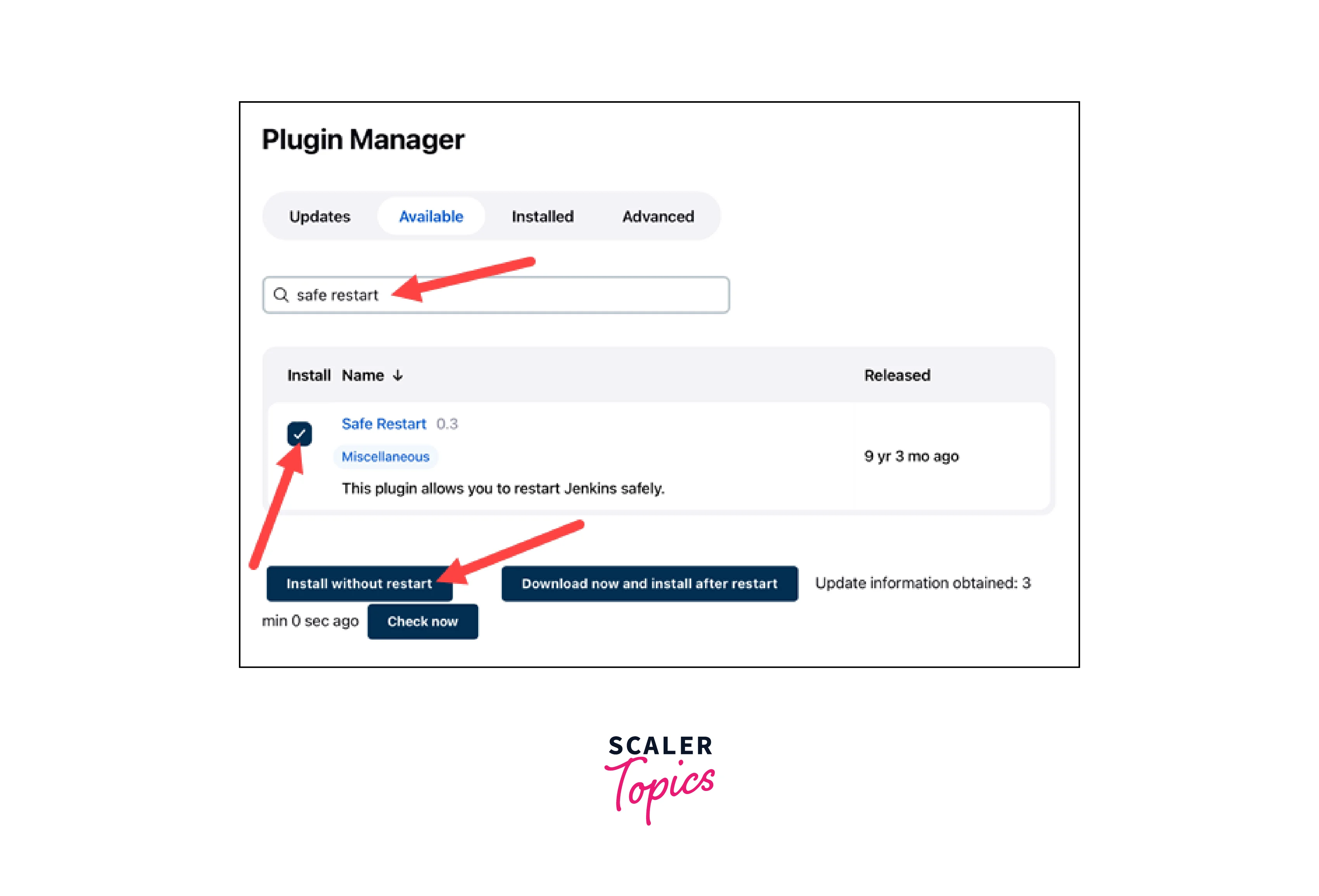
- The Plugin Manager window will appear, displaying various tabs. Click on the "Available" tab.
- In the search bar, type 'Safe restart' to find the plugin quickly. Once it appears in the search results, check the box next to the plugin's name.
- Proceed with installing the plugin by clicking the "Install without restart" button.
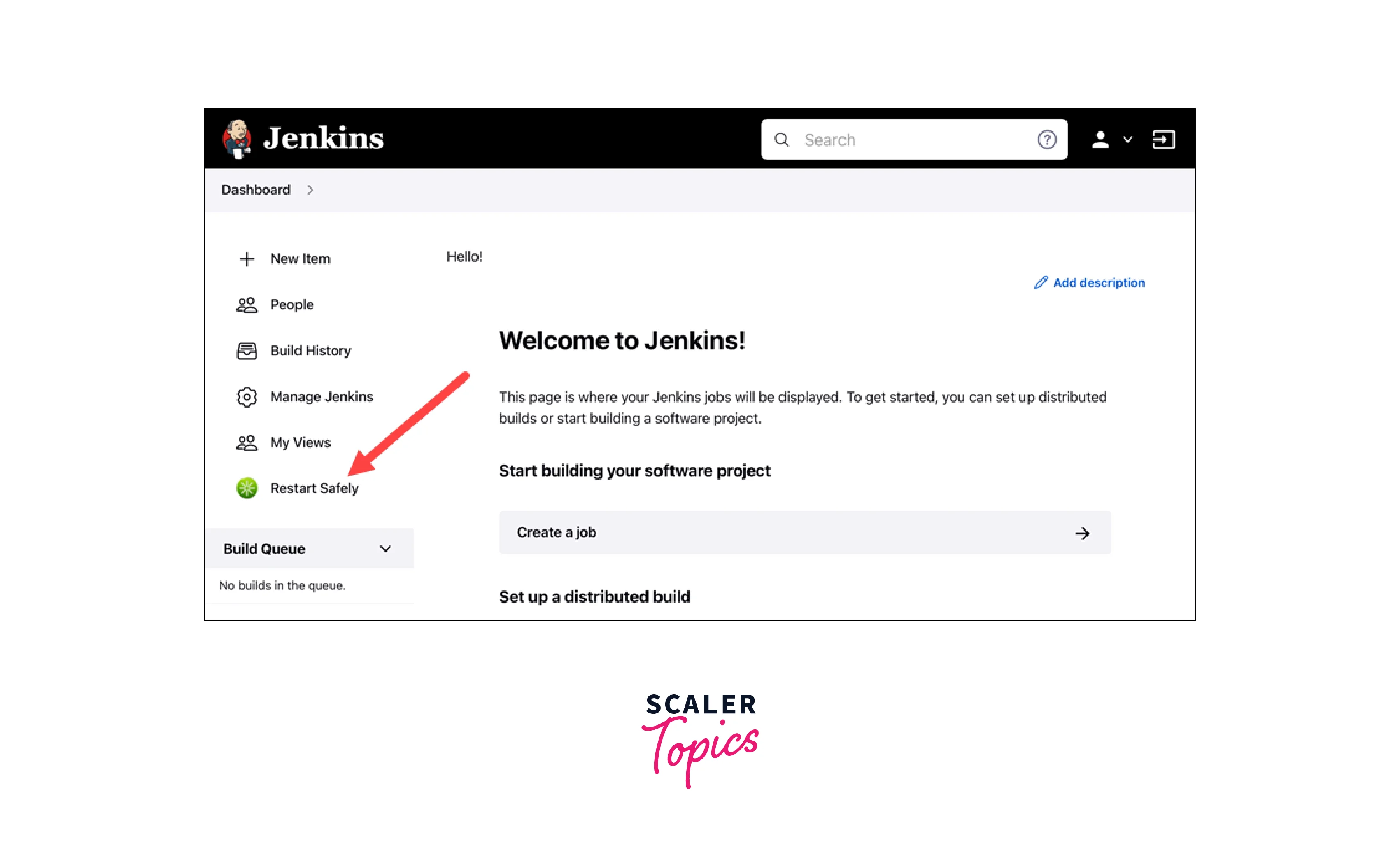
- After the installation is complete, return to the dashboard.
- From the left menu bar, click on the "Restart Safely" tab.
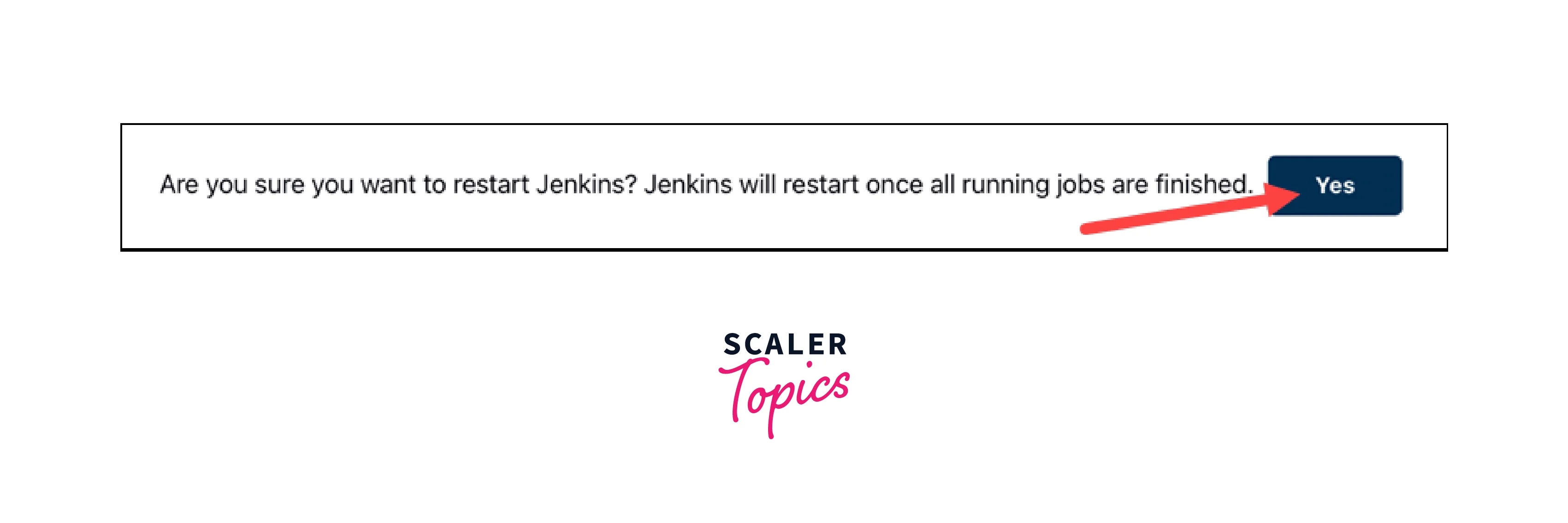
- A notification will prompt, asking for your confirmation to restart Jenkins safely. To proceed, click the "Yes" button.
By following these straightforward steps, you will have successfully installed and utilized the Safe Restart Plugin in Jenkins. This enables you to perform safe restarts with ease, ensuring the completion of ongoing builds and minimizing potential disruptions to your development process.
Restart Jenkins via CLI
Jenkins's Command Line Interface (CLI) is an extension to the user's native terminal shell, built on Java, and enables users to manage Jenkins using Java commands. Restarting Jenkins from the CLI is one of the actions you can perform using this powerful tool.
If you wish to use the Jenkins CLI to restart its functions, follow these step-by-step instructions:
- Start by downloading the Jenkins CLI .jar file.
- Access the Jenkins dashboard in your web browser and click on the "Manage Jenkins" tab from the left-hand side menu bar.
- Scroll down to the "Tools and Actions" section and click the "Jenkins CLI" button.
- Download the Jenkins-cli.jar file.
- Once the download is complete, open a terminal window on your system.
- Execute the following command to restart Jenkins using the Jenkins CLI: java -jar [./path/to/jenkins-cli.jar file] -s [jenkins_URL] restart
By following these steps, you can effectively restart Jenkins using the Command Line Interface. This approach provides advanced users and automation enthusiasts with a powerful means to manage Jenkins functionalities seamlessly.
How to Restart Jenkins in Linux, Windows, and Mac?
After successfully installing Jenkins on your system, it runs as a background process, making it easy to restart on Linux, Windows, and Mac computers using standard commands. Below are the steps you can follow for each operating system:
Restart Jenkins in Linux:
To restart Jenkins on Linux, execute the following command in your terminal:
sudo systemctl restart jenkins
Restart Jenkins in Windows:
On Windows, you have two methods to restart Jenkins:
Open the Command Prompt with administrative rights and use the following commands:
Alternatively, you can navigate to the Jenkins installation folder and restart the .exe program with these commands:
Restart Jenkins in macOS:
For macOS, utilize the basic launchctl commands to stop and start the Jenkins services:
By following these simple instructions, you can easily restart Jenkins on your respective operating system.
Conclusion
- Restarting Jenkins is a crucial practice for applying configuration changes, resolving issues, and optimizing system performance in software development projects.
- The availability of multiple restart methods, including URL, Safe Restart Plugin, and CLI, provides flexibility and convenience to Jenkins users based on their preferences and requirements.
- Utilizing the Safe Restart Plugin ensures ongoing builds are allowed to complete, minimizing disruptions and ensuring a smooth development workflow.
- Jenkins CLI offers advanced users an efficient way to manage Jenkins functions, including restarting the server, through Java commands.
- Regardless of the operating system, restarting Jenkins is achieved through straightforward commands on Linux, Windows, and macOS, streamlining the process for all users.
- By mastering the techniques to restart Jenkins, users can maintain an optimized CI/CD workflow, enhancing the efficiency and reliability of software delivery.