


How to Create Icon Button
 FREE
FREE

Overview
Icon buttons are necessary for UI design as they enhance visual clarity occupy less space and maintain consistency across applications. To add icons to buttons we can either use some external freely available libraries or we can add images as background to our buttons.
Pre-requisites
The <i> tag is used to define the text that needs to be presented with an alternative voice. The <span> tag is an inline container tag used to mark up a part of the paragraph or insert some special styles. As icons are usually used along with texts or in buttons with minimal description, to add icon buttons we use the <i> and <span> tags when using pure HTML.
Creating Icon Buttons
Using Font Libraries
Font Awesome icon is a library that provides scalable vector icons that can be integrated into our web pages. These icons provide better readability to the users, save screen space, make it easy for people from different backgrounds to understand, and are visually appealing. This library is easy to use and can easily catch user attention.
Let us explore how we can integrate icons into our form:
- Visit Font Awesome official website and sign up for a free account using email or Google account.
- Copy the CDN link and paste it into the <head> of the HTML file.
- Search and select the icon as per the requirement. The selected icon will have a code that can be copied and pasted into our code.
- On executing the HTML file the icon is visible on the page. We can modify the properties of the icon as well like enlarging the icon we can increasing font-size, we can set background color, etc.
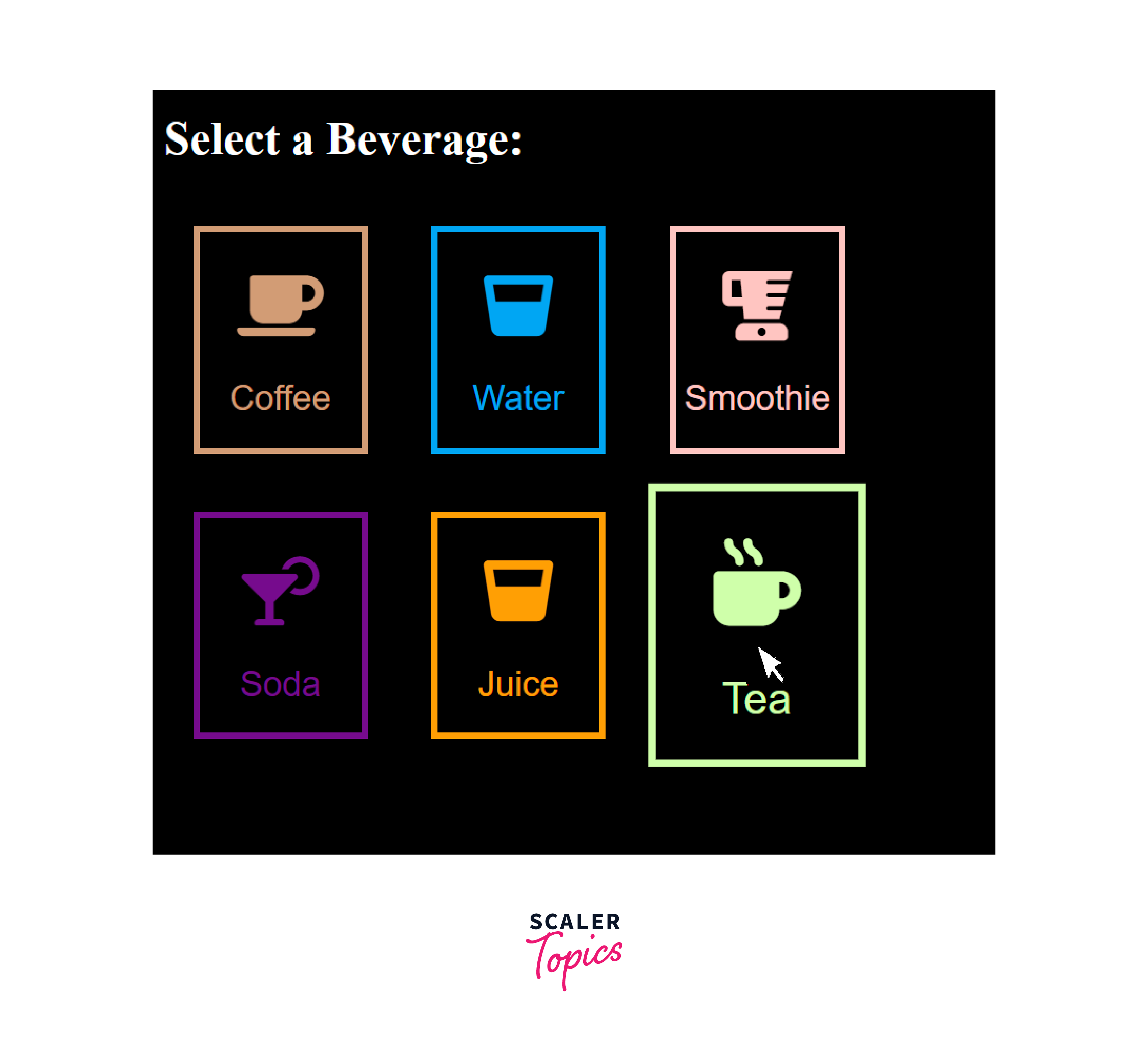
Let us create an HTML page of a beverage menu where users can select a drink. To display the beverage we will be using icons. As the user selects the drink we will alert the message with the drink name.
Code:
Output:
Explanation:
The HTML page contains a selection of beverage buttons that users can click to make an order. Icons from Font Awesome are used for each beverage button. For example, the coffee button uses <i class="fas fa-coffee"></i> to display a coffee cup icon.
Each beverage button is styled to have a larger icon, a border, and a hover effect to make it more interactive. JavaScript is included to handle orders, although, in this example, it displays a simple alert when a button is clicked.
Using Image Files
Instead of using the icons, we can also use the image as the background image.
We can download the images from free sources and add them to the project folder. We will use the <img> tag to add an icon to the button.
Let us look at an example of adding an image to the button. An example is a user profile page on social media. We have used image icons in buttons at the bottom for the navigation to other sections of the application.
Output:

Explanation:
The HTML code represents a simple user profile page with a header, profile section, and bottom navigation. The icons in the navigation bar are represented by images for example, "home.png", "feed.png", etc. Each image is wrapped within an <a> (anchor) tag, making them clickable links also known as icon buttons.
Conclusion
- Icon buttons are visually appealing buttons to enhance the UI of the webpage.
- These buttons save space, enhance internationalization, and maintain consistency across applications. Icons transcend language barriers and provide a tidy, language-agnostic interface.
- Icon buttons are very usual and almost all websites and applications make use of icon buttons.
- We can either you Font Awesome library or other open-source libraries to insert icons to our webpage.
- We are required to add a CDN link in the header section and use the <i> tag to insert icons in our texts and buttons using the Font Awesome library.
- We can also use images to be set as the background of the buttons to create icon buttons.
- Transparent images can be used to avoid any color conflicts.
- The path of the image must be given carefully when the images are not in the same folder as the index file.