


How to Create Icon Button
 FREE
FREE

Build an AI-First Career, Master the Complete Skillset
Choose from our industry-leading programs designed for career success
Modern Software and AI Engineering Program
Master full-stack development with AI integration


 +1000 more
Modern Data Science and ML with specialisation in AI
Advanced data science techniques with AI specialization
+1000 moreAdvanced AIML with Specialisation in Agentic AI
Deep dive into AIML with focus on Agentic systems
+1000 moreDevOps, Cloud & AI Platform Engineering
Build and manage AI-powered cloud infrastructure
+1000 moreAI Engineering Advanced Certification by IIT-Roorkee
Premier AI engineering certification from IIT-Roorkee

AI Forward Deployed Engineer Program
Full-stack engineering, production AI and client-facing consulting
+1000 moreOverview
Icon buttons are necessary for UI design as they enhance visual clarity occupy less space and maintain consistency across applications. To add icons to buttons we can either use some external freely available libraries or we can add images as background to our buttons.
Pre-requisites
The <i> tag is used to define the text that needs to be presented with an alternative voice. The <span> tag is an inline container tag used to mark up a part of the paragraph or insert some special styles. As icons are usually used along with texts or in buttons with minimal description, to add icon buttons we use the <i> and <span> tags when using pure HTML.
Creating Icon Buttons
How Scaler Transformed Careers in Different Fields
Scaler learners achieved 2.5x salary growth with average post-Scaler CTC reaching ₹23L.
 Google
 Amazon
 Microsoft
 Flipkart
 Adobe1200+ more
Using Font Libraries
Font Awesome icon is a library that provides scalable vector icons that can be integrated into our web pages. These icons provide better readability to the users, save screen space, make it easy for people from different backgrounds to understand, and are visually appealing. This library is easy to use and can easily catch user attention.
Let us explore how we can integrate icons into our form:
- Visit Font Awesome official website and sign up for a free account using email or Google account.
- Copy the CDN link and paste it into the <head> of the HTML file.
- Search and select the icon as per the requirement. The selected icon will have a code that can be copied and pasted into our code.
- On executing the HTML file the icon is visible on the page. We can modify the properties of the icon as well like enlarging the icon we can increasing font-size, we can set background color, etc.
Let us create an HTML page of a beverage menu where users can select a drink. To display the beverage we will be using icons. As the user selects the drink we will alert the message with the drink name.
Code:
Output:
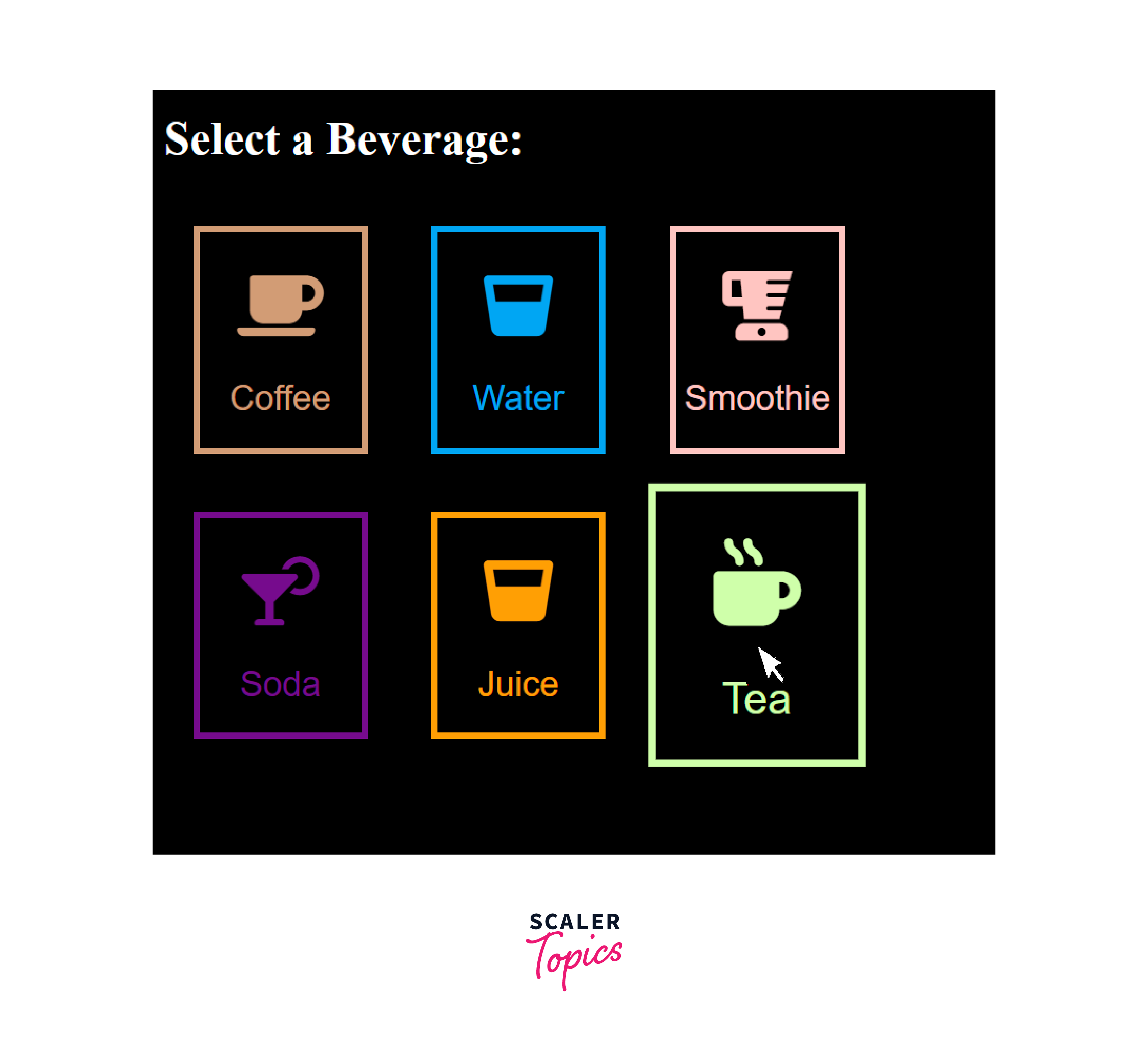
Explanation:
The HTML page contains a selection of beverage buttons that users can click to make an order. Icons from Font Awesome are used for each beverage button. For example, the coffee button uses <i class="fas fa-coffee"></i> to display a coffee cup icon.
Each beverage button is styled to have a larger icon, a border, and a hover effect to make it more interactive. JavaScript is included to handle orders, although, in this example, it displays a simple alert when a button is clicked.
Using Image Files
Instead of using the icons, we can also use the image as the background image.
We can download the images from free sources and add them to the project folder. We will use the <img> tag to add an icon to the button.
Let us look at an example of adding an image to the button. An example is a user profile page on social media. We have used image icons in buttons at the bottom for the navigation to other sections of the application.
Output:

Explanation:
The HTML code represents a simple user profile page with a header, profile section, and bottom navigation. The icons in the navigation bar are represented by images for example, "home.png", "feed.png", etc. Each image is wrapped within an <a> (anchor) tag, making them clickable links also known as icon buttons.
Turn Learning into Career Growth
Conclusion
- Icon buttons are visually appealing buttons to enhance the UI of the webpage.
- These buttons save space, enhance internationalization, and maintain consistency across applications. Icons transcend language barriers and provide a tidy, language-agnostic interface.
- Icon buttons are very usual and almost all websites and applications make use of icon buttons.
- We can either you Font Awesome library or other open-source libraries to insert icons to our webpage.
- We are required to add a CDN link in the header section and use the <i> tag to insert icons in our texts and buttons using the Font Awesome library.
- We can also use images to be set as the background of the buttons to create icon buttons.
- Transparent images can be used to avoid any color conflicts.
- The path of the image must be given carefully when the images are not in the same folder as the index file.




