


Excel LEFT Function
Overview
The LEFT formula in Excel is a valuable text function that allows users to extract a specified number of characters from the beginning (left side) of a cell's content. It is particularly useful when you need to manipulate or analyze data by isolating specific information from a larger text string. By providing the cell reference and the number of characters to extract, the LEFT function simplifies tasks like extracting first names from full names, retrieving prefixes or codes, or parsing data with consistent patterns. This function enhances data processing efficiency, reduces manual effort, and ensures accuracy in various Excel applications.
Syntax of LEFT Formula in Excel
The LEFT formula in Excel is used to extract a specified number of characters from the beginning (leftmost side) of a text string. Below is the syntax of the LEFT formula in excel:
- text (required):
This parameter specifies the text string or cell reference from which you want to extract characters. It can be a text string enclosed in double quotation marks or a cell reference that contains the text you want to manipulate. - num_chars (required):
This parameter specifies the number of characters you want to extract from the beginning (leftmost side) of the text string. It must be a positive integer that represents the count of characters you wish to retrieve.
Run this formula in your spreadsheet for a better and clear explanation.
Parameters of LEFT Formula in Excel
The LEFT formula in Excel has two parameters that determine how it operates. Here are the parameters explained in detail:
- text (required):
- This parameter specifies the text string or cell reference from which you want to extract characters.
- It can be a text string enclosed in double quotation marks or a cell reference that contains the text you want to manipulate.
- num_chars (required):
- This parameter specifies the number of characters you want to extract from the beginning (leftmost side) of the text string.
- It must be a positive integer that represents the count of characters you wish to retrieve.
Return Value of LEFT Formula in Excel
The return value of the LEFT formula in Excel is a substring that consists of a specified number of characters from the left side (beginning) of a given text string. This substring is a standalone text value, separate from the original text string.
For example, if you have the formula:
The return value of this formula is "Excel." It extracts the first five characters from the left side of the text string "Excel Formula."
The return value is particularly useful for a wide range of applications, including data cleaning, data transformation, and splitting text data into more manageable components. By extracting a portion of the original text, you can create more structured and organized data sets or prepare data for further analysis and reporting.
The LEFT formula's return value is dynamic and updates automatically. If you change either the input text or the number of characters to extract, the return value adjusts accordingly. This automatic recalculation ensures that your extracted substring remains accurate and reflects any changes made to the source data.
The return value of the LEFT formula is a substring of text, containing the leftmost characters from the input text string, as specified by the number of characters to extract. This extracted substring can be a valuable asset for manipulating and organizing text data in Excel.
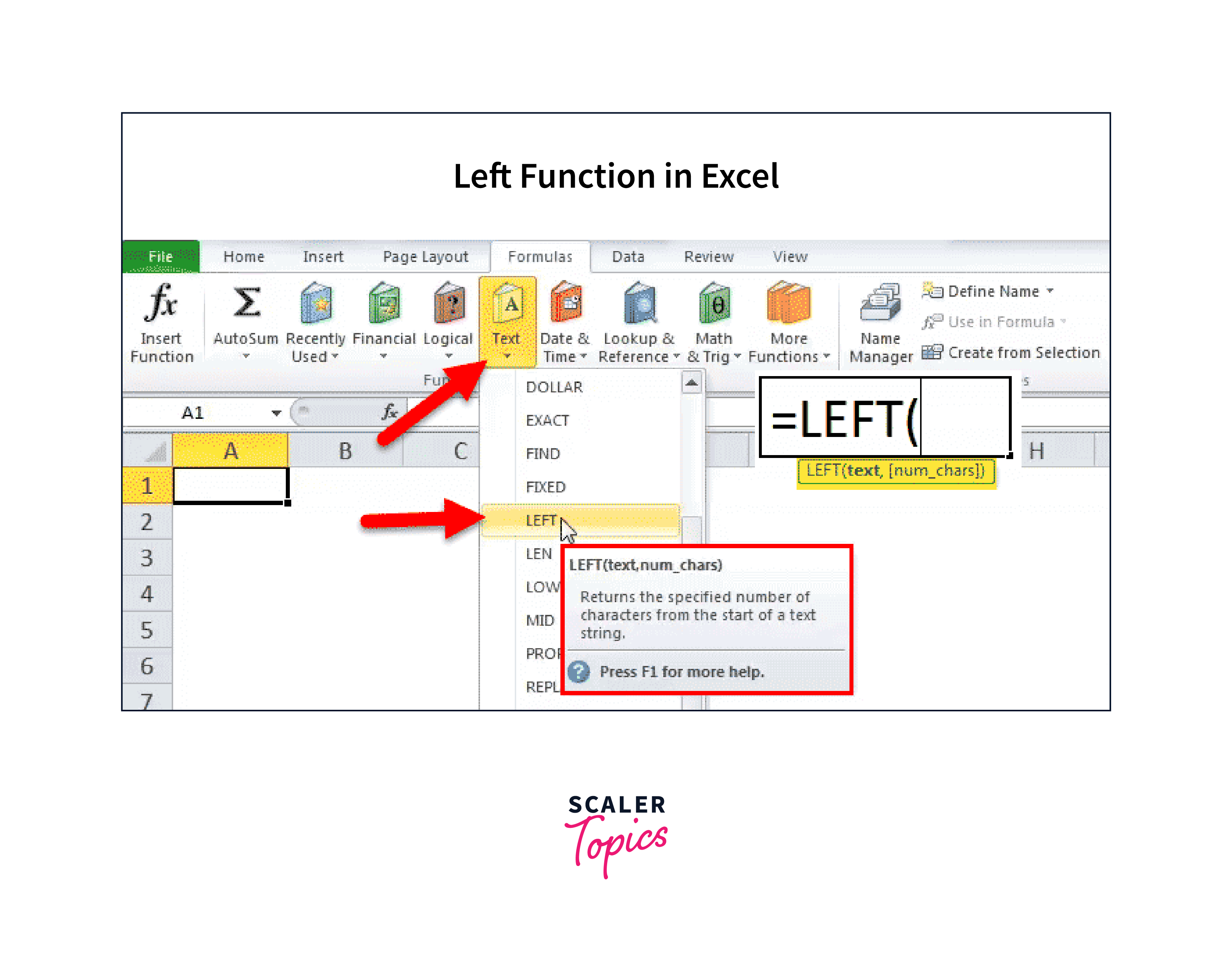
How to Open the LEFT Formula in Excel?
In Excel, to use the LEFT formula, follow these steps in detail:
- Open Excel:
Launch Microsoft Excel on your computer. - Open or Create a Workbook:
Either open an existing Excel workbook where you want to use the LEFT formula or create a new one. - Select a Cell for the Result:
Choose a cell where you want the result of the LEFT formula to appear. Click on that cell to select it. This cell will typically be where you want to display the extracted text. - Type the Formula:
In the selected cell, type the formula starting with an equal sign (=). Then type "LEFT(". - The formula will look like this: =LEFT(
Enter the text Argument: After typing "LEFT(", specify the text argument. This is the text string or cell reference from which you want to extract characters. You can either type the text directly within double quotation marks or click on the cell containing the text.- For example, if you want to extract characters from cell A1, your formula might look like this: =LEFT(A1,
- Enter the num_chars Argument:
After specifying the text argument, enter a comma (,), and then specify the num_chars argument. This is the number of characters you want to extract from the left side of the text.- For example, if you want to extract the first 5 characters, your formula would look like this: =LEFT(A1, 5)
- Close the Formula:
Close the formula with a closing parenthesis ). Your complete formula should look like this: =LEFT(A1, 5) - Press Enter:
After entering the formula, press the "Enter" key. Excel will calculate the result and display it in the selected cell. The result will be the extracted characters from the left side of the specified text in cell A1. - Drag or Copy the Formula (Optional):
If you need to apply the LEFT formula to multiple cells, you can either drag the fill handle (a small square at the bottom-right corner of the selected cell) down or copy and paste the formula to other cells. Excel will automatically adjust the cell references as needed. - Result:
The result of the LEFT formula will be displayed in the selected cell(s), showing the extracted text from the left side of the input text string.
By following these steps, you can use the LEFT formula in Excel to extract specific characters from text strings in your spreadsheet.
Some Formulas of LEFT Function in Excel
Extracting a Substring Before a Certain Character
To extract a substring before a certain character in Excel using the LEFT formula, you can combine the LEFT function with other text functions like FIND or SEARCH. Here's how you can do it step by step:
Let's assume you have the following text in cell A1: "John.Doe@example.com" and you want to extract the part before the "@" symbol.
- Determine the Character Position:
You need to find the position of the character (in this case, "@") before which you want to extract the substring. You can use the FIND or SEARCH function for this purpose.
For FIND:
For SEARCH (case-insensitive search):
- Use the LEFT Function:
Now that you have the character position, you can use the LEFT function to extract the substring before that character.
OR
The formula subtracts 1 from the character position to ensure that the "@" symbol itself is not included in the extracted substring.
- Press Enter:
After entering the formula, press "Enter," and Excel will display the extracted substring in the cell where you placed the formula.
In this example, the result will be "John.Doe" since it extracts the text before the "@" symbol. You can adapt this approach to extract substrings before other specific characters in your Excel data by changing the character you're searching for in the FIND or SEARCH function. Perform these steps in your spreadsheet for a better and clear explanation.
Removing the Last N Characters from A String
To remove the last N characters from a string in Excel using the LEFT formula, you can subtract N from the total length of the string. Here's how you can do it step by step:
Let's assume you have the following text in cell A1: "Hello, World!" and you want to remove the last 5 characters.
- Calculate the Length of the String:
You need to determine the length of the original string using the LEN function.
This will give you the total number of characters in the string.
- Subtract N Characters:
Subtract the number of characters you want to remove (N) from the total length of the string. Let's say you want to remove the last 5 characters:
This will give you the new length of the string after removing the last 5 characters.
- Use the LEFT Function:
Now, you can use the LEFT function to extract the substring from the original string with the calculated length.
The LEFT function will extract the characters from the beginning of the original string up to the calculated length, effectively removing the last N characters.
- Press Enter:
After entering the formula, press "Enter," and Excel will display the modified string in the cell where you placed the formula.
Perform these steps in your spreadsheet for a better and clear explanation.
How to Use LEFT Formula in Excel?
Using the LEFT formula in Excel is straightforward, and it's used to extract a specified number of characters from the left side of a text string. Here's a step-by-step example:
- Suppose you have a list of names in column A, and you want to extract the first three characters from each name.
- Open Excel:
Launch Microsoft Excel and open a new or existing workbook. - Enter Data:
In column A, enter a list of names. For example:
- Select a Cell for the Result:
In an empty cell where you want the extracted names to appear, select the cell. Let's assume you want the extracted names to appear in cell B1. - Enter the Formula:
In cell B1, enter the LEFT formula to extract the first three characters from cell A1:
Press "Enter" after typing the formula.
- Fill Down (Optional):
If you want to apply the same formula to extract the first three characters for all names in column A, you can use the fill handle. Click and drag the small square in the bottom-right corner of cell B1 (the fill handle) down to fill the formula for other cells in column B. Excel will automatically adjust the cell references, so you don't need to modify the formula for each row. - Result:
In column B, you will see the first three characters extracted from each name:
Perform these steps in your spreadsheet for a better and clear explanation.
Conclusion
- Simple Extraction:
LEFT provides a straightforward way to extract characters from the left side of a text string, making it easy to work with textual data. - Customizable Length:
Users can specify the number of characters to extract, offering flexibility in tailoring the output to specific needs. - Versatile Applications:
LEFT is employed in various scenarios, such as splitting names from a full name column, extracting dates or prefixes, and isolating specific identifiers from text data. - Data Cleaning:
It's instrumental for data cleaning tasks, helping to separate relevant information from larger text fields, which can be especially useful for analysis and reporting. - Formula Complement:
LEFT is often used in combination with other Excel functions like FIND or LEN to create more complex text-processing formulas. - Excel Efficiency:
Excel's automatic recalculation ensures that the extracted values stay up to date as the source data changes. - Automation:
LEFT can be part of automated workflows, streamlining data transformation tasks. - Error Handling:
It handles errors gracefully, returning an empty string when the specified length exceeds the available characters. - Convenience:
It simplifies the process of working with text data, reducing the need for manual manipulation.