


What Are the Best Backup Tools for Linux?
What Are the Best Backup Tools for Linux?
Having trustworthy backup software is crucial when it comes to protecting your data on Linux computers. In this article, we'll look at a few major Linux backup applications and their unique features to guarantee the security and recovery of your important data.
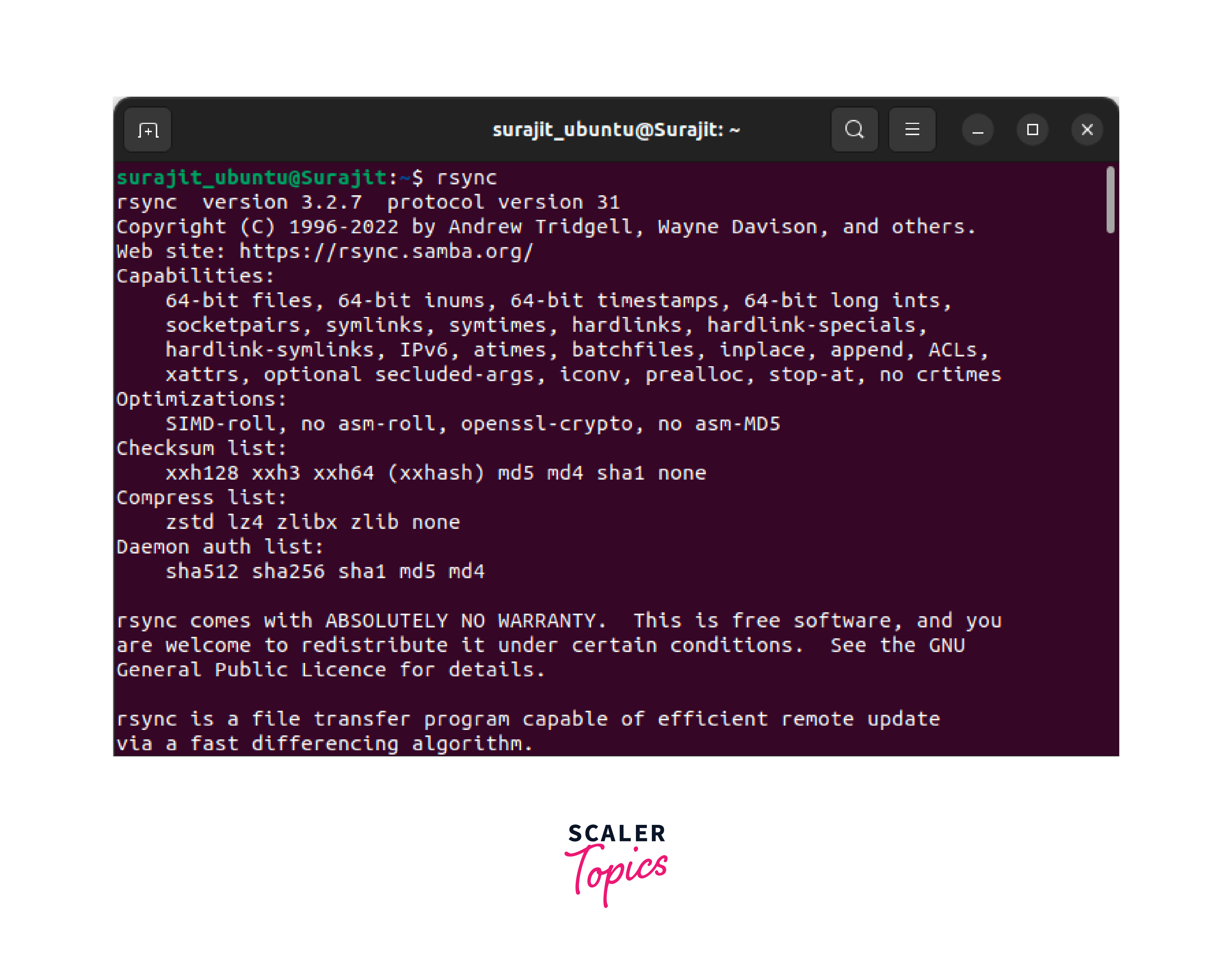
rsync
rsync is a powerful and widely used Linux backup tool. It offers efficient file synchronization and backup capabilities, making it a popular choice among users. Let's explore its exclusive features and learn how to install it on your Linux system.
Incremental Backups:
rsync only transfers changes since the last backup. Only modified files are sent, reducing backup time and storage.
File Synchronization:
rsync is great at matching source and destination directories. It sends only the changes between files, saving time and bandwidth.
rsync is typically pre-installed on most Linux distributions. However, if it's not available or you need a specific version, you can install it using the default package manager of your Linux distribution.
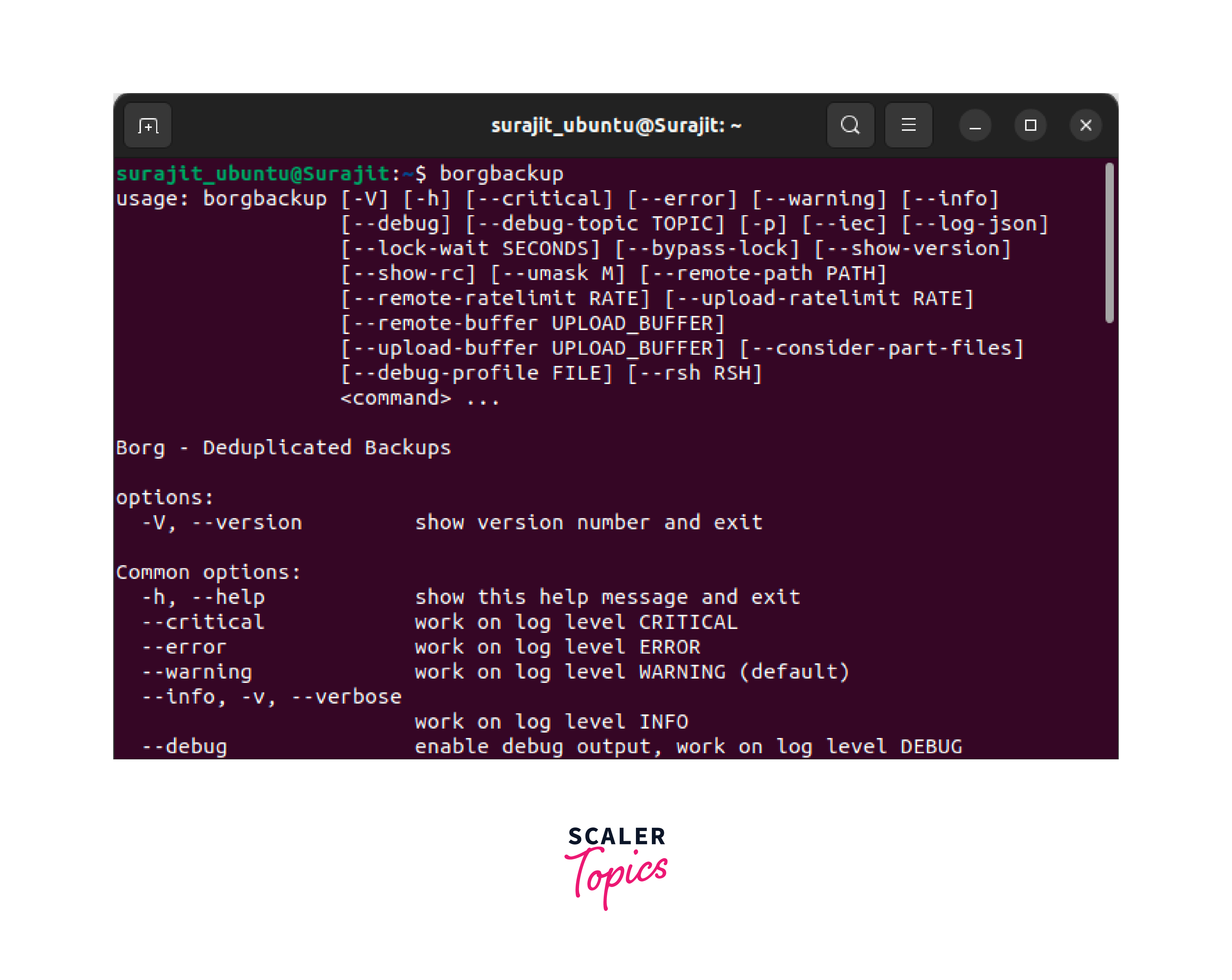
BorgBackup
BorgBackup, often referred to as Borg, is a feature-rich Linux backup tool specifically designed for Linux systems. It offers deduplication, compression, encryption, and efficient storage to ensure the security and integrity of your backups. Let's delve into the exclusive features of BorgBackup and learn how to install it on your Linux system.
Deduplication:
BorgBackup eliminates duplicate data between backups to save space. This greatly reduces disk space needs.
Cryptographic checksums:
BorgBackup's backup verifies data while taking backup. It maintains backup data integrity and informs you about the issues to fix.
Installation of BorgBackup is quite similar like other software installation in Linux systems. If you are using Ubuntu, just open the terminal window and type the command:
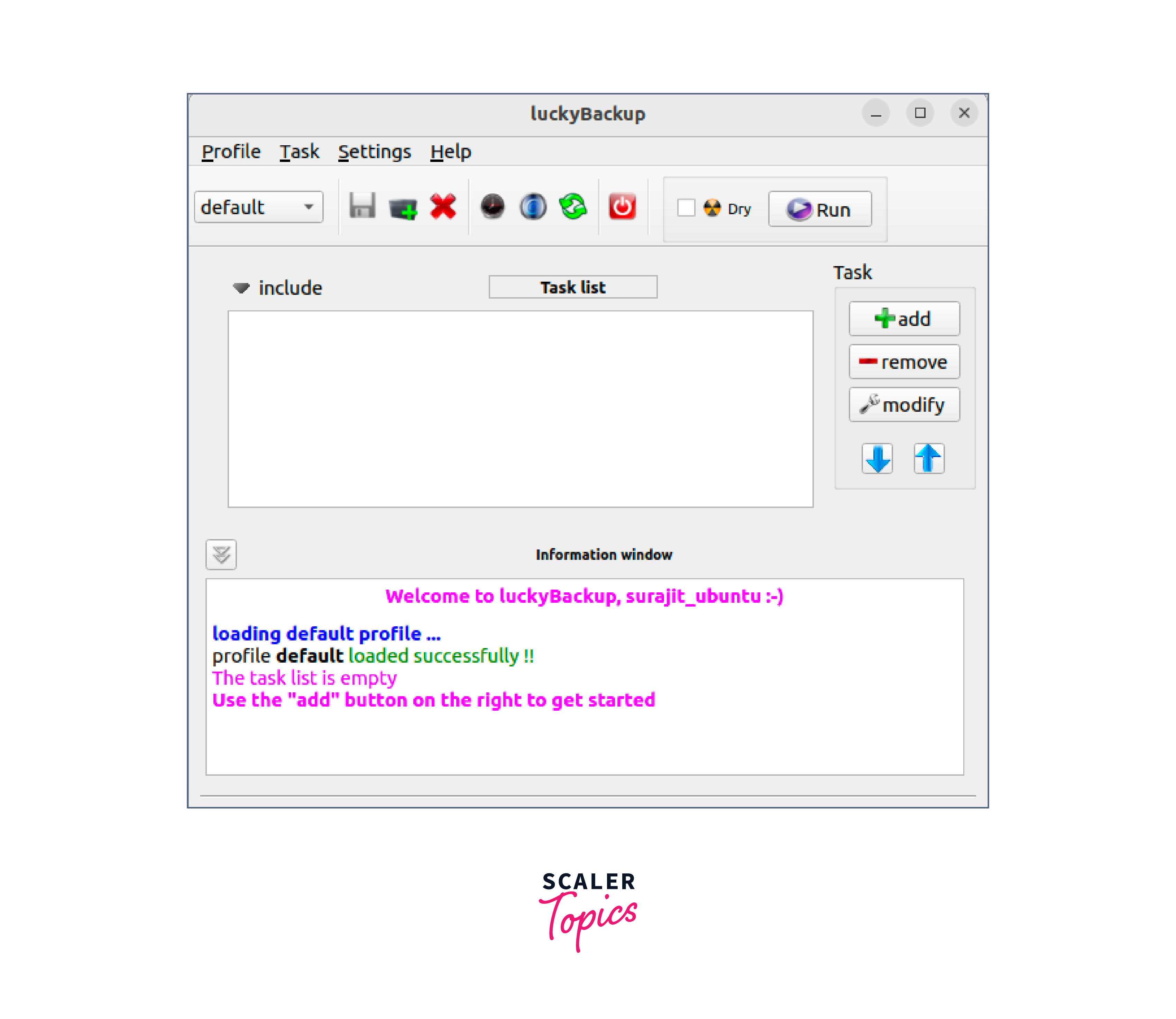
LuckyBackup
LuckyBackup is a user-friendly Linux backup and synchronization tool designed for Linux systems. It provides an intuitive graphical user interface (GUI) that simplifies the process of creating and managing backups. LuckyBackup offers a range of features, including incremental backups, synchronization between different locations, compression, and encryption. Let's explore the exclusive features of LuckyBackup and learn how to install it on your Linux system.
LuckyBackup's GUI** makes backup configuration and execution simple. The simple interface lets both beginners and professionals set up backup activities fast.
Advanced Filters:
LuckyBackup lets you set inclusion and exclusion filters to specify which files and folders to back up or synchronize. This allows fine-grained data processing.
For installing Luckybackup use the package manager specific to your Linux distribution. As an example, For installing in Ubuntu:
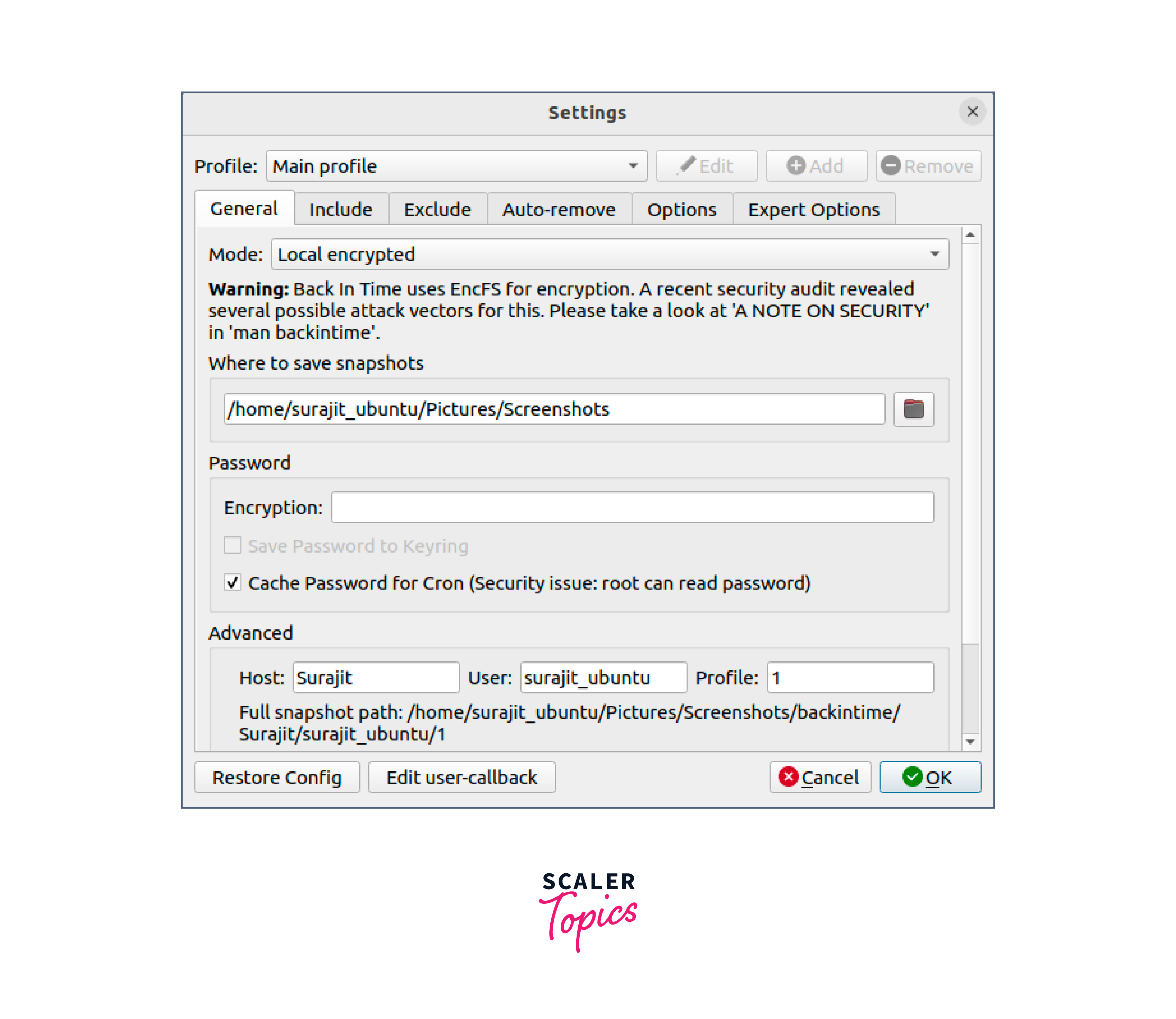
Back In Time
Back In Time is a reliable Linux backup tool designed for Linux systems. It offers a simple and intuitive graphical user interface (GUI) that enables users to easily set up and manage backups. Back In Time utilizes snapshot-based backups, allowing you to capture the state of your files and directories at different points in time. Let's explore the exclusive features of Back In Time and learn how to install it on your Linux system.
Snapshot-Based Backups:
Back In Time takes snapshots of your files and directories. This lets you restore files and directories to prior versions, ensuring data recovery.
Integration with File Managers:
Back In Time works well with Linux file managers like Nautilus (GNOME) and Dolphin (KDE). The file manager's UI lets you retrieve and recover backups.
For installing Back In Time, use the specific manager as per your Linux distros. As an example, if you are have Ubuntu, then use:
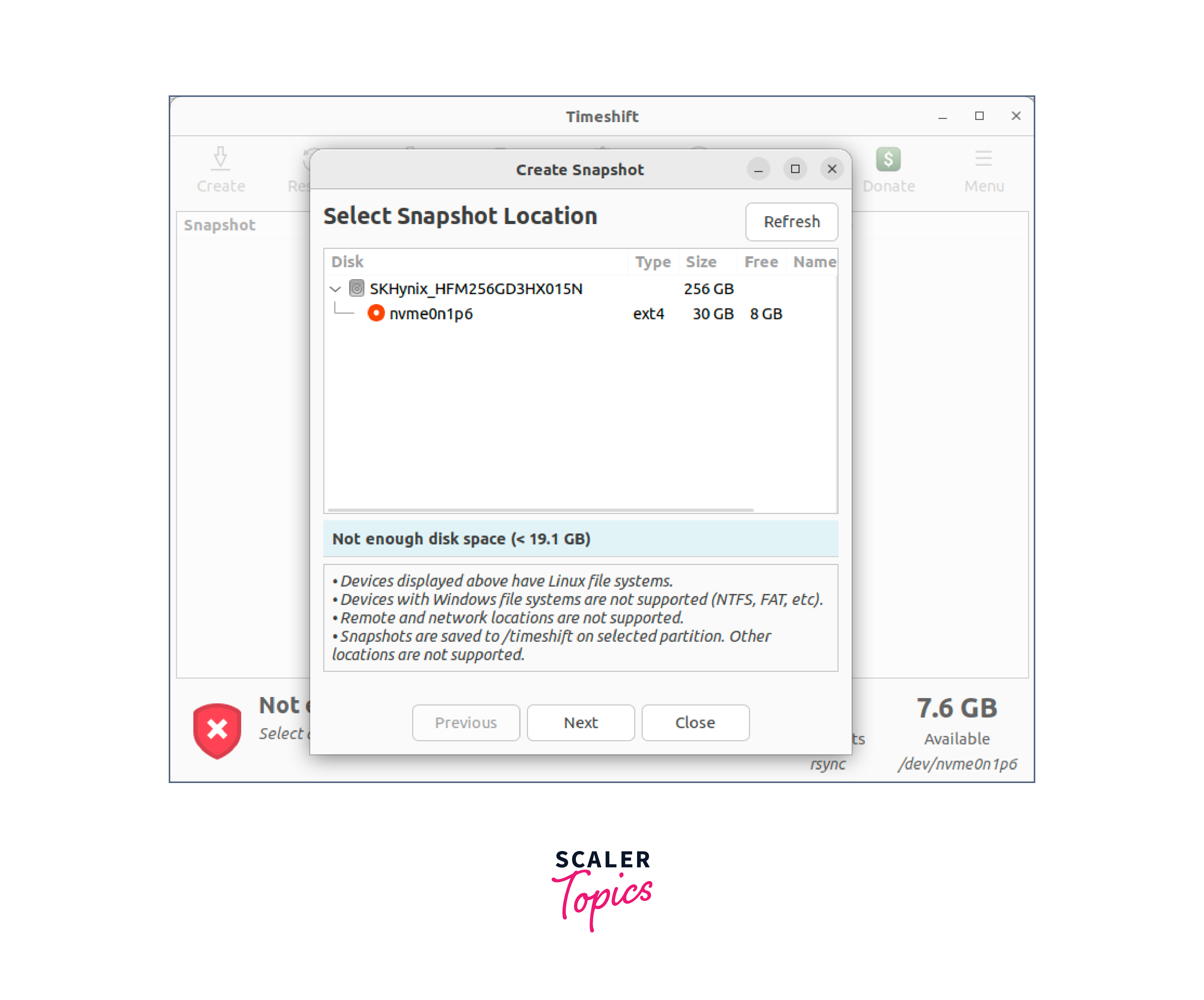
Timeshift
Timeshift is a powerful Linux backup and restore tool designed specifically for Linux systems. It provides a convenient way to take snapshots of your system, allowing you to revert to a previous state if any issues arise. Timeshift is particularly useful for system-level backups, including system configuration files, installed packages, and user data. Let's explore the exclusive features of Timeshift and learn how to install it on your Linux system.
System Snapshots:
Timeshift takes regular or manual system snapshots. These snapshots record system files, user data, and installed packages. If problems arise, you may easily restore your system to a snapshot.
Restore Points:
Timeshift lets you manually construct restore points before major system modifications. Revert to these restore points if problems develop after the changes.
For Installation of Timeshift use the default package manager of the Linux distros. As in Ubuntu we will be using the command mentioned:
Grsync
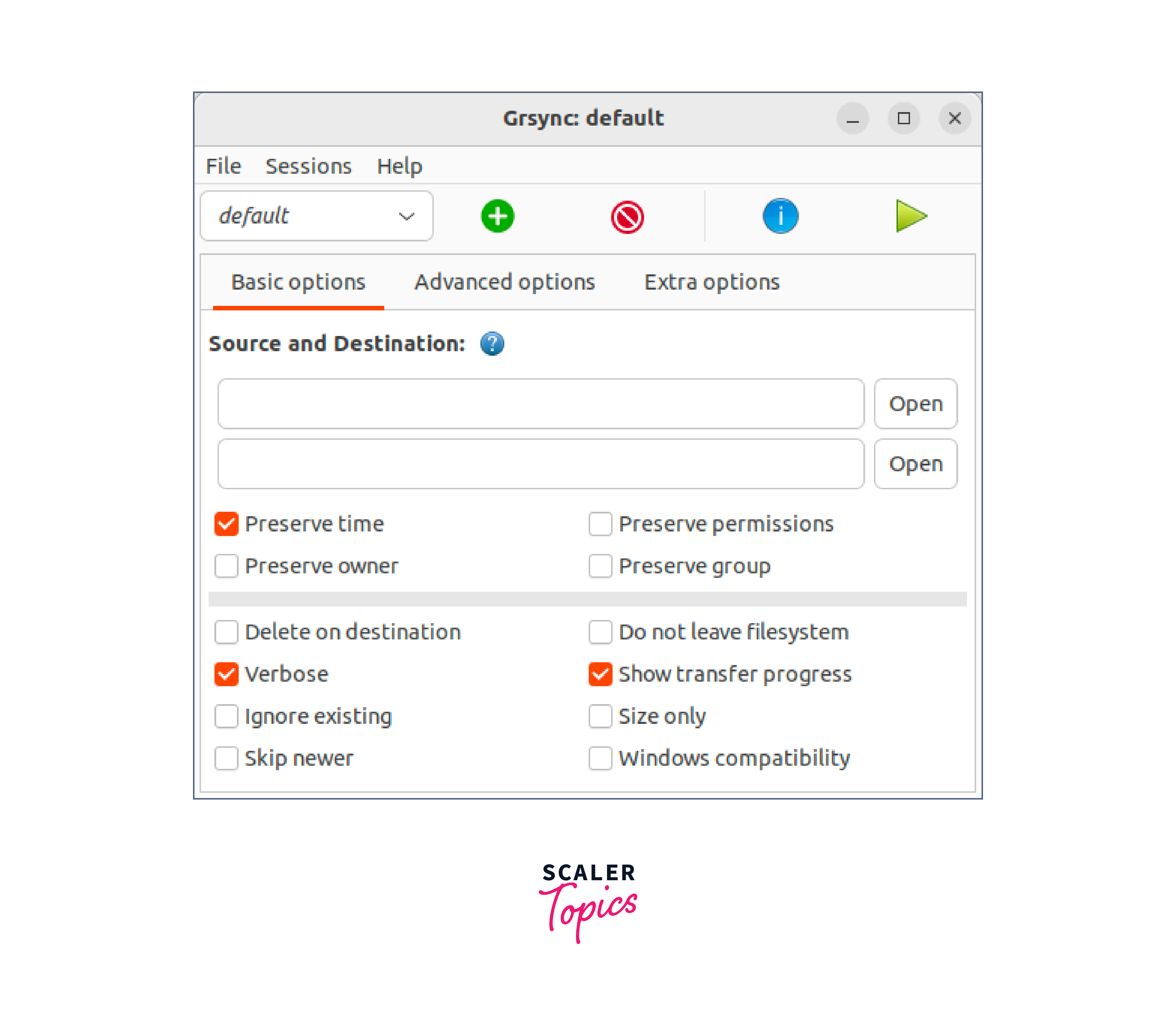
Grsync is a user-friendly graphical interface for the powerful rsync Linux backup tool. With its intuitive design, Grsync simplifies the process of creating and managing backups. Here are the key features of Grsync:
Easy Configuration:
Grsync provides a simple and intuitive interface for configuring backup tasks. Users can easily select source and destination directories, set up filters, and customize backup options.
Incremental Backups:
Grsync leverages rsync's incremental backup capabilities, ensuring that only modified files are transferred, reducing backup time and storage requirements.
To install Grsync on your Linux system, use your distribution's package manager. For example, on Ubuntu, open the terminal and run:
Restic
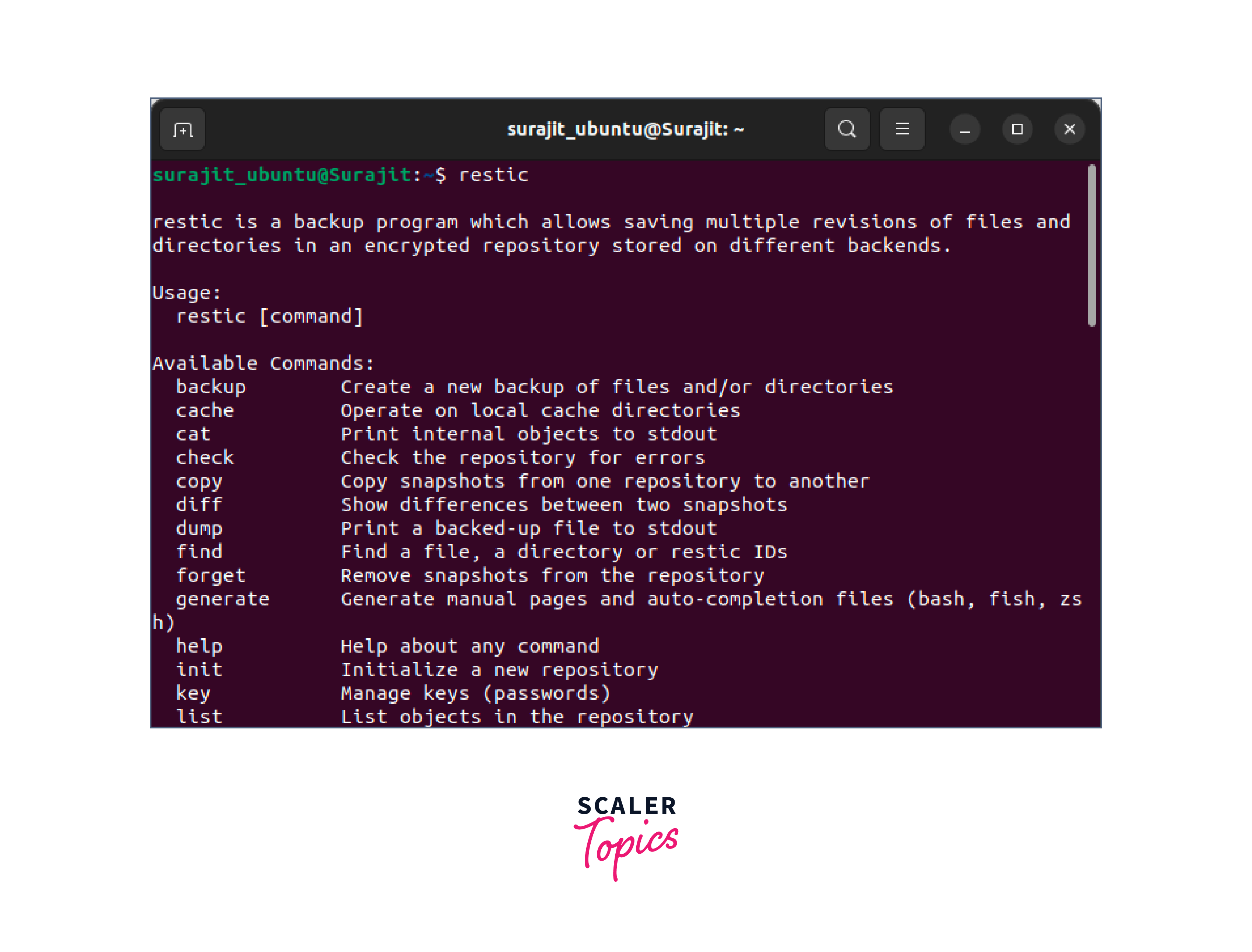
Restic is a versatile and secure backup tool designed for Linux systems. It offers a range of features to ensure reliable and efficient backups. Here are the key features of Restic:
Deduplication and Compression:
Restic optimizes storage space by eliminating duplicate data and employs compression techniques to reduce backup size, saving storage resources.
Incremental Backups:
Restic performs incremental backups, transferring only the changes made since the last backup. This minimizes backup time and reduces storage requirements.
To install Restic on your Linux system, download the appropriate binary from the official Restic website or use package managers like apt-get or yum. Detailed installation instructions are available in the Restic documentation.
Deja Dup
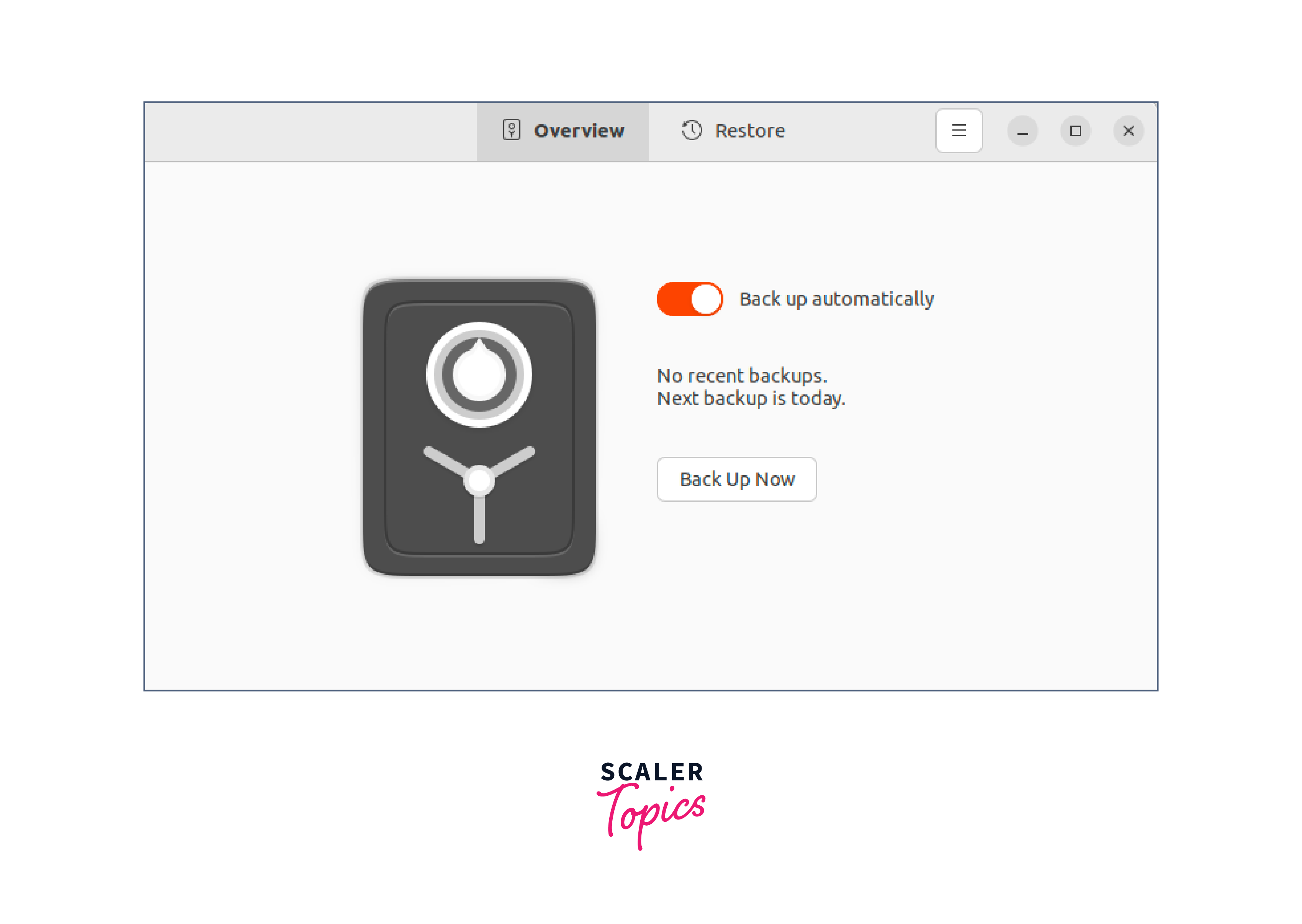
Deja Dup is a user-friendly backup tool designed for Linux systems, offering simplicity and convenience for data backups. Here are the key features of Deja Dup:
Easy Setup:
Deja Dup provides a straightforward interface for setting up backups. Users can easily select folders to back up, define backup schedules, and choose storage locations.
Incremental Backups:
Deja Dup performs incremental backups, only transferring modified or new files since the last backup. This reduces backup time and storage requirements.
To install Deja Dup on your Linux system, use the default package manager of your distribution. For example, in the terminal Ubuntu, run:
Kbackup
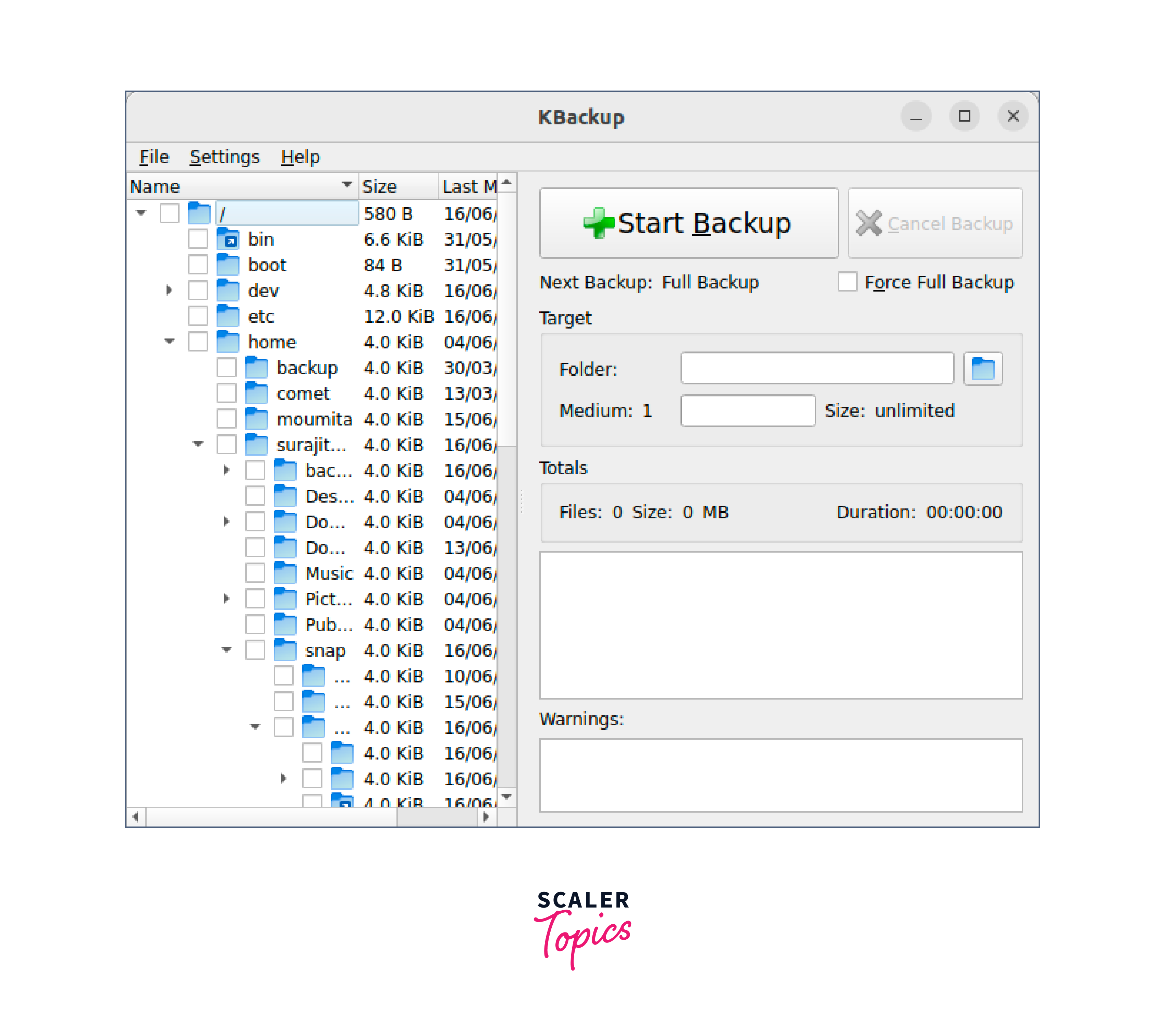
Kbackup is a reliable backup tool designed for Linux systems, providing users with a simple yet powerful solution for data backups. Here are the key features of Kbackup:
User-Friendly Interface:
Kbackup offers a user-friendly graphical interface, making it easy to configure and manage backup tasks. Users can select specific files and directories to back up and customize backup settings.
Incremental Backups:
Kbackup supports incremental backups, allowing users to backup only the changes made since the last backup. This reduces backup time and storage requirements.
To install Kbackup on your Linux system, use the package manager specific to your distribution. For example, on Ubuntu, open the terminal and run:
Clonezilla
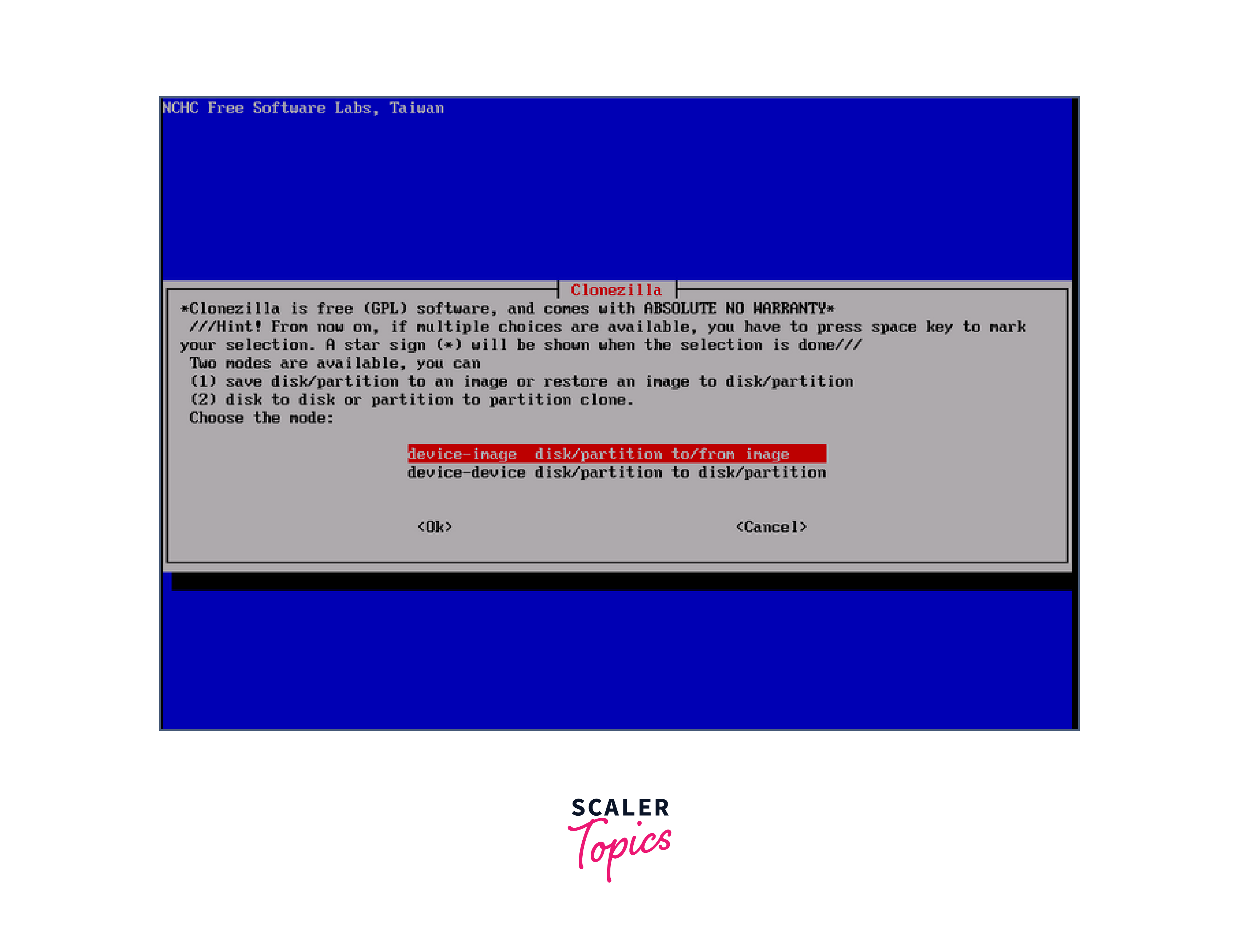
Clonezilla is a powerful disk imaging and cloning tool designed for Linux systems. It enables users to create full or partial backups of disks or partitions, making it ideal for system backups, disk cloning, and data recovery. Here are the key features of Clonezilla:
Disk and Partition Cloning:
Clonezilla can clone entire disks or individual partitions, allowing for seamless migration to new drives or duplication of existing systems.
Multiple Filesystem Support:
Clonezilla supports a wide range of filesystems, including popular ones like ext4, NTFS, and FAT. This ensures compatibility with various storage devices and operating systems.
To install Clonezilla on your Linux system, download the Clonezilla ISO image from the official website and create a bootable USB or CD. Then, boot your system from the Clonezilla media to access its powerful backup and cloning capabilities.
Conclusion
- With a range of versatile Linux backup tools like BorgBackup, LuckyBackup, Back In Time, Timeshift, Grsync, Restic, Deja Dup, Kbackup, and Clonezilla, you have the means to protect your valuable data and ensure its recoverability.
- Whether you prefer command-line utilities or user-friendly GUI-based applications, these tools offer diverse features to suit your specific backup requirements.
- Choose the one that aligns with your needs and enjoy the peace of mind that comes with robust data protection on your Linux system.