


What Are Networking Commands In Linux?
What Are Networking Commands In Linux?
Networking commands in Linux are specific commands that are used to manage and interact with network-related settings and functionality. These commands allow users to configure network interfaces, troubleshoot network connectivity issues, monitor network activity, and perform various networking tasks.
Linux Networking Commands
We will discuss some of the most commonly used commands in Linux for Networking below.
ifconfig

The ifconfig command displays and configures network interfaces and their associated parameters. It provides information about the current network configuration, including IP addresses, netmasks, MAC addresses, and network statistics in Linux for networking.
Displaying Interface Information:
Running ifconfig without any arguments shows the configuration details of all active network interfaces on your system.
Configuring IP Address:
To assign a specific IP address to an interface, you can use the command ifconfig eth0 192.168.1.10. This assigns the IP address 192.168.1.10 to the Ethernet interface eth0.
Enabling or Disabling Interfaces:
You can bring up or down a network interface using ifconfig eth0 up or ifconfig eth0 down. This command enables or disables the eth0 interface, respectively.
Changing MAC Address:
To change the MAC address of an interface, you can use ifconfig eth0 hw ether 00:11:22:33:44:55. This sets the MAC address of eth0 to the specified value.
Setting Netmask:
The netmask of an interface can be configured using ifconfig eth0 netmask 255.255.255.0. This command sets the netmask of eth0 to the specified value.
ip

The ip command helps in configuring and managing network interfaces, routing tables, and other networking parameters. It offers more advanced functionality compared to the traditional ifconfig command in Linux for networking.
Displaying Interface Information:
Running ip addr show provides a detailed information about all network interfaces on your system, including their IP addresses, MAC addresses, and state.
Configuring IP Address:
To assign an IP address to an interface, you can use the command ip address add 192.168.1.10/24 dev eth0. This assigns the IP address 192.168.1.10 with a subnet mask of /24 to the Ethernet interface eth0.
Managing Routing:
The ip route command allows you to manage routing tables. For example, ip route add default via 192.168.1.1 sets the default gateway for outgoing traffic to 192.168.1.1.
Modifying Interface Parameters:
The ip link set command enables you to modify interface parameters. For example, ip link set eth0 mtu 1500 sets the Maximum Transmission Unit (MTU) of eth0 to 1500 bytes.
traceroute

The traceroute command helps to trace the route that packets take from your computer to a destination IP address or domain. It helps in diagnosing network connectivity issues and identifying the network hops between your system and the target.
Basic Traceroute:
Running traceroute google.com traces the route to the Google website, displaying the IP addresses of the intermediate routers or hops along the path. This helps in understanding the network infrastructure between your system and the destination.
Specifying Packet TTL:
By default, traceroute uses increasing Time to Live (TTL) values. You can specify a specific TTL value using the -m option, such as traceroute -m 10 google.com. This limits the maximum number of hops to 10 and provides a more concise output.
Resolving IP to Hostnames:
Adding the -n option to the command, like traceroute -n google.com, prevents traceroute from attempting to resolve IP addresses to hostnames. This can speed up the trace process by avoiding DNS lookups.
Using UDP or ICMP:
By default, traceroute uses UDP packets. However, you can specify the use of ICMP Echo Request packets with the -I option, such as traceroute -I google.com. This can be useful in cases where UDP packets are blocked or filtered.
tracepath

The tracepath command helps trace the path packets take from a source to a destination. It is similar to traceroute but provides a simplified output that displays the IP addresses of the intermediate hops along with the round-trip time (RTT) for each hop.
Basic Tracepath:
Running tracepath google.com traces the route to the Google website, displaying the IP addresses of the intermediate hops along with the RTT for each hop. This provides a concise view of the network path to the destination.
Specifying Maximum Hops:
You can limit the number of hops using the -m option, such as tracepath -m 10 google.com. This restricts the trace to a maximum of 10 hops and provides a more focused output.
Displaying Only IP Addresses:
Adding the -n option, like tracepath -n google.com, prevents tracepath from resolving IP addresses to hostnames. This can speed up the trace process by avoiding DNS lookups.
ping

The ping command is used for testing network connectivity and measuring the round-trip time (RTT) between a source and a destination. It sends Internet Control Message Protocol (ICMP) Echo Request packets to a specified IP address or domain to check if it is reachable.
Basic Ping:
Running ping google.com sends ICMP Echo Request packets to the Google website and displays the round-trip time for each packet. This helps verify if the destination is reachable.
Specifying Packet Count:
You can limit the number of ICMP packets using the -c option, such as ping -c 5 google.com. This sends only 5 packets and provides a summary of the packet loss and RTT statistics.
Setting Packet Interval:
Adding the -i option, like ping -i 1 google.com, sets the interval between ICMP packets to 1 second. This can be useful for monitoring network stability or analyzing network performance.
netstat
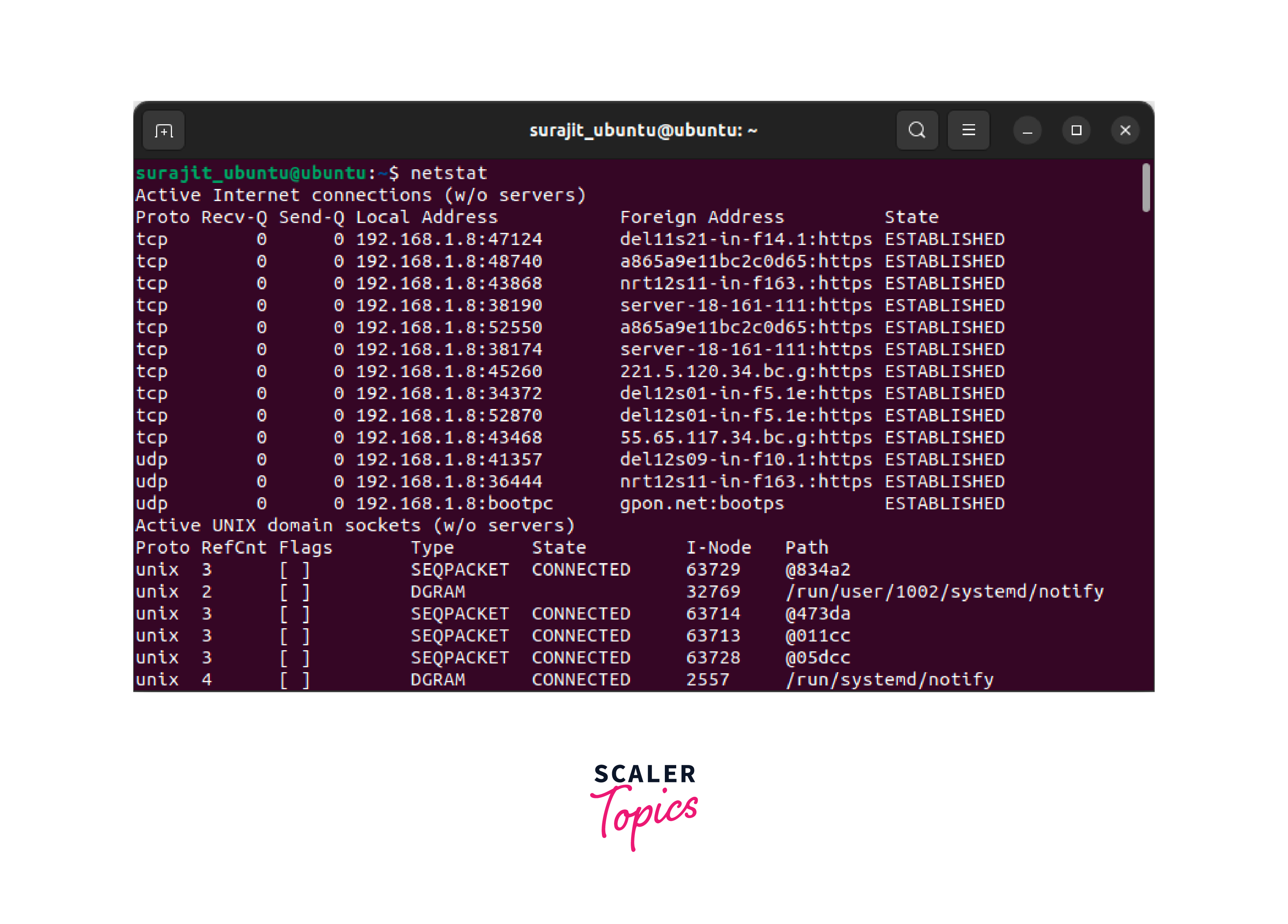
The netstat command in Linux for networking displays network-related information such as active network connections, listening ports, routing tables, and various network statistics. It provides valuable insights into network activity and aids in troubleshooting network-related issues.
Displaying Active Connections:
Running netstat -a shows all active connections, including TCP and UDP connections, along with their local and remote IP addresses and port numbers.
Monitoring Listening Ports:
Using netstat -l or netstat -tuln, you can view all listening ports on your system. This helps identify which services are actively listening for incoming connections.
Displaying Network Statistics:
The -s option, such as netstat -s, provides comprehensive network statistics, including packet and byte counts, error statistics, and protocol-specific information.
Showing Routing Table:
The netstat -r command displays the routing table, which shows the network destinations and the corresponding gateway addresses.
ss

The ss command in Linux for networking displays detailed information about network sockets. It provides a more modern and efficient alternative to the traditional netstat command. ss stands for socket statistics and offers a wide range of options for examining network connections and related information.
Displaying All Sockets:
Running ss -a shows all listening and non-listening sockets, both TCP and UDP.
Filtering Sockets by State:
The -t option, like ss -t, filters the output to display only TCP sockets, while the -u option limits it to UDP sockets.
Showing Process Information:
Adding the -p option, such as ss -ap, displays the associated process information for each socket, providing insight into which process is using a specific socket.
Displaying Summary Statistics:
The -s option, like ss -s, provides summary statistics for various network protocols, including TCP, UDP, and ICMP.
dig

The dig command in Linux for networking is used for performing DNS (Domain Name System) queries. It allows users to retrieve DNS information for a specific domain, such as IP addresses, mail server records, and other DNS-related data.
Basic DNS Query:
Running dig sample.com retrieves the default DNS information for the domain "sample.com," including its IP address and other relevant DNS records.
Querying a Specific DNS Record:
Adding the record type to the command, like dig MX sample.com, specifically requests the MX (Mail Exchanger) records for the domain.
Querying a Specific DNS Server:
You can specify a particular DNS server using the @ symbol. For instance, dig @8.8.8.8 sample.com sends the query to the Google Public DNS server (8.8.8.8).
nslookup

The nslookup command in Linux for networking helps to query DNS (Domain Name System) servers to retrieve information about domain names and their associated IP addresses.
Basic DNS Lookup:
Running nslookup google.com retrieves the default DNS information for the domain "google.com," including its IP address and the corresponding DNS server.
Reverse DNS Lookup:
By specifying an IP address instead of a domain name, such as nslookup 192.0.2.1, nslookup performs a reverse DNS lookup to find the associated domain name.
Querying a Specific DNS Server:
You can specify a particular DNS server to use with the server command. For instance, after running nslookup, you can enter server 8.8.8.8 to switch to using the Google Public DNS server (8.8.8.8) for subsequent queries.
route
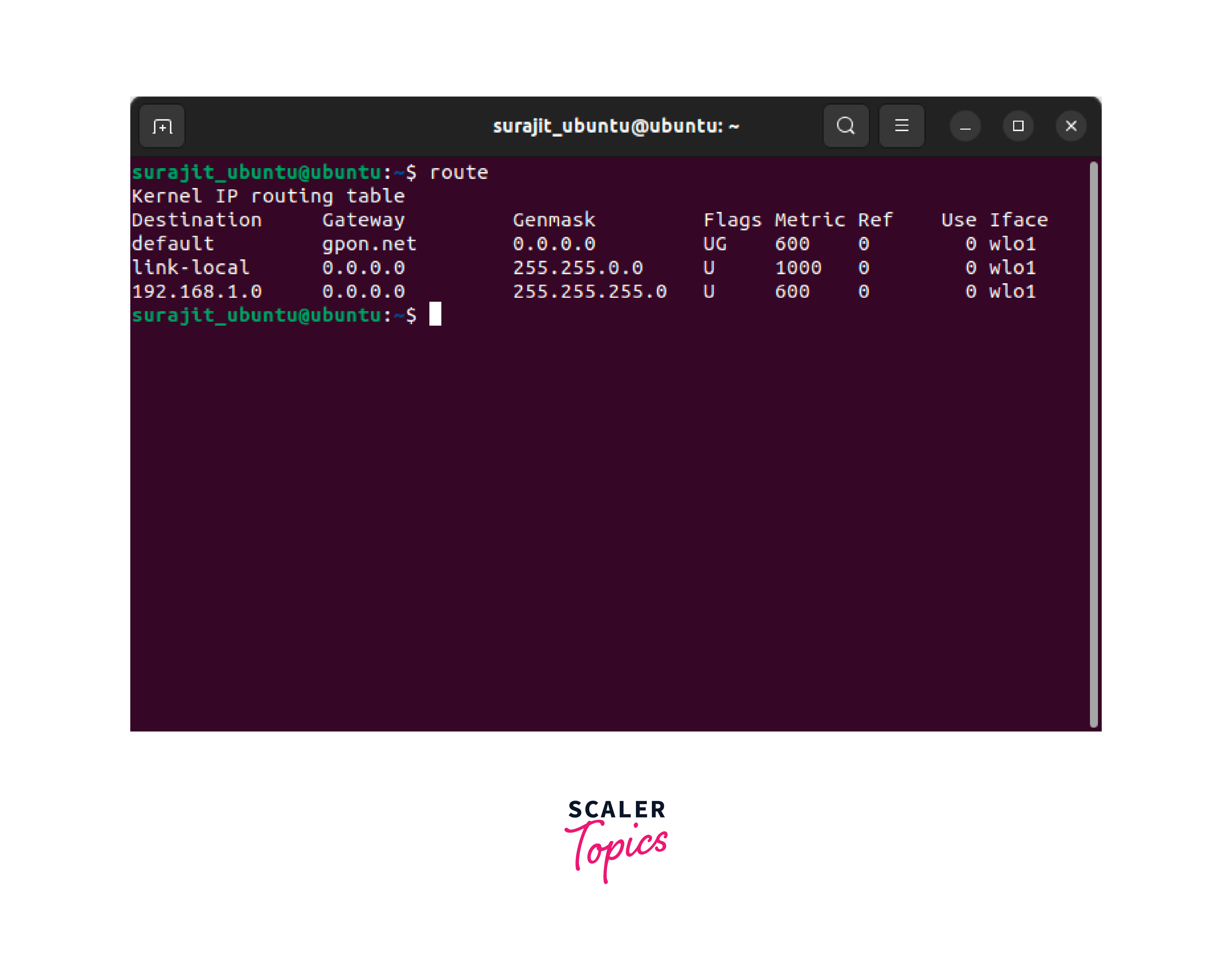
The route command in Linux for networking is used for configuring and displaying the IP routing table, which determines the path that network packets take to reach their destinations.
Displaying Routing Table:
Running route -n or route -e displays the current IP routing table, showing the network destinations, gateways, and interface information.
Adding a Route:
To add a new route, you can use the command route add -net 192.168.1.0/24 gw 192.168.0.1 dev eth0. This adds a route for the network 192.168.1.0/24 via the gateway 192.168.0.1 and the Ethernet interface eth0.
Deleting a Route:
To remove a specific route, you can use route del -net 192.168.1.0/24. This removes the route for the network 192.168.1.0/24 from the routing table.
host
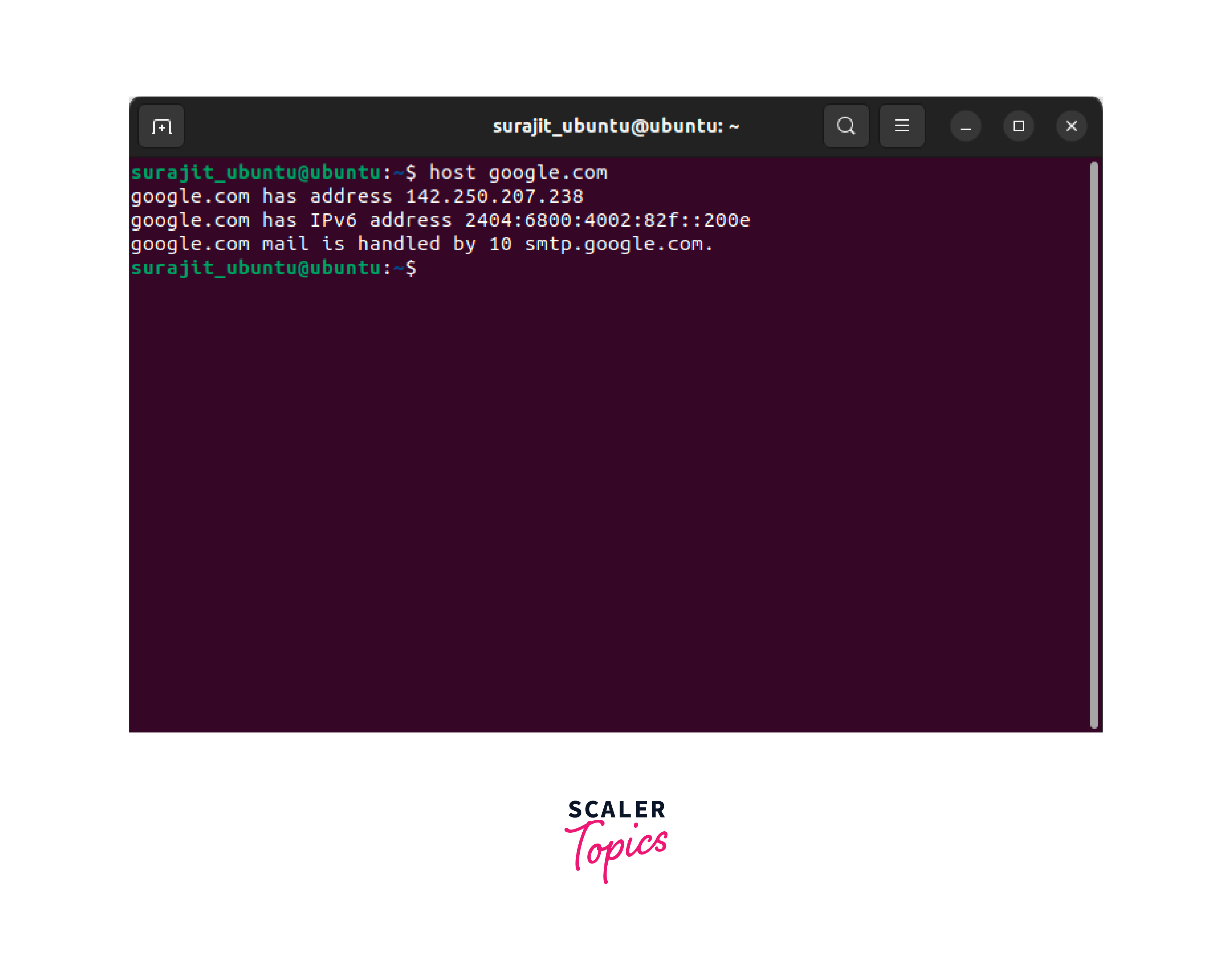
The host command in Linux for networking is a versatile tool for performing DNS (Domain Name System) lookups. It allows users to retrieve various types of DNS information for a given hostname or IP address. The host command is particularly useful for obtaining the IP address associated with a domain or performing reverse DNS lookups to find the domain name associated with an IP address.
Basic DNS Lookup:
Running host google.com retrieves the IP address of the domain "google.com" along with other DNS records, such as the mail server (MX) records.
Reverse DNS Lookup:
By specifying an IP address instead of a domain name, such as host 192.168.0.1, host performs a reverse DNS lookup to find the associated domain name.
Querying a Specific DNS Server:
You can specify a particular DNS server using the -s option, like host -s 8.8.8.8 google.com. This directs the query to the specified DNS server instead of the default one.
arp

The arp command in Linux for networking is used to view and manipulate the Address Resolution Protocol (ARP) cache, which is responsible for mapping IP addresses to MAC addresses on a local network. It allows users to examine the mapping between IP and MAC addresses, troubleshoot network connectivity issues, and manage the ARP cache.
Displaying ARP Cache:
Running arp -a shows the contents of the ARP cache, including the IP addresses and corresponding MAC addresses of devices on the local network.
Clearing ARP Cache:
To clear the ARP cache, you can use the command arp -d. For example, arp -d 192.168.1.1 clears the entry for the IP address 192.168.1.1 from the ARP cache.
Adding a Static ARP Entry:
You can manually add a static ARP entry using the command arp -s. For instance, arp -s 192.168.1.100 00:11:22:33:44:55 adds a static ARP entry that maps the IP address 192.168.1.100 to the MAC address 00:11:22:33:44:55.
iwconfig

The iwconfig command in Linux for networking is a powerful tool used for configuring and displaying wireless network interfaces and their settings. It is commonly used for managing wireless connections, analyzing signal strength, and modifying wireless configurations.
Display Wireless Interface Information:
Running iwconfig without any arguments provides an overview of the current wireless interface settings, including the interface name, wireless mode, frequency, signal strength, and encryption status.
Set Wireless Mode:
You can use iwconfig to set the wireless mode of an interface. For instance, iwconfig wlan0 mode Managed configures the wlan0 interface in managed mode, which allows it to connect to an access point.
Adjust Transmission Power:
iwconfig enables users to modify the transmission power of a wireless interface. For example, iwconfig wlan0 txpower 15 sets the transmission power of the wlan0 interface to 15 dBm.
hostname
The hostname command in Linux for networking is used to view or set the hostname of the system. The hostname is a label or identifier assigned to a device on a network.
Display Hostname:
Running hostname without any arguments displays the current hostname of the system.
Set Hostname:
To set a new hostname, you can use the hostname command followed by the desired hostname. For example, hostname myserver sets the hostname of the system to "myserver".
Temporary Hostname Change:
Adding the --temp option, like hostname --temp mytempserver, changes the hostname temporarily until the next reboot. It can be useful for testing or temporary changes.
Persistently Change Hostname:
For a permanent hostname change, it's recommended to update the relevant configuration files such as /etc/hostname and /etc/hosts in addition to using the hostname command.
Curl and wget
Both curl and wget are command-line tools used for transferring data over various network protocols. While they serve a similar purpose, there are some differences between the two.
curl
curl stands for "Client URL" and is a versatile tool for making HTTP, HTTPS, FTP, and many other types of requests. It supports a wide range of features, including downloading and uploading files, handling cookies, authentication, and more.
curl https://www.12345.com : Retrieves the content of a URL
curl -O https://www.12345.com/file.txt : Downloads a file
curl -X POST -d "data" https://api.12345.com : Sends a POST request with data
wget
wget stands for "Web Get" and is primarily designed for the non-interactive downloading of files from the web. It supports HTTP, HTTPS, and FTP protocols and offers features like recursive downloading, resuming interrupted downloads, and following links.
wget https://www.sample.com/file.txt : Downloads a file
wget -r -np https://www.sample.com : Recursively downloads a website
wget -c https://www.sample.com/file.zip : Resumes an interrupted download
mtr

The mtr command in a network diagnostic tool that combines the functionality of ping and traceroute. It provides real-time information about network latency, packet loss, and the path taken by packets to reach a destination. mtr continuously sends packets and displays statistics for each hop along the route, making it useful for identifying network issues and pinpointing problem areas.
- mtr google.com :
Displays the network path and statistics to reach google.com - mtr -r google.com :
Performs a reverse DNS lookup for each hop in the route - mtr -c 10 google.com :
Sends 10 packets and displays average statistics
whois
The whois command in Linux for networking is used to retrieve information about domain names, IP addresses, and network-related details from WHOIS databases. WHOIS is a protocol that provides registration and ownership information about domain names, IP addresses, and autonomous systems.
Domain Name Information:
Running whois sample.com retrieves information about the registered owner, registration date, expiry date, and other details related to the domain "sample.com".
IP Address Information:
By specifying an IP address, such as whois 192.168.1.1, whois provides information about the allocated network, organization, and other details associated with the IP address.
Registrar Information:
whois also displays information about the domain registrar, including contact details, nameservers, and registration status.
ifplugstatus
The ifplugstatus command is used to check the status of Ethernet network interfaces and determine whether a cable is plugged into a specific interface. It is commonly used to identify the connectivity status of a network cable and determine if a network link is active or inactive.
Display Interface Status:
Running ifplugstatus without any arguments displays the status of all Ethernet interfaces on the system, indicating whether a cable is connected or disconnected.
Check a Specific Interface:
By specifying the interface name as an argument, such as ifplugstatus eth0, shows the status of a specific Ethernet interface, providing information on whether a cable is plugged in or not.
iftop
The iftop command displays real-time bandwidth usage for network interfaces. It provides a live view of the current network traffic flowing through specific interfaces, allowing users to analyze network usage patterns and identify potential bottlenecks.
- iftop :
Displays live bandwidth usage for all interfaces - iftop -i eth0 :
Monitors bandwidth usage specifically on the eth0 interface - iftop -F 10.0.0.1 :
Filters and displays traffic related to the IP address 10.0.0.1
tcpdump
The tcpdump command is a network packet capture and analysis tool. It allows users to capture network traffic on a specified network interface, filter packets based on various criteria, and analyze the captured data.
- tcpdump :
Captures and displays network packets on the default interface - tcpdump -i eth0 :
Captures packets specifically on the eth0 interface - tcpdump -n port 80 :
Captures packets with a destination or source port of 80 - tcpdump -w output.pcap :
Saves captured packets to a file named "output.pcap" - tcpdump -r capture.pcap :
Reads and analyzes packets from the file "capture.pcap"
FAQ
Q. What is the primary configuration file for Apache?
A: The primary configuration file for the Apache HTTP Server is typically called httpd.conf or apache2.conf, depending on the distribution and version of Apache being used.
The location of the configuration file is given below as per operating systems.
- /etc/httpd/httpd.conf (CentOS, Fedora, RHEL)
- /etc/apache2/apache2.conf (Debian, Ubuntu)
The configuration file includes directives for various aspects of the server, such as server settings, virtual hosts, modules, logging, and more.
Q: What is a network's physical layer?
A: The physical layer refers to the lowest layer of the OSI (Open Systems Interconnection) model or the first layer of the TCP/IP model. It is responsible for the actual physical transmission of data over the network medium.
The physical layer encompasses various components, such as cables, connectors, network interface cards (NICs), repeaters, hubs, and physical signaling mechanisms. It defines how bits are encoded, transmitted, and received, as well as the voltage levels, timing, and physical properties of the transmission medium.
Q: ___ is the largest free Linux distribution?
A: Debian is the largest free Linux distribution.
Q: What Linux command is used to traverse directories?
A: The Linux command used to traverse directories is cd, which stands for "change directory". The cd command allows you to navigate between different directories within the file system.
Q: Which Linux versions use the dpkg package management system?
A: The dpkg package management system is primarily used by Debian-based Linux distributions. Some of the renowned Linux distribution under Debian that utilizes dpkg package are Debian, Ubuntu, Linux Mint, and Kali.
Conclusion
- This article explained the most essential commands that are required in Linux for networking.
- We have covered ifconfig, ip, traceroute, tracepath, ping, netstat, ss, dig, nslookup, route, host, arp, iwconfig, hostname, curl, wget, mtr, whois, ifplugstatus, iftop, and tcpdump commands.
- We have explained all the commands with notable examples for easy understanding.