


Install and Configure MongoDB on Ubuntu
Overview
MongoDB, a dynamic NoSQL database, provides remarkable scalability and versatility for diverse data. To set up Ubuntu: update packages, Install MongoDB ubuntu, configure settings, and start the service. Manage data via Install Mongodb ubuntu shell or GUI, performing CRUD, indexing, and querying. Enhance security by enabling authentication, restricting network access, and employing replication. For scalability, use sharding. Detailed instructions here. MongoDB's adaptability and features empower apps to efficiently manage data while ensuring performance and dependability.
Steps to MongoDB Install Ubuntu
Sure, here are the steps to MongoDB install Ubuntu:
- Update Package List: Open the terminal and update the package list using the following command:
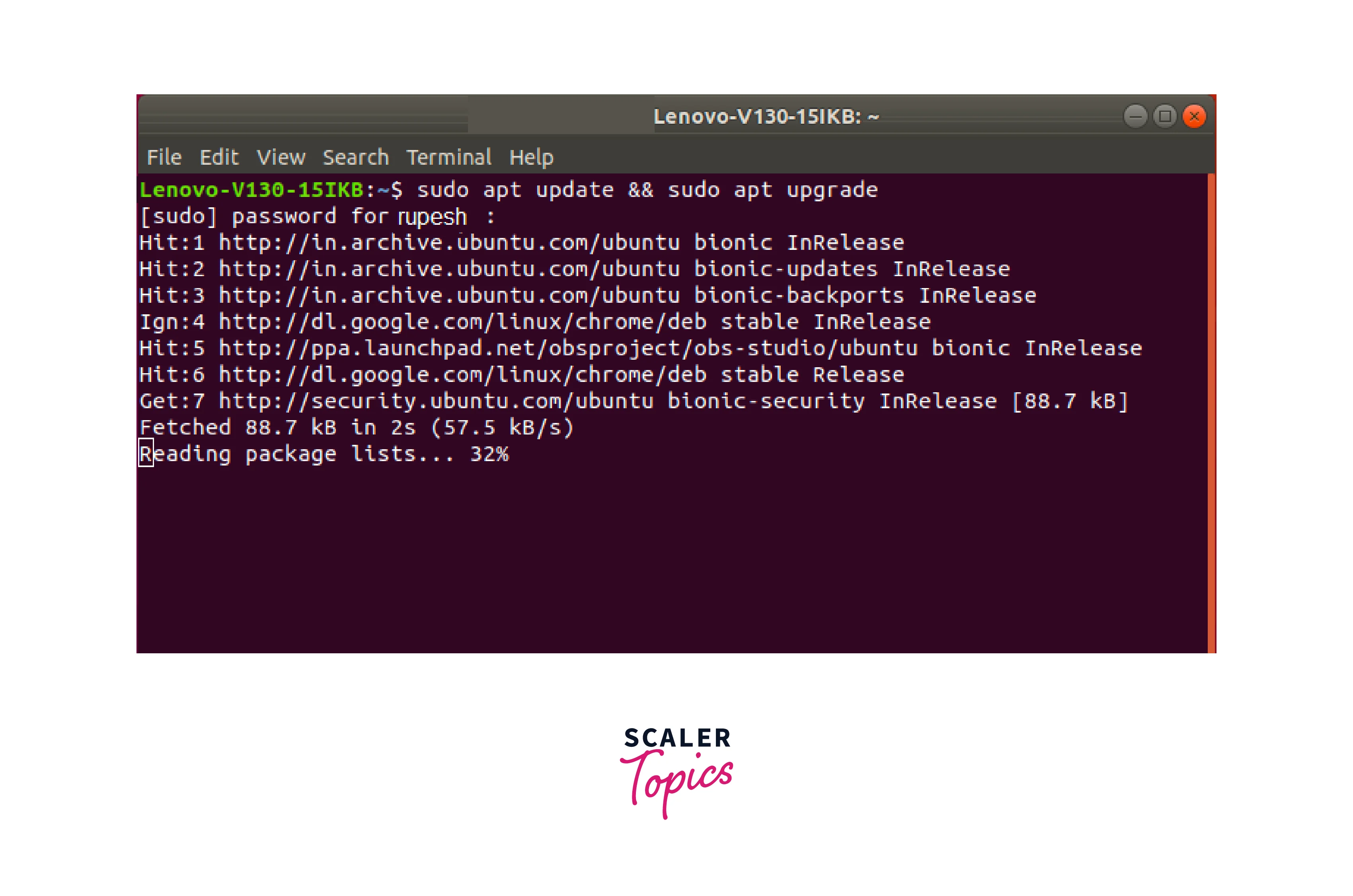
Dealing with Missing apt Command: In case the apt command is not found, it might be due to the system not being based on the Debian package management system. On such systems, you may need to use a different package manager, like yum or dnf. However, the tutorial provided specifically focuses on Ubuntu, which is based on Debian, and assumes the availability of apt.
Command Not Working or Version Compatibility: If any of the provided commands do not work, it could be due to several reasons such as:
- Syntax Errors: Make sure you've typed the commands correctly and haven't missed any characters or spaces.
- Permissions: Some commands, especially those requiring administrative privileges (using sudo), might not work if you don't have the necessary permissions.
- Version Compatibility: Ensure that the commands are compatible with the version of Ubuntu you are using. Commands and file paths might differ between Ubuntu versions.
- MongoDB install ubuntu: MongoDB installs ubuntu using the apt package manager:
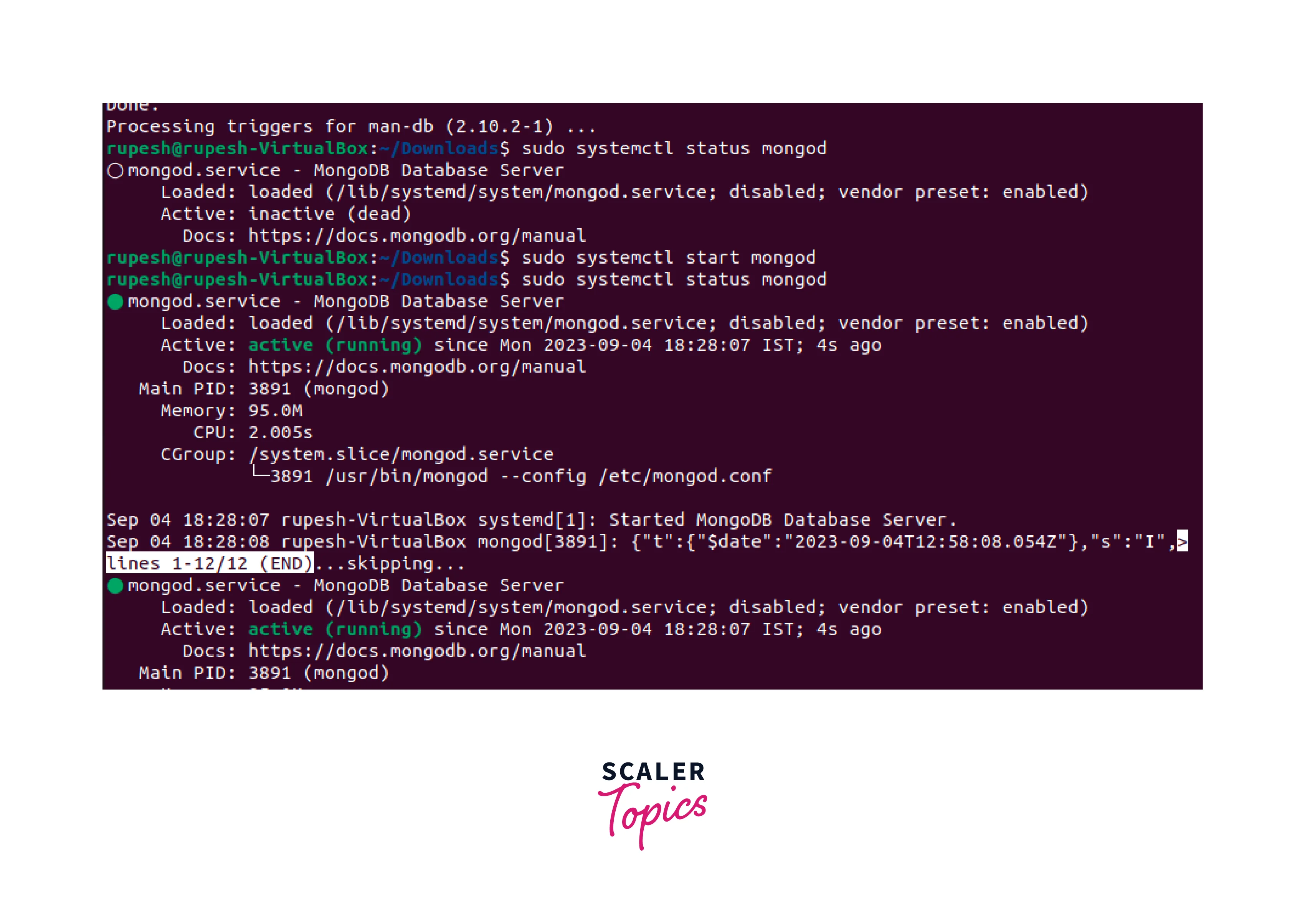
 3. Start MongoDB Service: Start and enable the MongoDB service:
 4. Verify Installation: Check the status of the MongoDB service to ensure it's running:
- Access MongoDB Shell: Access the MongoDB shell by typing:
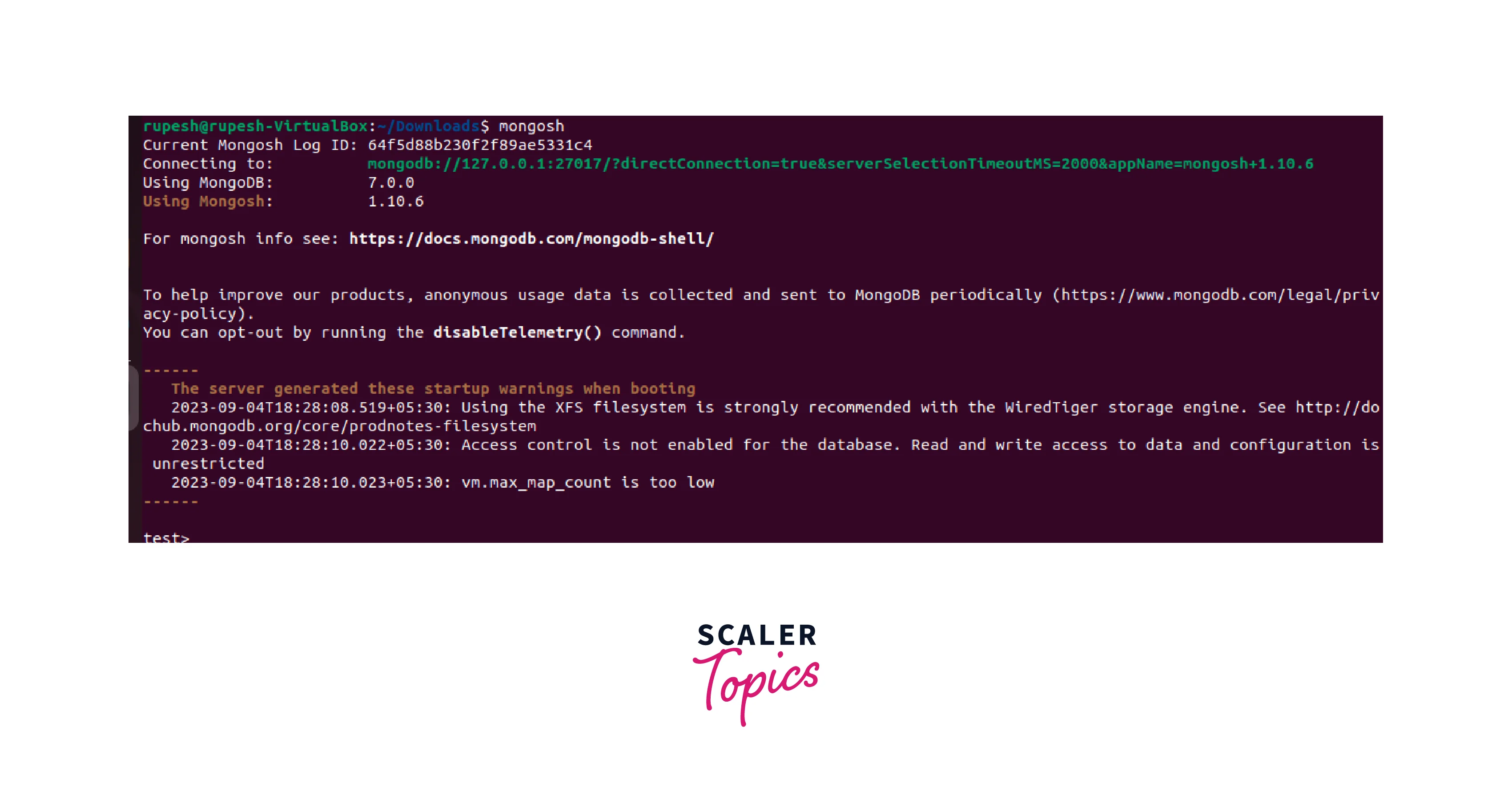 Remember, after installation, you can perform CRUD operations and manage MongoDB install Ubuntu through the shell or graphical user interface tools.
Configuring MongoDB on Ubuntu involves tailoring settings to match your specific requirements. MongoDB installs Ubuntu's configuration file (/etc/mongod.conf) is crucial for customizing your MongoDB deployment. You can modify settings like the listening IP address, port, data directory, and more in this file. Follow these steps to fine-tune your Install MongoDB Ubuntu:
- Locate Configuration File: The MongoDB configuration file is typically located at /etc/mongod.conf. Use your preferred text editor to open this file in a terminal:
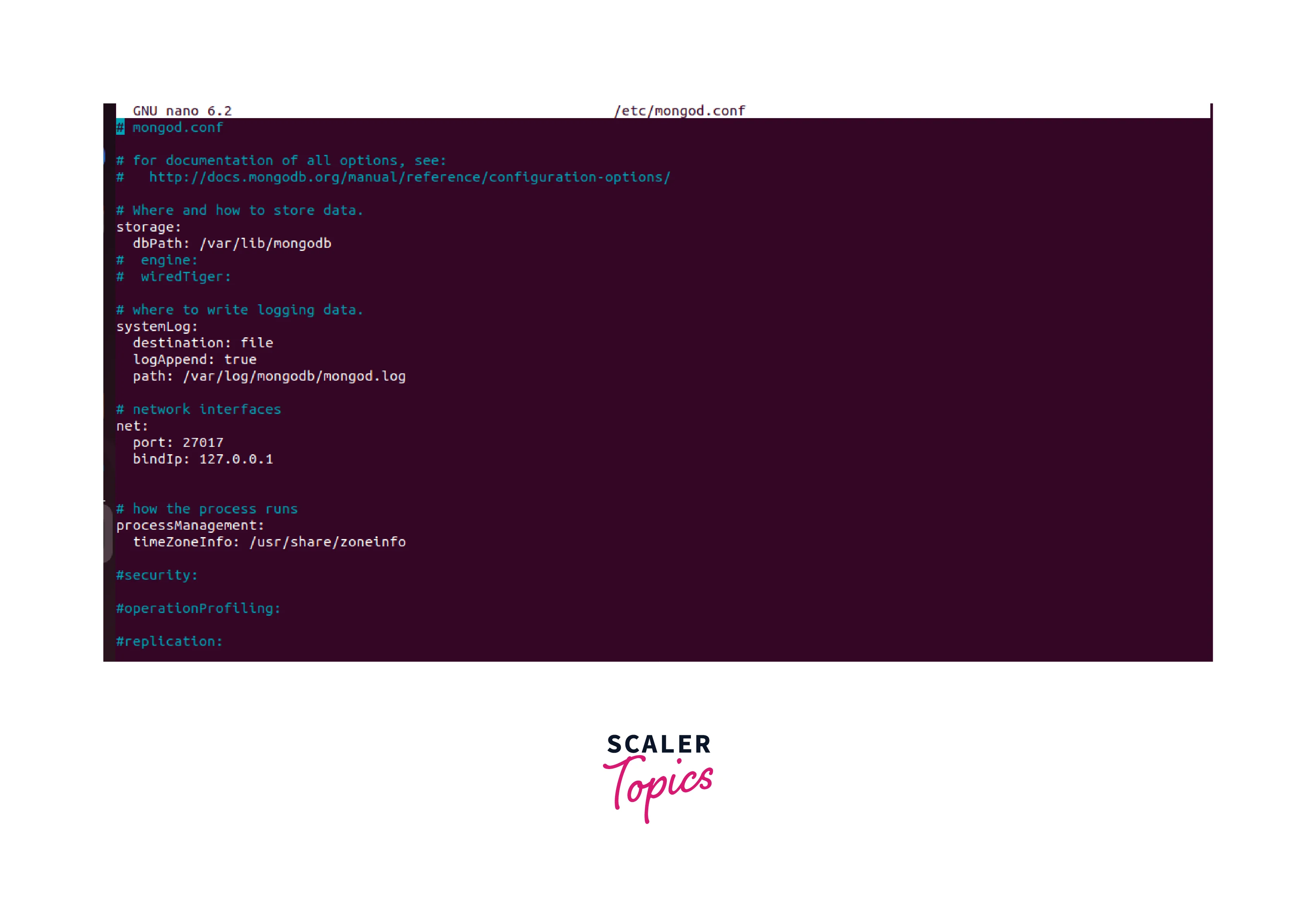 2. Data Directory: Specify the directory where MongoDB will store its data. Look for the line containing dbPath and set it to your desired path. For example:
-
Network Configuration: Control Install MongoDB ubuntu network accessibility. To bind MongoDB to a specific IP address, find the bindIp line and provide the desired IP, like:
-
Port: If necessary, change the default port. Locate port and modify it to your preferred port number:
-
Authentication (Optional): Enable authentication for improved security. Uncomment the security section and add the following lines:
-
Save and Exit: After making changes, save the file and exit the text editor.
Your MongoDB install Ubuntu instance is now configured according to your specifications. These settings ensure optimal data management and security, tailored to your Ubuntu environment.
For a deeper dive into MongoDB's configuration options, visit the official Configuration File Options documentation. This empowers you to optimize Install MongoDB ubuntu behavior for your application's needs.
FAQs
Q. What is MongoDB? A. MongoDB is a versatile NoSQL database that stores data in JSON-like documents, allowing flexible and scalable data management.
Q. How do I install MongoDB on Ubuntu? A. Install MongoDB on Ubuntu by updating packages, using `sudo apt install MongoDB, then starting and enabling the service.
Q. What's the MongoDB install ubuntu service status command? A. Check MongoDB's service status with `sudo systemctl status MongoDB.
Q. How can I access the MongoDB shell? A. Access the MongoDB shell by typing mongo in the terminal.
Q. Where is MongoDB's configuration file located? A. MongoDB's configuration file is typically found at /etc/MongoDB.conf.
Conclusion
- MongoDB offers versatile NoSQL data management on Ubuntu, enabling scalability and adaptability.
- Install MongoDB on Ubuntu: update packages, use sudo apt install MongoDB, start and enable the service.
- Access MongoDB shell with Mongo command in terminal for CRUD operations.
- Configure Install MongoDB on ubuntu: edit /etc/mongod.conf file for settings like dbPath and network access.
- Control network accessibility using bindIp and modify the port in the configuration.
- Optionally enhance security with authentication, enable it in the security section.
- MongoDB's configuration file (/etc/mongod.conf) is crucial for customizing your MongoDB deployment. You can modify settings like the listening IP address, port, data directory, and more in this file.
- MongoDB is vulnerable to attacks if not properly secured. It's essential to enable authentication and configure access control to ensure that only authorized users can access your database.
- Restart MongoDB service with sudo systemctl restart Mongodb after configuration changes.
- FAQs cover MongoDB's definition, installation, service status, shell access, and configuration file location.
Related Articles
For further insights into Install MongoDB on Ubuntu and its applications, you might find the following articles from Scaler's resource library valuable:
-
MongoDB on Kubernetes: Dive into MongoDB in Kubernetes to learn about efficient deployment strategies and resource management.
-
Installation Guide: Learn more about system prerequisites, setup procedures, and troubleshooting tips by reading Installing MongoDB.
-
Utilizing MongoDB: From e-commerce to IoT, explore how MongoDB empowers different industries in Use of MongoDB.
-
Understanding MongoDB: To grasp the fundamental concepts behind MongoDB, read What is MongoDB?.
These articles offer a comprehensive understanding of Install MongoDB on Ubuntu, ranging from installation to its diverse applications. Each resource contributes to enhancing your knowledge and proficiency in utilizing MongoDB effectively.