


The R Console
Overview
The R Console serves as the gateway to the powerful world of R programming. The R Console also serves as the command center for R. This powerful tool serves as your interface to interact with R, offering indispensable features like code completion, command history retrieval, and keyboard shortcuts for efficiency. Basically, the R console is a CLI(Command-line interface) tool providing CLI environment to work with R and see results almost immediately. The Console Title Bar keeps your workspace organized, and mastering keyboard shortcuts enhances your productivity. In this article, we explore the R Console's key functionalities, starting from the basic understanding of R console to keyboard shortcuts.
Build an AI-First Career, Master the Complete Skillset
Choose from our industry-leading programs designed for career success
Modern Software and AI Engineering Program
Master full-stack development with AI integration


 +1000 more
Modern Data Science and ML with specialisation in AI
Advanced data science techniques with AI specialization
+1000 moreAdvanced AIML with Specialisation in Agentic AI
Deep dive into AIML with focus on Agentic systems
+1000 moreDevOps, Cloud & AI Platform Engineering
Build and manage AI-powered cloud infrastructure
+1000 moreAI Engineering Advanced Certification by IIT-Roorkee
Premier AI engineering certification from IIT-Roorkee

AI Forward Deployed Engineer Program
Full-stack engineering, production AI and client-facing consulting
+1000 moreDownload R console in Different Environments
Downloading the R Console is a straightforward process, and it's available for multiple environments, including Windows, macOS, and Linux. Here's a concise guide on how to get started:
Windows
- Visit the official R website.
- Click on the "Download R for Windows" link.
- Choose a nearby CRAN mirror.
- Select the "base" distribution.
- Download the installer for your Windows version (32-bit or 64-bit).
- Run the downloaded installer and follow the installation prompts.
macOS
- Visit the official R website.
- Click on the "Download R for (Mac) OS X" link.
- Choose the latest release that matches your macOS version based on the chipset and OS.
- Download the R.pkg file.
- Run the downloaded R.pkg file and follow the installation instructions.
How Scaler Transformed Careers in Different Fields
Scaler learners achieved 2.5x salary growth with average post-Scaler CTC reaching ₹23L.
 Google
 Amazon
 Microsoft
 Flipkart
 Adobe1200+ more
Linux (Ubuntu/Debian)
- Open a terminal.
- Update the package list: sudo apt update.
- Install R: sudo apt install r-base.
- Linux (Red Hat/Fedora):
- Open a terminal.
- Install EPEL repository: sudo dnf install epel-release.
- Install R: sudo dnf install R.
Once you've successfully installed R, you can launch the R Console by opening a terminal or command prompt and typing R. This will start the interactive R environment where you can begin your data analysis and programming tasks.
Code Completion
Code completion in R is a time-saving feature that simplifies the coding process. As you type, R anticipates your input and offers suggestions, reducing errors and speeding up your workflow. Activate it by typing and pressing 'Tab' for a quick selection from a list of functions, variables, or packages.
- Code completion in the R Console operates in a manner similar to predictive text on your smartphone. As you type, R anticipates your next input and offers suggestions in a drop-down list.
- You can navigate through the list using the up and down arrow keys, selecting the desired option. To activate code completion, you need to start typing a function, variable, or package name, and then press the 'Tab' key.
- If you change your mind or want to exit the code completion list without making a selection, press the 'Esc' key.
For instance, let's say you want to use the summary() function to obtain statistical summaries of a dataset. As soon as you type 'sum' and hit 'Tab', R will present a list of available options that match what you've entered.
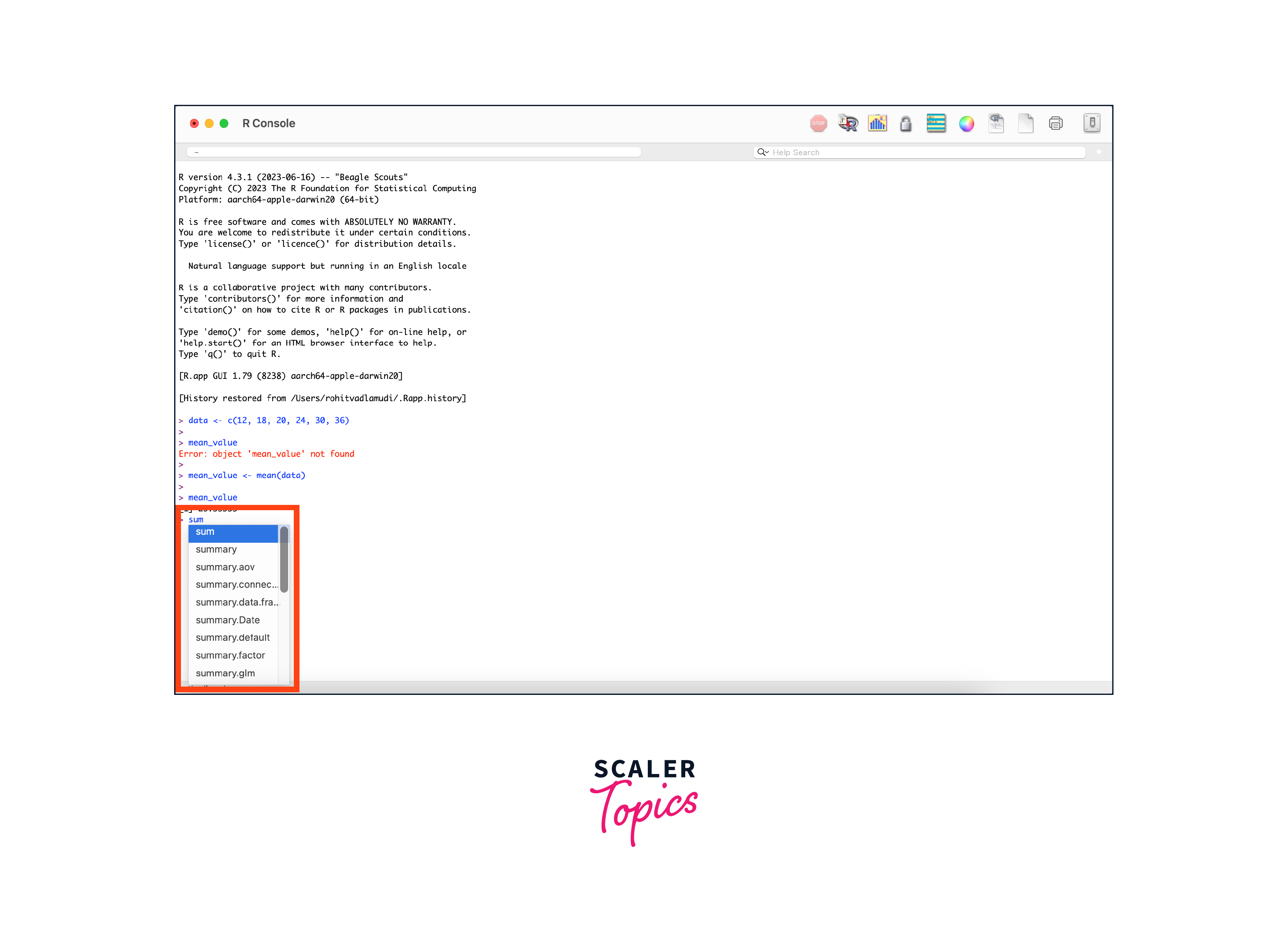
- You can then navigate through the list using the arrow keys and press 'Tab' or 'Enter' to complete your selection.
- It is also worth noting that code completion is not limited to base R functions and variables. It also extends to packages you've loaded into your session.
R also allows you to customize code completion to suit your preferences. You can control aspects like the delay before the code completion list appears and whether it should automatically insert the selected suggestion. Customization options are available in R's settings or configuration files, offering flexibility to adapt code completion to your coding style.
Turn Learning into Career Growth
Retrieving Previous Commands
Retrieving previous commands in the R Console is a crucial functionality that allows developers to reference and reuse their code efficiently.
R maintains a command history, a chronological list of all the commands you've entered during your session, which serves as a valuable aid to users during their interactive sessions. These commands are not just discarded into the abyss of forgotten inputs; rather, these commands are carefully stored within a dedicated and special data structure, commonly referred to as a "history vector" or simply a "history object". Each command is assigned an index or position within this vector, making it easy to retrieve specific commands.
The retrieval process primarily relies on the use of arrow keys, specifically the 'Up' and 'Down' arrow keys. When you press the 'Up' arrow key, you effectively scroll backward through the history vector, sequentially accessing previously executed commands. Conversely, by pressing the 'Down' arrow key, you move in the opposite direction, allowing you to traverse forward through the command history, revisiting more recent inputs.
When you locate the desired command in your history, pressing 'Enter' will execute it. This means that you can re-execute previous commands effortlessly.
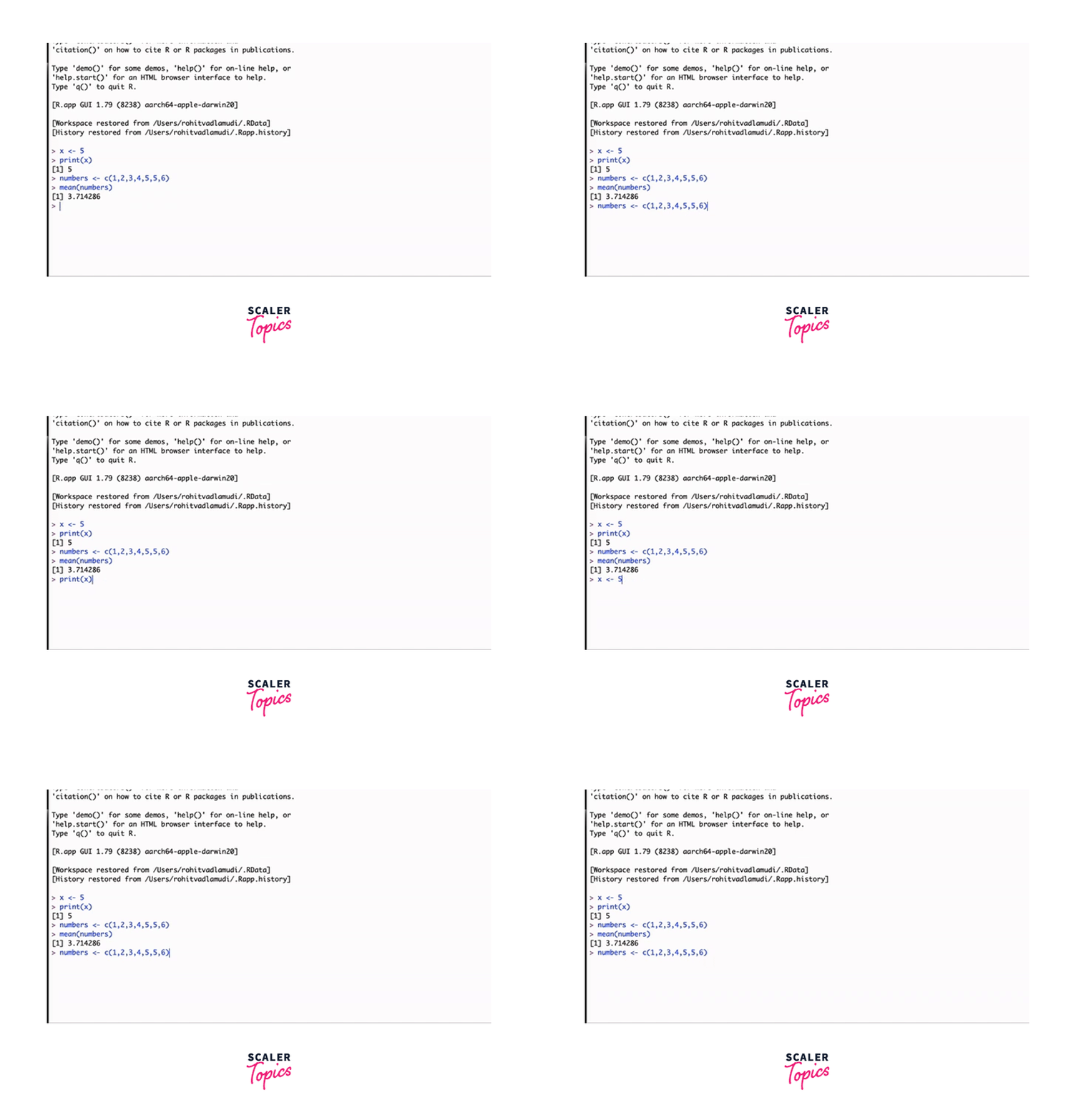
R also provides options to customize how command history is managed. You can adjust the maximum number of commands to keep in history, control whether commands are saved to a file for future sessions, and even configure how commands are displayed when retrieved.
Console Title Bar
The Console Title Bar in the R environment serves as a control center for managing your workspace. It is a simple yet essential feature, providing you with the ability to maintain an organized and efficient working environment.
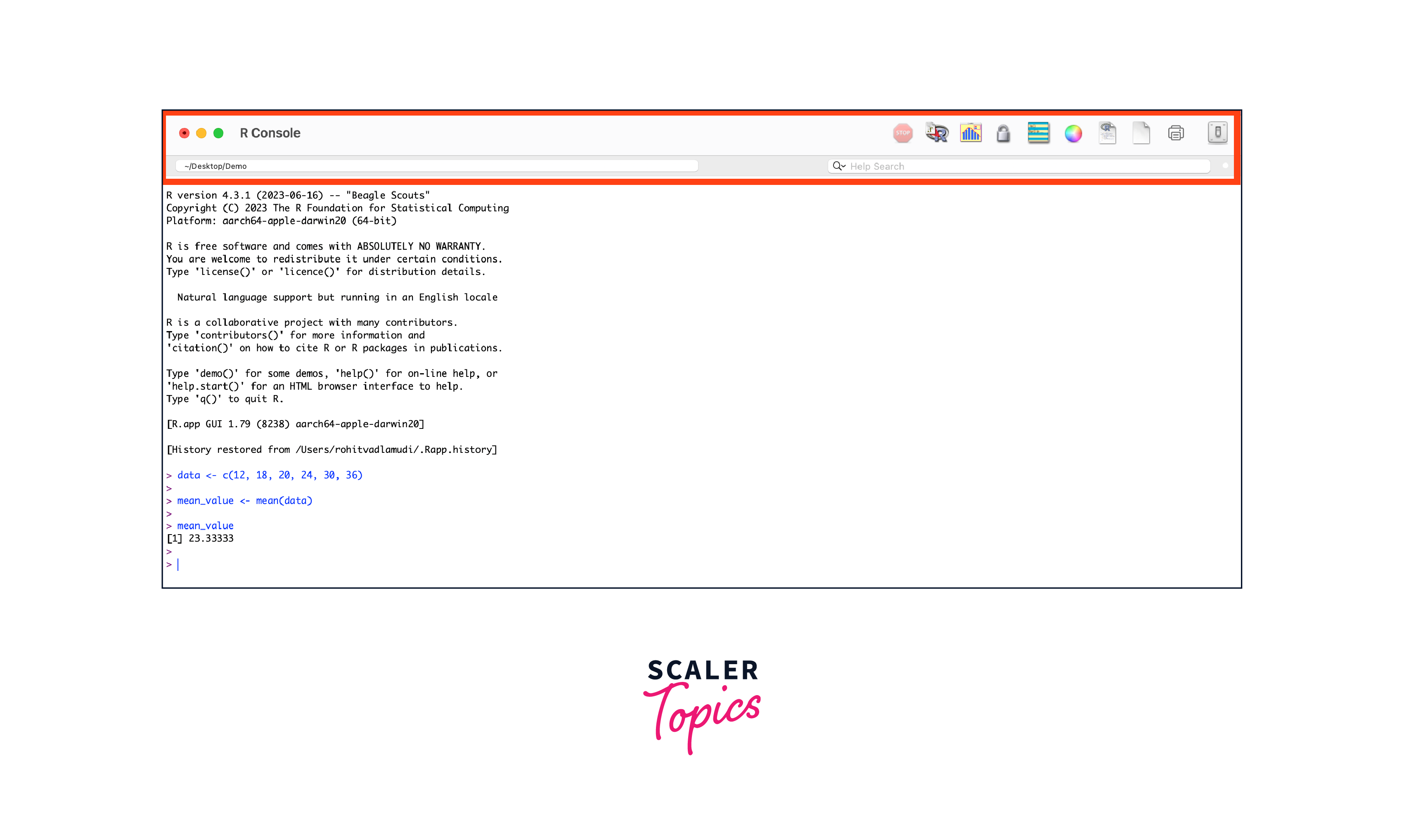
Located at the top of the R Console window, the Console Title Bar displays the name of the script or document you are currently working on. It offers the following key functions:
- Renaming:
By clicking on the title, you can rename your script or document, helping you to categorize and label your work for better organization. - Saving:
This feature allows you to save your script or document with ease, ensuring that your progress is preserved and accessible for future sessions. - Closing:
You can also use the title bar to close the current script or document when it is no longer needed, keeping your workspace clutter-free.
In scenarios where you're working on a project with multiple scripts, the Console Title Bar helps you differentiate between various documents quickly, reducing the likelihood of accidentally running code in the wrong script.
Keyboard Shortcuts
Here's a list of handy keyboard shortcuts that every console user must know:
- Ctrl + Enter (Cmd + Enter on Mac):
Execute the current line or selected code chunk without moving the cursor to the next line. Ideal for testing or debugging specific sections of your script. - Ctrl + L (Cmd + L on Mac):
Clear the console, providing a clean slate for new commands and results. Particularly useful for long and cluttered sessions. - Ctrl + R (Cmd + R on Mac):
Open the R script editor, allowing you to create and edit scripts separately, promoting a structured approach to coding. - Ctrl + D (Cmd + D on Mac):
Duplicate the current line or selection, saving time when replicating code snippets. - Ctrl + F (Cmd + F on Mac):
Find and replace text within your script, facilitating efficient global changes.
Conclusion
- The R console provides an interactive interface for executing R code and interacting with the R environment.
- It allows you to install and load packages, access help files, and view the objects in your workspace.
- Code completion in the R Console offers real-time suggestions, saving time by automatically completing function and variable names as you type.
- Retrieving previous commands with arrow keys and history navigation is an essential feature that enhances productivity, promotes iterative development, and reduces the risk of errors.
- The Console Title Bar provides tools to manage and organize your workspace effectively, allowing you to work on multiple scripts with ease.
- Keyboard shortcuts, such as Ctrl + Enter for command execution, Ctrl + L for clearing the console, and Ctrl + F for finding and replacing text, boost efficiency and streamline your coding experience.




