


React Native Document Picker
Overview
This article will teach you how to pick files and documents in any format from an iOS or Android user's device using React Native. We will utilize the third-party package react-native-document-picker to do this because out of the box, React Native does not offer any such capability.
What is react-native-document-picker?
Internally, the library makes use of Intent.ACTION_GET_CONTENT for Android and the UIDocumentPickerViewController in iOS. Although it is also available for Windows, this post will exclusively discuss mobile apps.
In contrast to Android, where ACTION_GET_CONTENT is the Intent used to choose any form of data from a user's device, iOS provides UIDocumentPickerViewController as a view controller for selecting documents on a user's device.
React-native-document-picker wraps ACTION_GET_CONTENT Intent and UIDocumentPickerViewController at the native layer. We simply need to add it as a dependency to our project before we can use it on the JavaScript layer` without touching native code.
Installation
If you are using React native CLI use the following command :
If you are using Expo Go using follow the below procedure :
Note: This package is supported in Expo controlled workflow by custom development clients.
Setting Up
Install the npm dependency before installing the react-native-document-picker library. We must install the pod dependencies for iOS.
Open a terminal window at the project root and type the following command :
Install the iOS pod requirements once the JS dependencies have been installed :
The libraries have now been set up. To compile the dependent files, we must recompile our iOS and Android programs. To reconstruct them, enter the instructions below :
APIs
- DocumentPicker.pickMultiple(options) /DocumentPicker.pickSingle(options) /DocumentPicker.pick(options) :
To open a document picker for the user to select the file(s), use pickMultiple, pickSingle, or pick. Every method returns a Promise.
Note : Breaking in v6 : Instead of a Promise<DocumentPickerResponse>, pick returns a Promise<Array<DocumentPickerResponse>>. If you were using a pick, replace it with pickSingle.
- DocumentPicker.pickDirectory() :
Launch the system directory picker. It will return a promise that will resolve to ({ uri: string }) of the user-selected directory.
- DocumentPicker.pickMultiple(options) and DocumentPicker.pick(options):
Pick is the most general; use the allowMultiSelection parameter to regulate whether or not the user may select several files (false by default). Promise<Array<DocumentPickerResponse>> is returned.
pickSingle and selectMultiple are "sugar functions" that are added on top of the pick, and they may be removed in a future release to improve API clarity.
- pickSingle permits only one option, and the Promise will resolve to that single result (similar to pick in v5).
- pickMultiple allows for multiple selections, and the Promise returns an array of results.
Options
All the options given below are optional.
- allowMultiSelection: Boolean
Whether or not several files can be selected. This is set to false by default for pick. allowMultiSelection is false for pick single and true for pick multiple, and it cannot be overridden.
- type : string|Array
The kind or types of documents that will be available for selection. Asa single-type string, an array of types may be used. * On Android, they are either MIME types like text/plain or incomplete MIME types like image/*. See the list of MIME types. * These must be Apple "Uniform Type Identifiers" on iOS. * If type is not specified, it will be interpreted as / or public.item.
- [iOS only] presentationStyle:'fullScreen' | 'formSheet' | 'pageSheet' | 'overFullScreen'
It controls how the picker is shown; for example, on an iPad, you could want it to be fullscreen. PageSheet is the default.
- [iOS only] transitionStyle:'coverVertical' | 'crossDissolve' | 'flipHorizontal' | 'partialCurl'
Configure the transition style of the picker. Defaults to cover vertical, when the picker is presented, its view slides up from the bottom of the screen.
- [iOS only] mode:"import" | "open"
Import is the default. If the mode is set to import, the document picker imports the file from outside to within the sandbox; otherwise, if the mode is set to open, then the picker will open the file in its current location.
- [iOS and Android only] copyTo:"cachesDirectory" | "documentDirectory"
The selected file is transferred to NSCachesDirectory / NSDocumentDirectory (iOS) or getCacheDir / getFilesDir (Android) if requested. The copy's uri will be available in the result's fileCopyUri. If copying the file fails (for example, due to a shortage of free space), fileCopyUri will be null, and further information about the issue will be accessible in the result's copyError field. On Android, this may be used to receive a local, on-device copy of the file (for example, if the user selects a document from Google Drive, it will be downloaded directly to the phone).
- [Windows only] readContent
The default value is false. If readContent is set to true, the selected file fontent will be read and given in the result object. * Be advised that in the event of large files, this might result in significant performance degradation. (The files are read entirely and into memory before being encoded to base64 and added to the result object.) * On Windows, however, reading the file directly from within the Thread that controlled the picker may be required: By default, Windows apps can only read the Downloads folder and their own programme folder; if a file is located outside of these areas, it cannot be accessed directly. If, on the other hand, the user selects the file using a file picker, permissions to that file are given implicitly.
React Native Document Picker Results
The following keys are found in an array of objects that the pick Promise resolves to.
-
uri: The URI of the document selected by the user. If mode is not given or set during import, this will be a file:// URI for a temporary file in your app's container on iOS; otherwise, it will be the original file:// URI. On Android, this will be a content:// URI for a DocumentProvider-provided document that must be accessed with a ContentResolver. Please keep in mind that you may need to use decodeURIComponent to acquire the URI in the format you want for additional processing, like when using react-native-fs.
-
fileCopyUri: If the copyTo option is given, a local copy of the selected file will be pointed to. Otherwise, this is null.
-
type: The file's MIME type. Some DocumentProviders on Android may not supply MIME types for their documents. On iOS, this MIME type is determined by Apple's internal "Uniform Type Identifiers" database and is based on the optimal MIME type for the file extension.
-
name: The file's display name. This is often the filename, although Android can not ensure that this will be the case for all DocumentProviders.
-
size: The document's file size. Some DocumentProviders on Android may not offer this information for a document.
DocumentPicker.Types
DocumentPicker.types.* supplies a few common kinds for usage as type values; these types will utilize the platform-specific format (MIME types on Android, UTIs on iOS).
- DocumentPicker.types. all files: All document types, on iO, are public. Item and on Android, this is /.
- DocumentPicker.types.xls : xls files
- DocumentPicker.types.docx : docx files
- DocumentPicker.types.xlsx : xlsx files
- DocumentPicker.types.pdf : PDF documents
- DocumentPicker.types.images: All image types
- DocumentPicker.types.ppt : ppt files
- DocumentPicker.types.pptx: ppt files
- DocumentPicker.types.plainText : Plain text files
- DocumentPicker.types.audio: All audio types
- DocumentPicker.types.zip : Zip files
- DocumentPicker.types.csv : CSV files
- DocumentPicker.types.doc : doc files
DocumentPicker.isCancel(err) : The Promise will be denied with a cancellation error if the user cancels the document picker without selecting a file (by tapping the system back button on Android or the Cancel button on iOS). You may check for this error using DocumentPicker.isCancel(err), which allows you to disregard it and clear away any elements of your interface that are no longer needed.
DocumentPicker.isInProgress(err) : If the user opens multiple file pickers (for example, because the app is unresponsive), only the picked result from the most recently opened picker will be considered, and promises from previously opened pickers are going to fail with an error that you may inspect using DocumentPicker.isInProgress().
This behaviour may change in the future to enable just one picker to be open at a time. The core logic is presently only available on iOS.
[iOS only] DocumentPicker.releaseSecureAccess(uris: Array
When mode is set to open, iOS grants you secure access to a file that is not in your sandbox. In that instance, Apple requests that you remove the access as soon as you have finished utilizing the resource.
React Native Project using react-native-document-picker
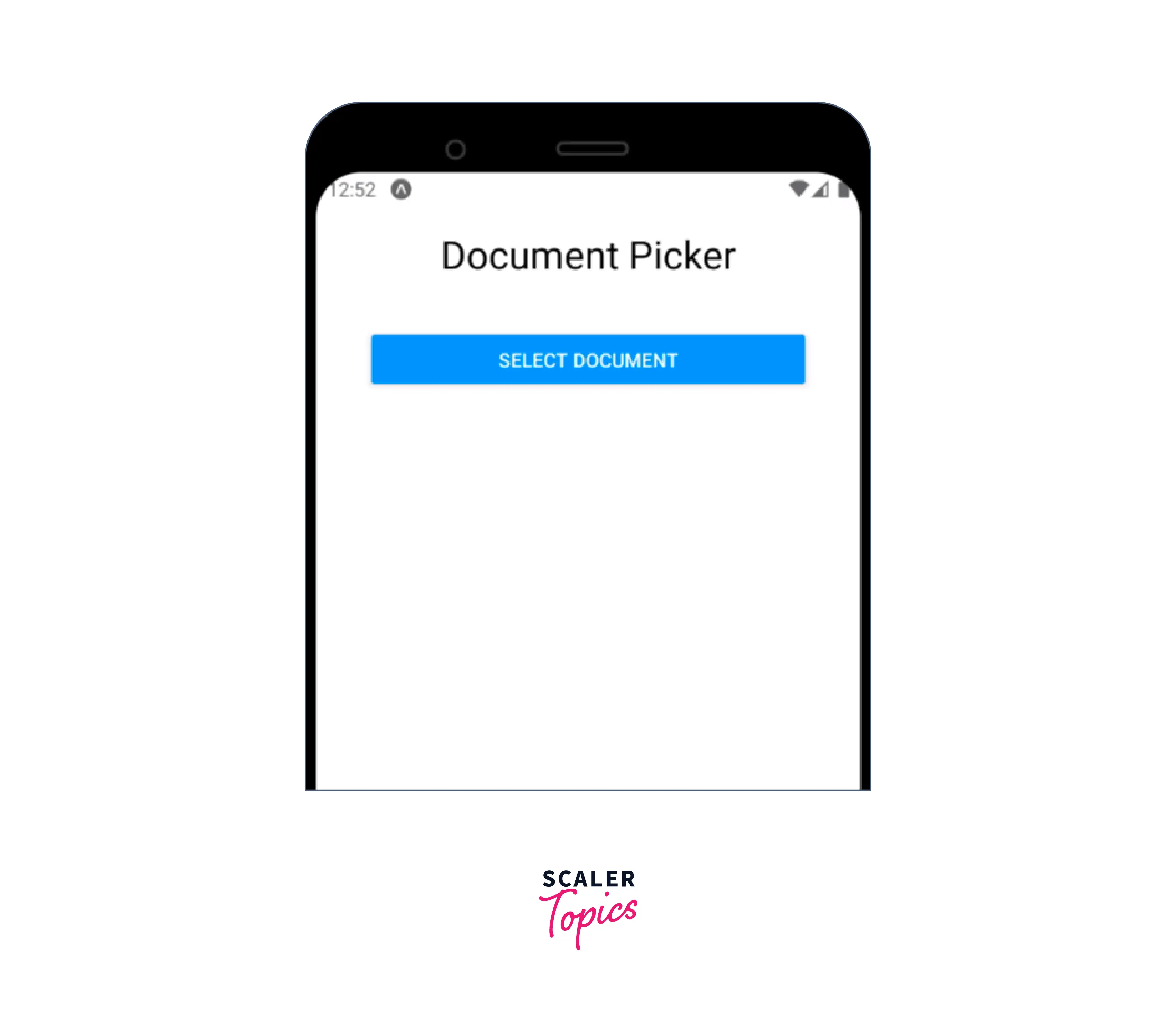
To see how we can choose documents in React Native, let's make a small React Native app with a button that, when pushed, opens the native document picker view. After picking one or more documents, it will respond with distinct metadata about the documents that the user has chosen.
To begin, we will create a new React Native project. To begin a React Native project, open your chosen terminal window and enter the following command :
After you've created the project, open it in your choice code editor and delete all of the placeholder code in App.js, then add the following code :
Output :

Picking Documents from Mobile Device
Now we must add logic to open the document picker and select a file. To accomplish this, add the following code to your App.js file.
If you are using an iOS simulator that is older than iOS v15, you may be unable to choose any file from the PickerView because several of the APIs that this library relies on have been deprecated.
In iOS 15, you may either try running a simulator that is equivalent to or lower than iOS v13.7, or check at this open issue. Otherwise, this approach will function perfectly on iOS 15 devices.
A state variable called fileResponse has been introduced in this place, and it will be used to record all the responses we receive from the Document Picker view after picking any file.
When a user touches the Select button, the helper method handleDocumentSelection is invoked, which is something we implemented. Because we can easily report any errors the module raises, we have enclosed the call to DocumentPicker in a try...catch block.
A DocumentPickerResponse is returned by the DocumentPicker.pick function, which is used to choose files from the device. Additionally, you can see that presentationStyle: 'fullScreen' was utilized. We have a choice on iOS that we can utilize to instruct it to launch the UIDocumentPickerViewController. These are the potential choices for this property :
- Fullscreen
- page sheet
- form sheet
- overFullScreen
We have used the full Screen to open the view in full-screen mode instead of the usual value of page sheet. We have set the same DocumentPickerResponse to our fileResponse state as soon as the module responds.
Finally, we render the file URI in a <Text> component by iterating through the fileResponse array.
PDF Selection Using react-native-document-picker
We've now made it possible to choose individual files with any file extension. But imagine a scenario where you only want a user to be able to choose a certain file type, like PDF files.
We have a type attribute in the choose method's configuration object that accepts an array of DocumentPicker.types. The PickerController can be informed of the file kinds that are available for selection.
The following code should be sent if we just want a user to be allowed to choose PDF files :
Just the types object may be imported from this library :
Then we can directly write as :
Since this is an array, we may also send several file types via it, like in:
So, let's alter the chosen method's configuration and check to see whether it works.
Multiple File Selection
Consider a situation where you want a user to be able to pick many PDF files at once. Right now, we only enable a user to select one PDF file.
allowMultiSelection is a boolean attribute that informs the picker that users may choose several files at once.
When we include this in our configuration object, our method call will be like this:
There you go! We enable users to pick many documents at once by introducing this feature. Like previously, an array of DocumentPickerResponse will be returned in response to this request. The distinction is that this array is now capable of holding multiple values. We don't need to modify our handler code because the response structure is the same.
Example
Let us look at one more example of react-native-document-picker :
Output :
FAQs
Q: What is react-native-document-picker?
A: Internally, the library makes use of Intent.ACTION_GET_CONTENT for Android and the UIDocumentPickerViewController in iOS. Although it is also available for Windows, this post will exclusively discuss mobile apps.
Q: What is the use of DocumentPicker.isCancel(err)?
A: The Promise will be denied with a cancellation error if the user cancels the document picker without selecting a file (by tapping the system back button on Android or the Cancel button on iOS). You may check for this error using DocumentPicker.isCancel(err), which allows you to disregard it and clear away any elements of your interface that are no longer needed.
Conclusion
- React native document picker is use to pick files and documents in any format from an iOS or Android user's device using React Native.
- React native document picker wraps ACTION_GET_CONTENT Intent and UIDocumentPickerViewController at the native layer.
- React native document picker internally uses the library to make use of Intent.ACTION_GET_CONTENT for Android and the UIDocumentPickerViewController for iOS.
- Different APIs provided by react native document picker are DocumentPicker.pickMultiple(options) / DocumentPicker.pickSingle(options) / DocumentPicker.pick(options) and DocumentPicker.pick(options) and DocumentPicker.pickMultiple(options).
- React native document picker results are uri, fileCopyUri, type, name, and size.