


Building an Image Picker Using react-native-image-crop-picker
Overview
The image plays a crucial role in mobile applications in today's world. It could be for social media, clicking pictures for fun, or e-commerce. React Native provides various libraries to implement image pickers for mobile applications, react-native-image-crop-picker is one of the libraries, which is used to pick, crop, and save images in React Native apps.
React-native-image-crop-picker NPM
React-native-image-crop-picker is an NPM package. It offers react native developers different features for image manipulation in their applications. This library provides support for both Android and iOS platforms.
What is react-native-image-crop-picker?
React-native-image-crop-picker is a library that allows developers to select images from the gallery, camera, or other sources. It allows developers to crop and save images in different formats, including JPEG, PNG, and GIF. This library offers features to set the aspect ratio of the cropped image, the size of the image, and the cropping style.
Installation
Let's create a new react-native project using React Native CLI, copy the below command to your terminal.
Also, install the react-native-image-crop-picker package using the below command:
Android Configuration
The step-by-step procedure for using the react-native-image-crop-picker in Android to add functionality for selecting and cropping either from the gallery or by using the camera is explained below.
Step 1:
Go to the directory android/build.gradle and add below lines of code to the build.gradle file: -
File-name: build.gradle
Step 2:
Go to the directory android/app/build.gradle and then find the android object. Inside the android object, there will be another nested object named defaultConfig. Paste the code below inside it.
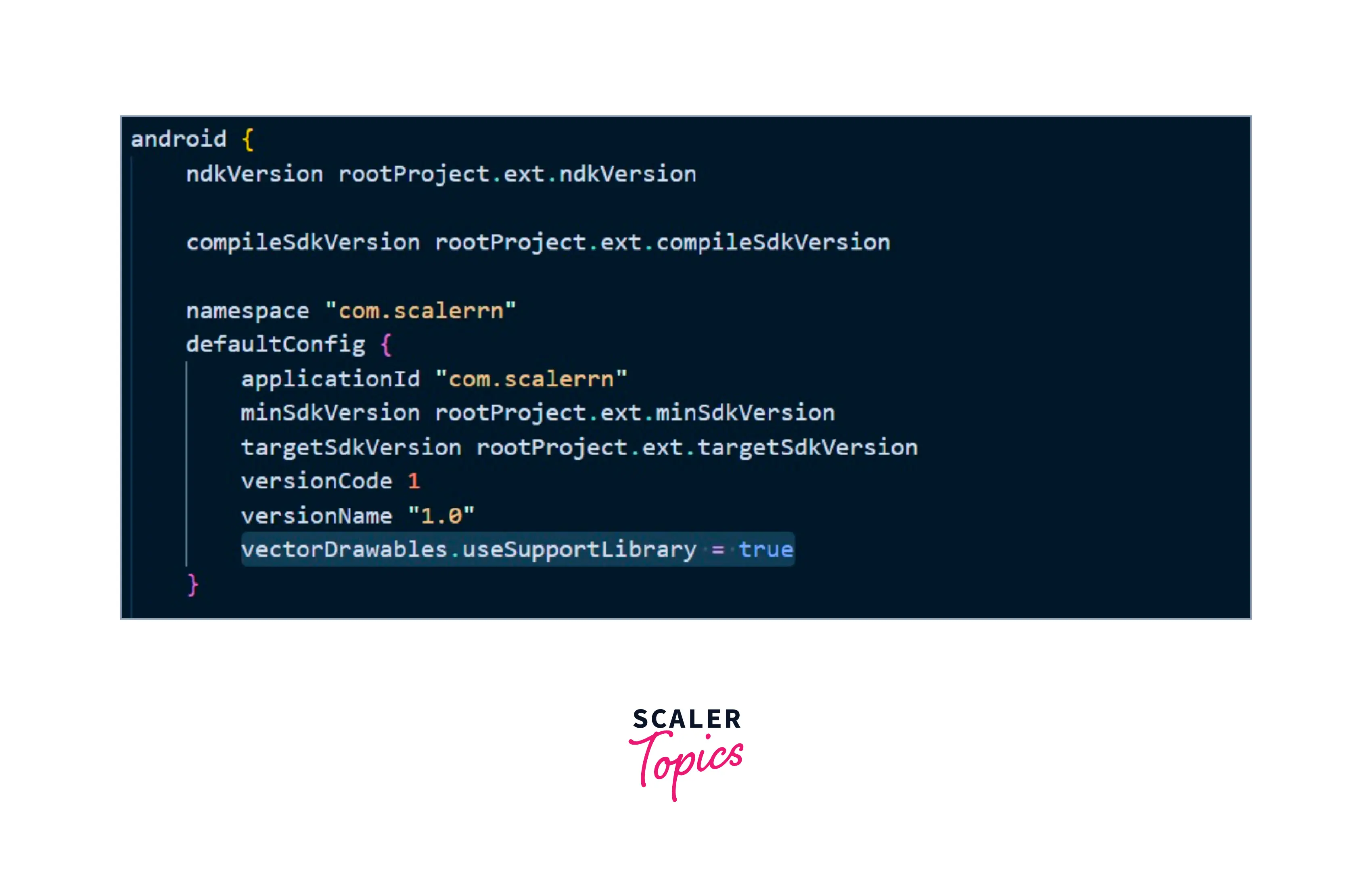
Step 3:
Go to directory app/src/main/AndroidManifest.xml and add the below lines of code to the AndroidManifest.xml file.
Step 4:
Finally, create a file named permissions.js and copy the below lines of code that will grant permission for accessing the gallery and camera in your android app.
File-Name:- permissions.js
How Does It Work?
We will use the ImagePicker object from react-native-crop-picker library to select the images for uploading from the folder by granting all the necessary permissions by creating the file name permissions.js. The code for uploading the image by cropping it is given below :-
Custom-sized crops of images can be done by using a prop freeStyleCropEnabled, where true is for enabling the custom crop else is false. The code for uploading the image by custom cropping is given below :-
Note :- Width and height prop is used to set the default size of the cropper.
Selecting from Gallery
We will use the ImportPicker Object from the package that we have installed above and the openPicker method will open the gallery for uploading an image by cropping it to a custom ratio(or desired ratio).
Selecting From Camera
We will use ImportPicker Object from the package that we have installed above and now, the openPicker method will open the camera to take a picture for uploading an image by cropping it to a custom ratio(or desired ratio).
Below is a code for selecting images from a gallery or by using a camera given below : -
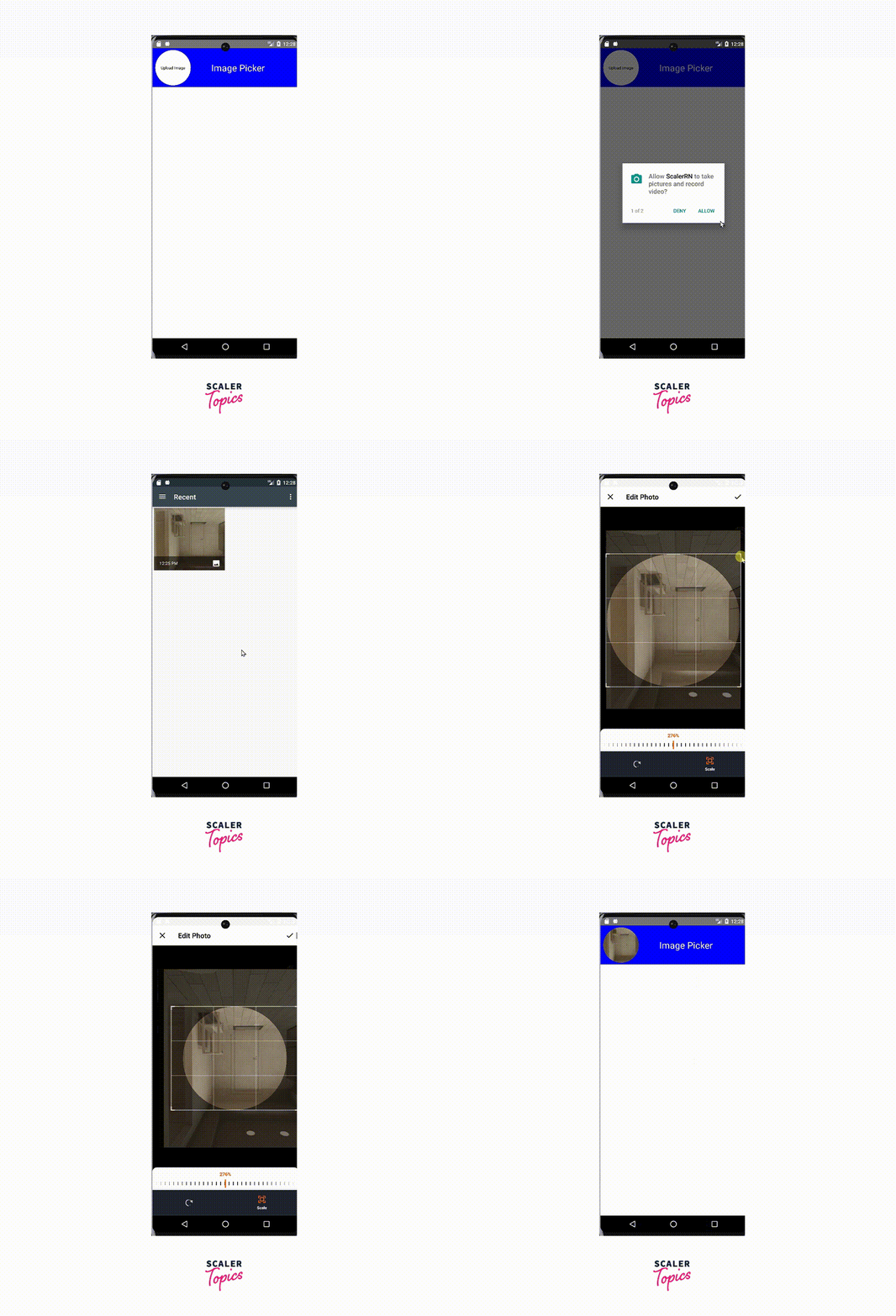
Below is the final result:

Request Object
Request Object holds the information about the current user request. In building the avatar profile we will be using the following request object i.e cropping, width, height, freeStyledCropEnable, cropperCircleOverlay
Cropping:
It accepts only a boolean, either true which indicates we have enabled the cropper or false indicates the cropper is disabled(default).
width:
It sets the default width of the cropper.
height:
It sets the default width of the cropper.
freeStyledCropperEnable:
It will allow the user to crop the image in the desired ratio in rectangular format.
cropperCircleOverlay:
It will turn the cropper into a circular form having some width and height in the default cropper.
Response Object
Response Object contains the response data that will be sent back to the user on using the request object. We will use the following response object i.e path.
path:
It will provide the location/address of the image that we have selected from the image gallery or by clicking the photo using the camera.
How to Choose the Right React Native Image Picker?
The image picker component can be implemented using react-native-image-crop-picker or react-native-image-picker. React-native-image-picker is a module that allows you to use native UI to select media from the device gallery or directly from the camera. We are using react-native-image-crop-picker because it provides us with the ability to crop and compress images.
Example: Build an Avatar Profile Update
We will be building an Avatar profile by using the objects and components that we have discussed so far. First, import the ImagePicker component from the react-native-image-crop-picker and follow the below steps to create the Avatar Profile.
- Create a View Component with a ClassName MainContainer and add styles to it.
- Create another View Component having a ClassName Header inside the View component just above it and then add styles to it.
- Inside the Above component, create a Pressable Component in which we will be creating a circular design where we will be uploading the image having ClassName circleContainer and include some styling in it.
- Use the onPress props on the circleContainer class and pass the onSelectImage function so that as we click on the circleContainer option will pop out on the screen for uploading the image in it.
- There will be three options: Gallery, Camera, and Cancel.
- When you select Gallery, you will be redirected to your system gallery, where you can crop any image.
- On selecting the camera, your system will open up the camera for clicking the photo, then cropping, and finally uploading the image.
- On selecting the cancel, the Options will disappear from the screen.
Below is the code for building an Avtar profile using react-native-image-crop-picker.
Below is the GIF for the finished result:
FAQs
Q: Does react-native-image-crop-picker support multiple image selection?
A: Yes, react-native-image-crop-picker supports selecting multiple images at once. You can set the multiple props to true when calling the openPicker() method to enable this feature.
Q: How can I handle errors that occur when using react-native-image-crop-picker?
A: React-native-image-crop-picker provides error codes and messages that can help you diagnose and handle errors that occur when using the package. You can catch these errors by try-catch block and checking the error code or message returned by the package.
Q: Can I customize the image picker and cropping UI with react-native-image-crop-picker?
A: Yes, react-native-image-crop-picker provides options for customizing the UI of the image picker and cropping screens. You can change the colors, fonts, and styles of the buttons, text, and other elements to match your app's design.
Conclusion
The react-native-image-crop-picker library is a useful tool for developers to pick and crop images from gallery or by clicking images from camera and save images in their React Native applications. It provides support for both Android and iOS platforms and offers features such as setting the aspect ratio of the image, the size of the image, and the cropping style. The library can be installed using npm, and Android configuration requires several steps.