How to take Screenshots in Selenium WebDriver?
Overview
Screenshots are crucial tools in software testing for identifying flaws, and problems and showing test results visually. Selenium WebDriver, a well-known automated testing tool, has built-in tools for taking screenshots of websites. Some techniques do contain some drawbacks, though, like the fact that they only record the viewable portions of a page or don't record the entire page.
Build an AI-First Career, Master the Complete Skillset
Choose from our industry-leading programs designed for career success
Modern Software and AI Engineering Program
Master full-stack development with AI integration


 +1000 more
Modern Data Science and ML with specialisation in AI
Advanced data science techniques with AI specialization
+1000 moreAdvanced AIML with Specialisation in Agentic AI
Deep dive into AIML with focus on Agentic systems
+1000 moreDevOps, Cloud & AI Platform Engineering
Build and manage AI-powered cloud infrastructure
+1000 moreAI Engineering Advanced Certification by IIT-Roorkee
Premier AI engineering certification from IIT-Roorkee

AI Forward Deployed Engineer Program
Full-stack engineering, production AI and client-facing consulting
+1000 moreIntroduction
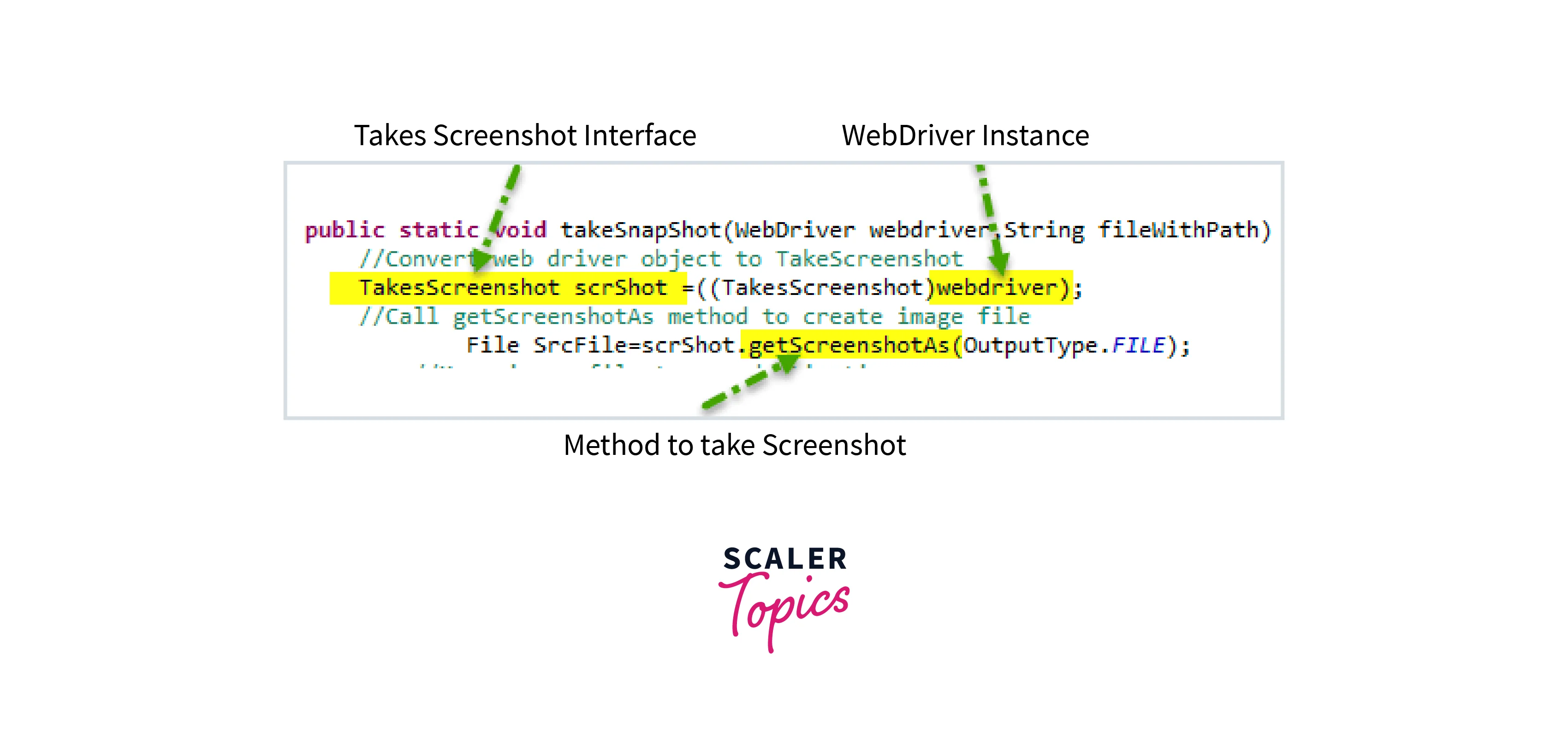 Selenium WebDriver is an open-source automation tool widely used for testing web applications. It offers a selection of web automation techniques, such as interacting with website elements, pressing buttons, and completing forms. Screenshots are the most practical way to accomplish this, but test automation occasionally needs to see the test results.
How to Take Screenshots in Selenium:
Selenium WebDriver provides a method called getScreenshotAs() to capture screenshots in Selenium. This method captures the visible area of the page and saves it as a file. The following code snippet demonstrates how to capture a screenshot in Selenium WebDriver:
- In the above example, we use the ChromeDriver to launch the Google website. The getScreenshotAs() method captures the visible area of the page and saves it as a file.
- We then use the FileUtils class from the Apache Commons IO library to copy the file to our local disk.
What is Ashot API?
The AShot API is a popular open-source Java library for taking screenshots in Selenium WebDriver. AShot offers more sophisticated screenshot options like full-page screenshots, screenshots of particular areas, and image comparison for visual assessment.
How to Download and Configure Ashot API?
- You must download the AShot jar file and add it to your project's classpath to use the AShot API in your Selenium WebDriver project.
- This link will allow you to obtain the most recent version of the AShot API.
- After downloading the AShot jar file, open Eclipse and right-click on your project to choose to Build Path, then Configure Build Path.
- This will add the AShot jar file to your project's classpath.
- Choose to Add External JARs under the Libraries panel, then choose the AShot jar file.
How Scaler Transformed Careers in Different Fields
Scaler learners achieved 2.5x salary growth with average post-Scaler CTC reaching ₹23L.
 Google
 Amazon
 Microsoft
 Flipkart
 Adobe1200+ more
Capture Full Page Screenshot with AShot API:
One of the most useful features of the AShot API` is the ability to capture full web pages, including the parts that are not visible on the screen. The following code snippet demonstrates how to take a screenshot in Selenium using the AShot API:
Explanation
- In the above example, we use the ChromeDriver to launch the Google website.
- The AShot API captures the full page by using the viewportPasting() method with a height of 1000 pixels.
- The takeScreenshot() method returns a Screenshot object, which we can save as a PNG file using the ImageIO.write method.
Turn Learning into Career Growth
Taking a Screenshot of a Particular Element of the Page
We may also take screenshots of particular components on a web page using the AShot API. This is helpful when we want to draw attention to a certain section of a page, like a form or a chart. The AShot API can be used to take a screenshot of a specific element as seen in the following code example:
Explanation
- In the previous example, we launch the Google website using the ChromeDriver.
- The findElement() method is used to locate the search input field by name after that.
- The WebElement object is passed to the takeScreenshot() method of the AShot API to take a screenshot of the search input box.
- Using ImageIO.write(), we can then save the screenshot in Selenium as a PNG file.
Image Comparison using AShot
The AShot API's capability to compare photos for visual assessment is another useful feature. This can assist us in identifying changes to a web page, such as altered layouts, damaged photos, or material that has been removed. The AShot API is used to compare two photos in the following code snippet:
Explanation
- In the previous example, we launched the Google website using the ChromeDriver and took two screenshots—one before and one after searching for "selenium."
- The two screenshots in Selenium are then compared using the ImageDiffer() and makeDiff() functions.
- The getMarkedImage() method returns a marked image with the differences highlighted, and the hasDiff() method returns true if the screenshots are different.
- Lastly, we use the ImageIO.write() method to save the annotated image as a PNG file.
Conclusion
- In this article, we have discussed how to take screenshots in Selenium WebDriver using the built-in getScreenshotAs() method, as well as the more advanced AShot API.
- The getScreenshotAs() method returns a byte array that contains the contents of the screenshot in PNG format, which can be saved to a file or processed further as needed.
- The AShot API provides features such as capturing full web pages, taking screenshots of specific elements, and comparing images for visual testing.
- By using these techniques, we can enhance our test automation and provide visual evidence of test results.
- Testers can use screenshots to document test results, debug issues, or communicate with other team members about the behavior of a web application.