


StreamBuilder in Flutter
Overview
The StreamBuilder is a popularly used widget in Flutter that allows developers to respond to changes in real-time. It is used to efficiently update the User Interface by handling the asynchronous data streams. It provides a better way to listen to and respond to changes in a stream of data and helps to provide a more responsive and reactive app experience to the end user. This article will discuss all the important aspects and use cases of the StreamBuilder.
Introduction
The StreamBuilder helps developers to build reactive and responsive applications by allowing them to handle asynchronous data. In today's world, nearly all applications derive data asynchronously from various sources. These sources include network requests, user input, real-time updates, database queries, and other interactions. The Streambuilder makes it very easy for the developer to handle these dynamic changes. It is based on the concept of streams, which represent a sequence of asynchronous events over time. It is generally used to manage the asynchronous data streams and to dynamically update the UI. Stream builder listens to the stream continuously and rebuilds the UI whenever needed acting more or less as a bridge between the data stream and the UI.
What is StreamBuilder in Flutter?
StreamBuilder is a powerful widget in Flutter that acts as a bridge between a data stream and the User Interface. It allows the developers to update the UI accordingly after listening to the changes in the stream. The key benefit of using the StreamBuilder lies in its ability to modify only a specific part of the UI when needed. Developers connect the stream to the StreamBuilder and listen for events emitted by the stream and respond to them in real time. The StreamBuilder can be combined with the ListView.builder and StreamControllers without affecting the overall performance. Combining the Streambuilder with the ListView.builder helps in handling large datasets, whereas combining it with StreamControllers helps to create custom data streams.
Setup and Initialization
Now, we will discuss the complete procedure of setting up and initializing a StreamBuilder in Flutter.
1. Import the required package.
we import the dart:async package, which provides classes and utilities for working with asynchronous programming. It includes classes like Stream and StreamController, which are essential for setting up and handling streams.
2. Create the Stream
This code defines a function called getNumberStream() that returns a Stream<int>. The Stream.periodic constructor is used to create a stream that emits values periodically at a specified duration. In this case, it emits integers every second. In this example, (int count) returns the count value, which represents the number of times the stream has emitted a value.
3. Set up the StreamBuilder
Here, we use the StreamBuilder widget to listen to changes in the stream and update the UI accordingly. The stream property of StreamBuilder takes the stream instance, which is obtained from the getNumberStream() function defined earlier. The builder property defines a callback function that is called whenever new data is available in the stream. The callback function receives two parameters: the BuildContext and an AsyncSnapshot object. Inside the callback function, we use snapshot.hasData to check if the stream has emitted data. If data is available, we display it using snapshot.data, which represents the latest emitted value from the stream. If an error occurs during stream processing, we handle it using snapshot.hasError and snapshot.error. If the stream is still in a loading or initial state, we show a CircularProgressIndicator to indicate that data is being fetched.
By following these steps, you can successfully set up and initialize a StreamBuilder in Flutter. It allows us to listen to an asynchronous data stream and dynamically update the UI based on the stream's events.
Basic Usage
Some of the basic use cases of the StreamBuilder include:
1. Conditional Rendering: We Use StreamBuilder to conditionally render different UI components based on the state of the stream. This allows us to provide a customized user experience based on the state of the data stream.
2. Error Handling: StreamBuilder enables us to handle errors that may occur during stream processing. Thesnapshot.hasError within the builder function helps us to check if an error has occurred.
3. Combining multiple streams: StreamBuilder can be used to combine multiple streams into a single UI representation. This is particularly useful when working with related data from different sources.
4. Dynamic UI Updates: StreamBuilder's reactive nature allows for dynamic updates to the UI as the stream emits new data. You can leverage this feature to create real-time dashboards, live chat applications, or social media feeds that display content as it becomes available.
5. Integration with Widgets: StreamBuilder can be integrated with various Flutter widgets to enhance functionality. For instance, you can combine StreamBuilder with ListView.builder to efficiently handle large datasets without affecting performance. Additionally, you can use StreamBuilder with widgets like AnimatedBuilder or ValueListenableBuilder to create more advanced and animated UI effects based on stream data. Stream Cancellation:
Handling Different States
The StreamBuilder allows us to update the UI based on the present state of the stream. Now, we are going to discuss the common states and how we can handle those.
1. Data is Available We use snapshot.hasData to check whether the stream has emitted new data. If the data is available then it can be accessed by using snapshot.data.
2. Occurrence of Error We use snapshot.hasError to check if an error has occurred and if the error is present, it can be handled separately. The error details can be accessed using snapshot.error.
3. Loading State We can provide some feedback to the user if the stream is in a loading state to give a visual cue to the user that data is being retrieved by the application. We use something like a CircularProgressIndicator to indicate that the data is being fetched from the stream.
4. Initial State The app might not have emitted any data while in the initial state. We usually provide some default values until the data is available to ensure that the UI remains visually consistent. We can alternatively display a placeholder UI.
Example of handling different states:
Stream Transformation and Filtering
Stream transformation and filtering allow us to have more control over the displayed information and enhance the user experience. We can use it to manipulate the stream data to meet our specific requirements and make changes in the UI accordingly. Now, we will discuss how we can apply stream transformation and filtering within a StreamBuilder.
1. Stream Transformation It allows us to make changes in the emitted data from the stream before making UI changes. We use the transform method of the Stream class to apply transformations. Transformation functions such as map, where, expand, or transform is used for this purpose.
2. Stream Filtering It allows us to selectively process and display specific data based on defined criteria. We usually use functions like where, take, skip, and distinct to filter out duplicate values or to limit the number of emitted values.
Example of stream transformation and filtering:
In the above code: The numberStream represents the original stream emitting integer values. A transformation is applied using the transform method and a StreamTransformer to convert the integer values into strings with a prefix. Subsequently, filtering is applied using the where method to only allow strings containing the digit '2'. Ultimately, we display the filtered data if the data is available. If the data is unavailable, we show a default message.
Error Handling
Regardless of the functionality we are implementing, it is extremely crucial to handle the errors and provide relevant feedback to the user. Error handling in StreamBuilder allows us to handle the errors that may occur during stream processing. We will now discuss the steps which you can follow to handle errors within a StreamBuilder.
1. Check for Errors To determine whether an error has occurred during stream processing, we use snapshot.hasError within the builder function. The hasError returns true if an error is present, otherwise, it returns false.
2. Display Errors If we are getting some error, we need to display some appropriate error to communicate to the user. The error details are accessed using the snapshot.error.
3. Handling the errors We should provide easy-to-understand and user-friendly error messages and instructions on how to resolve it. One of the standard practices while handling errors is to use the try-catch block or some other custom error handling functions.
Example of error handling:
In the above code: datastream represents the stream that may encounter errors. We have used the try-catch statements within the StreamBuilder's builder function. It allows us to catch and handle errors specifically within the scope of that widget and prevents them from propagating to higher levels of the application. The error parameter is used to access the error message.
Example App
Github Repository Link: scaler_streambuilder
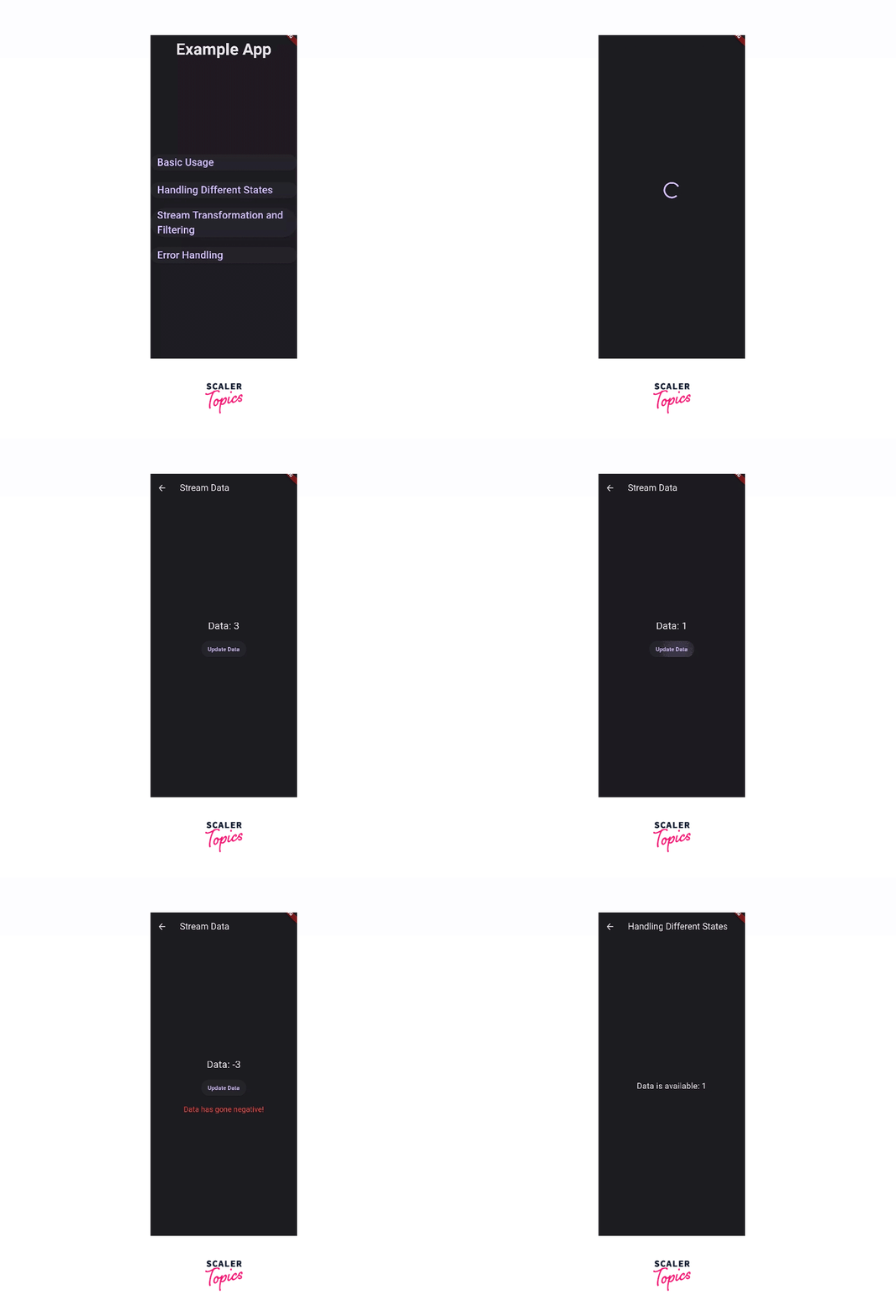
main.dart file:
Github Link: main.dart
demo.dart file:
Github Link: demo.dart
The Demo widget represents a demo application that showcases different stream handling scenarios. It includes four elevated buttons, each representing a different stream handling example. Clicking on a button navigates to a specific screen that demonstrates the corresponding stream behavior. The examples include basic stream usage, handling different states of a stream, stream transformation and filtering, and error handling. Each example utilizes different stream controllers and timers to emit and manipulate stream data.
basic_usage.dart file:
Github Link: basic_usage.dart
The BasicUsage widget is a stateful widget that displays data from a dataStream of integers. It uses a StreamBuilder to listen to the stream and update the UI accordingly. The widget shows the current data value in the center of the screen. It also provides an "Update Data" button that updates the stream with new data based on the current data value. If the data is negative, it displays an error message. It handles different states of the stream, such as data available, error, and loading, and renders the corresponding UI.
handling_different_states.dart file:
Github Link: handling_different_states.dart
The HandlingDifferentStates widget is a stateful widget that listens to a dataStream of integers. It displays the current value of data on the screen till the value is less than 5. When the value reaches 5, it shows an error message telling that the data has reached 5. The widget shows either the error message or the data value, depending on the current state, in the center of the screen.
stream_transformation_filtering.dart file
Github Link: stream_transformation_filtering.dart
The StreamTransformationFiltering widget is a stateless widget that displays two streams of integers: dataStream and filteredStream. It uses two StreamBuilder widgets to listen to these streams and updates the UI accordingly. It displays the current data from the dataStream as Original Data and the current data from the filteredStream as Filtered Data. If there is no data available in either stream, it shows No data text. The widget provides a visual representation of the original and filtered data streams.
error_handling.dart file:
The ErrorHandling widget is a stateful widget that listens to an errorStream of type Stream<String>which uses a StreamBuilder widget to handle the stream. If it gets an error then it updates the user interface. If an error occurs in the stream, the onError callback sets the errorMessage state with the error message. The widget displays the error message if it is not empty, or shows No Errors if there are no errors. It provides a simple error handling mechanism for the provided error stream.
Conclusion
-
The StreamBuilder simplifies the process of handling asynchronous data streams and updates the UI in response to stream events.
-
It comes in handy in providing appropriate UI feedback based on the current state of the stream and updating the UI reactively.
-
Stream Transformations and Filtering are used to modify the emitted data or to selectively display some specific data.
-
The StreamBuilder provides various functionalities such as snapshot.hasError which help in error detection and rectification.
-
The Streambuilder makes it very easy for the developers to create dynamic and responsive UI components that reflect real-time data changes.