


How to Create Timer in Flutter?
Overview
A timer in Flutter is a mechanism that allows developers to schedule and execute code at specific intervals. It provides a way to perform tasks repeatedly or after a certain delay, enabling functionality such as refreshing data, animating UI elements, or triggering events. Flutter offers various timer options, including the Timer class from the Dart language.
Need of Countdown Timer
The need for a countdown timer in Flutter can be summarized in the following points:
-
User Experience: Countdown timers are crucial for providing a better user experience in various scenarios. For instance, in quiz or game applications, a countdown timer adds excitement by creating a sense of urgency, encouraging users to complete tasks within a specific time frame.
-
Time-sensitive Operations: Countdown timers are useful when dealing with time-sensitive operations such as booking systems, ticketing platforms, or auction apps.
-
UI Animations and Transitions: Countdown timers are often used in conjunction with UI animations and transitions to create visually appealing effects.
-
Scheduled Tasks: Countdown timers are essential for scheduling tasks that need to be performed at specific times or intervals. Whether it's sending notifications, refreshing data, or triggering events, countdown timers allow developers to execute actions precisely when needed, automating processes and enhancing the overall functionality of the application.
-
Productivity and Time Management: Countdown timers can be valuable tools for enhancing productivity and time management. They can be used in productivity apps or Pomodoro timers, helping users stay focused and efficient by allocating specific time intervals for tasks or breaks.
How to Add Flutter Countdown Timer?
To add a countdown timer in Flutter, you can follow these steps:
- Import the necessary packages:
- Define a StatefulWidget to handle the timer functionality:
- Finally, you can use the CountdownTimerWidget in your app's UI:
Creating a Timer Widget
To create a timer widget in Flutter, you can use the Timer.periodic function to update the timer at regular intervals and the StatefulWidget to manage the state of the timer. Example:
In the above code, we create a TimerWidget which is a StatefulWidget. The state of the widget is managed by _TimerWidgetState. The _seconds variable holds the current number of seconds, and the _timer variable is used to schedule and cancel the timer.
The startTimer function starts the timer by calling Timer.periodic with a duration of 1 second. Inside the timer's callback function, we increment the _seconds variable and call setState to update the UI.
The stopTimer function cancels the timer and resets the _seconds variable to 0.
Adding Controls to the Timer
To add controls to the timer widget in Flutter, you can modify the existing code by adding buttons for starting, pausing, and resetting the timer. Here's an updated version of the TimerWidget with additional controls:
In the updated code, we added three new functions: pauseTimer, resetTimer, and a boolean _isRunning to track the running state of the timer.
The startTimer function has been modified to check whether the timer is already running using the _isRunning variable. If it's not running, a new timer is started.
The pauseTimer function checks if the timer is running using _isRunning and cancels the timer if it is.
The resetTimer function cancels the timer, resets the _seconds variable to 0, and sets _isRunning to false.
In the build method, we added two new buttons: 'Pause' and 'Reset'. These buttons call the respective functions when pressed.
You can use this updated TimerWidget in your app's UI by including it in the widget tree, similar to the previous example.
Formatting the Timer Display
To format the timer display in Flutter, you can use the intl package to format the number of seconds into a more user-friendly format such as ss:mm
- First, add the intl package to your pubspec.yaml file:
-
Then, run flutter pub get to fetch the package.
-
Next, update the _TimerScreenState class with the necessary imports and format the timer display using the intl package:
Output:
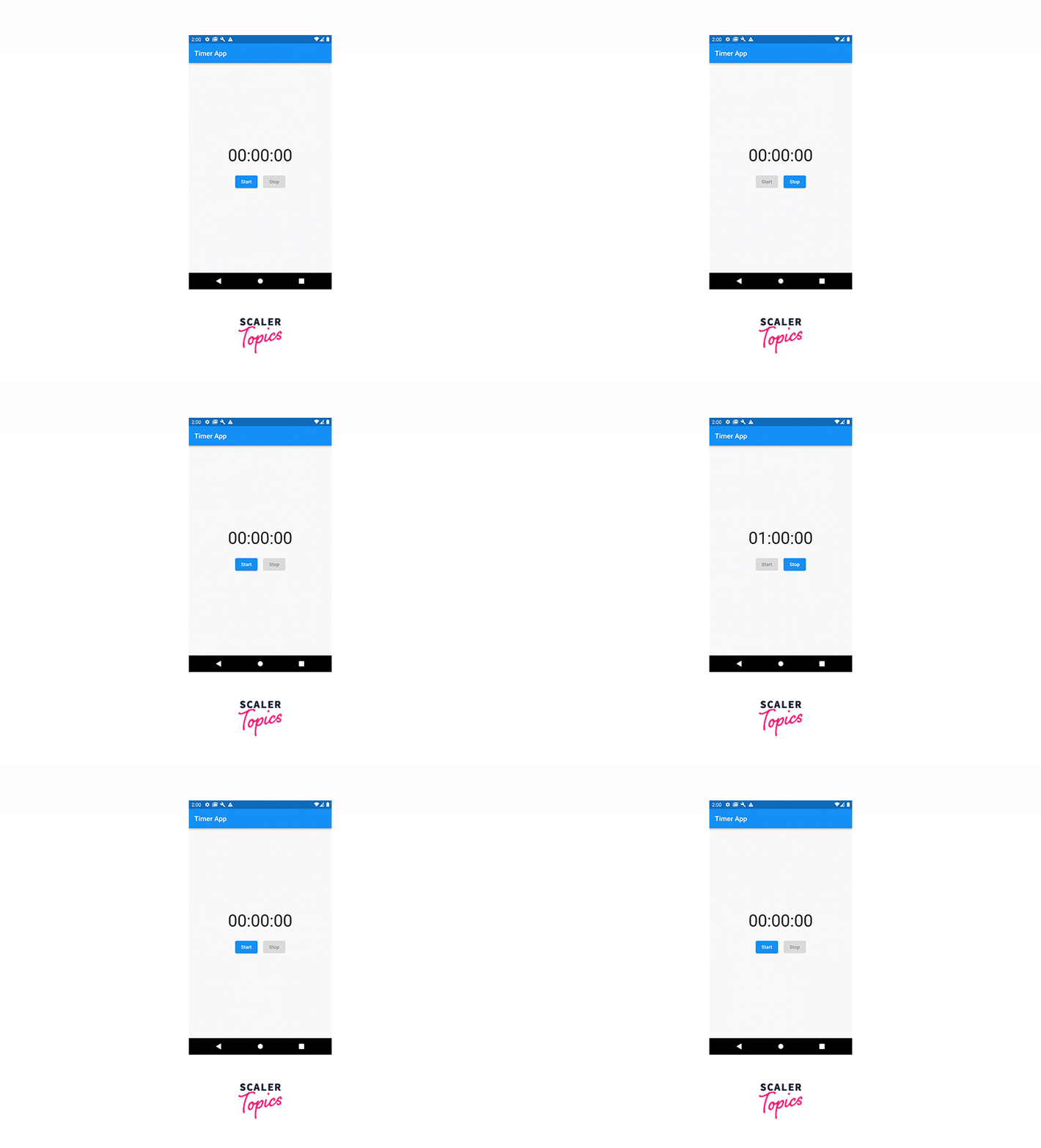
In the updated code, we added the import 'package
Inside the formatTimer function, we create a Duration object using the number of seconds. We then use DateTime and DateFormat to format the duration into the desired format of ss:mm
In the build method, we call the formatTimer function to get the formatted time string and display it in the Text widget.
Now, the timer display will be formatted as ss:mm
Example App
Output of the above code will look like this:
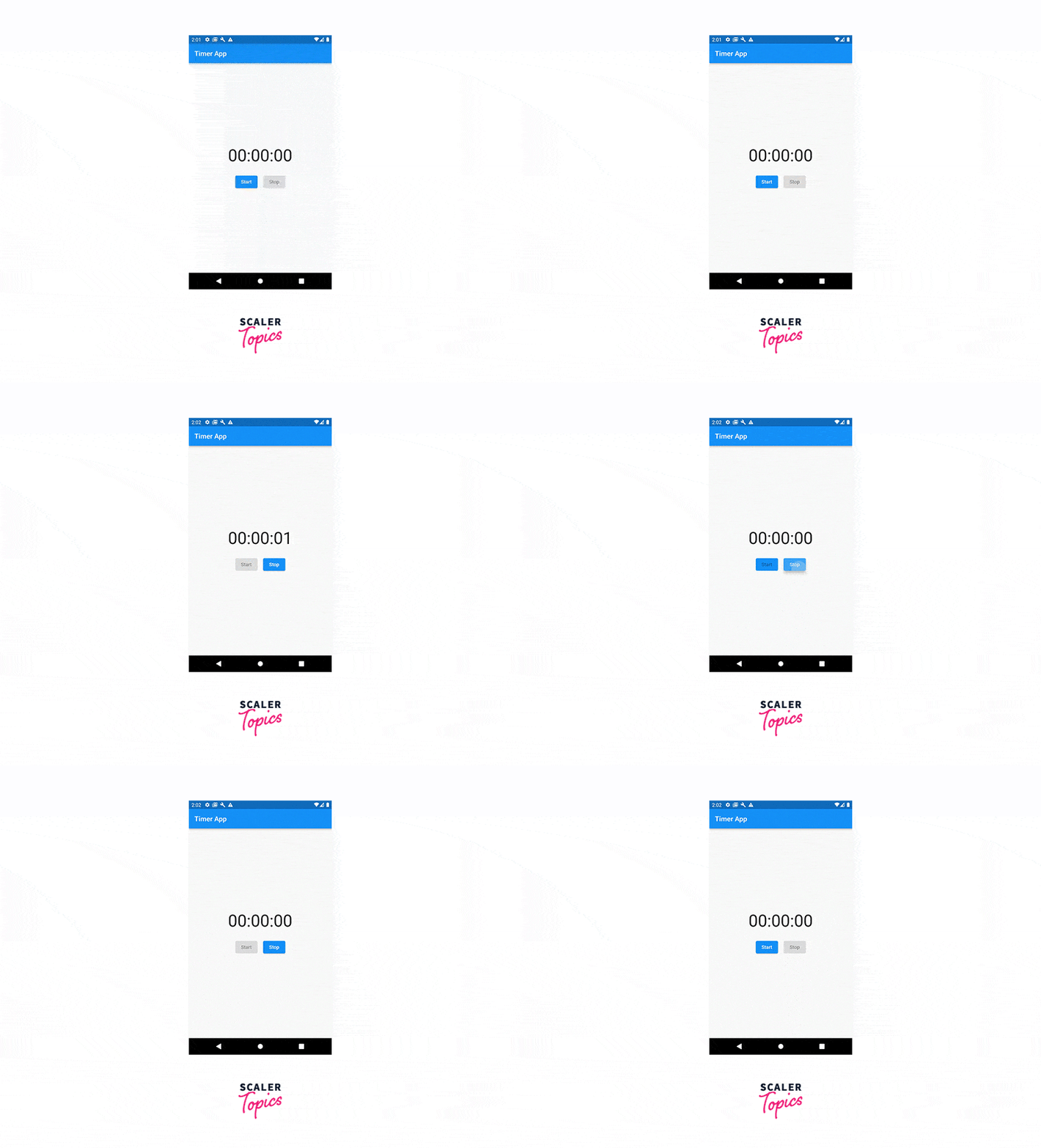
The code contains a TimerApp widget as the entry point, setting up MaterialApp with TimerScreen as the home screen. TimerScreen is a StatefulWidget that holds the timer state with _seconds and _timer variables. startTimer uses Timer.periodic to increment _seconds and update the UI with setState. stopTimer cancels the timer and resets _seconds to 0. getFormattedTime converts _seconds to a formatted HH:mm
Conclusion
-
Timers in Flutter provide a way to schedule and execute code at specific intervals, allowing developers to perform tasks repeatedly or after a certain delay.
-
Countdown timers are essential for enhancing user experience in scenarios such as games, quizzes, or time-sensitive operations like booking systems or auctions.
-
Flutter offers various timer options, including the Timer class, TimerMixin class, and third-party packages like the async library, providing developers with flexibility and advanced functionalities.
-
Countdown timers can be integrated with UI animations and transitions to create visually appealing effects and provide real-time feedback on the progress of tasks.