


What is ps1 in Linux?
The command prompt in a Linux terminal is a fundamental element that provides users with a means to interact with the operating system by executing commands and receiving feedback. However, the default prompt might not always be ideal for every user, as it often lacks essential information or lacks visual appeal. This is where the ps1 environment variable comes into play.
Let's understand what is ps1 in Linux.
ps1 represents "Prompt String 1" and acts as a customizable template that dictates how the prompt appears for users in the terminal. It offers users the freedom to design their prompts to include relevant system details or other informative elements. By modifying the pS1 variable, users can create prompts that not only display the basic command line symbol but also incorporate additional information, making the terminal experience more informative and visually appealing.
The process of customizing the prompt involves using escape sequences, special characters, and variables within the ps1 value. These components allow users to display specific system information dynamically, such as the username, hostname, current working directory, and even time. As a result, users can have more context-aware prompts that adapt to their changing environments and tasks.
Customizing the Bash prompt with ps1 offers numerous benefits. It allows users to save time and effort by quickly identifying the current working directory, which can be especially useful when navigating deep into the file system. Moreover, users can keep track of the time without relying on additional commands, and having the username and hostname in the prompt can be beneficial for multi-user systems or when working remotely on different servers.
In this way, the ps1 environment variable stands as a powerful tool in the hands of Linux users, enabling them to tailor their terminal experience to their preferences and needs. Whether it's a simple prompt with only the essential details or a more elaborate and colorful design, ps1 empowers users to make their command line interaction more efficient and enjoyable. In this article we will delve more into knowing the process of ps1 in Linux and understand the basic features with examples.
The syntax to define the ps1 variable is as follows:
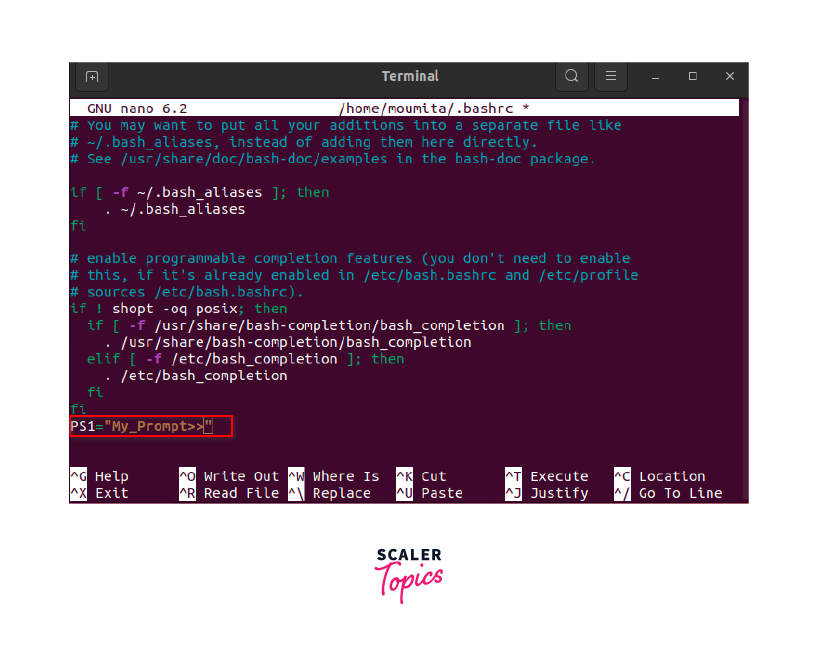
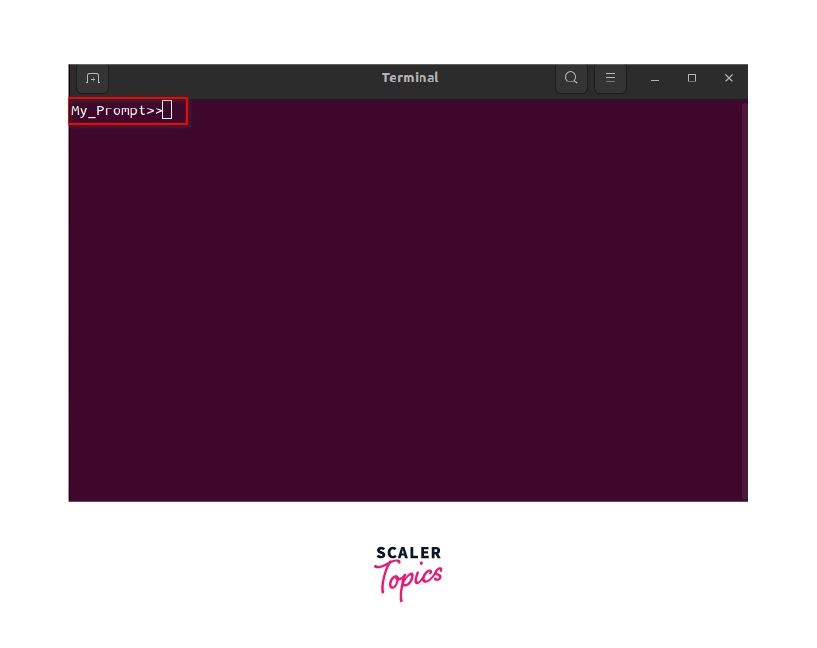
For example, if you want your prompt to display the current working directory followed by a dollar sign ($), you can set the ps1 variable like this:
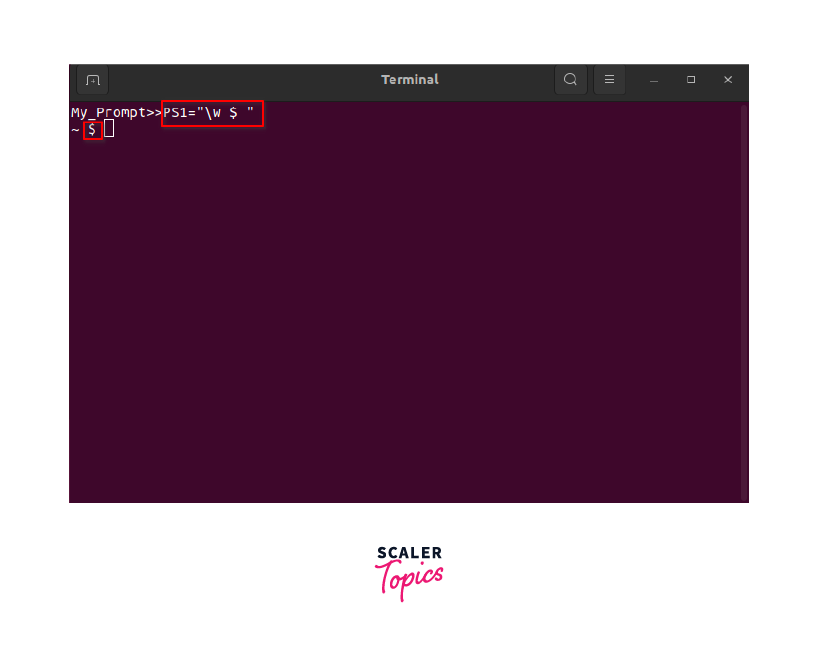
Here, \w is a special escape sequence that represents the current working directory, and $ is the traditional symbol used in many shells to indicate a regular user's prompt.
You can set the PS1 variable in your shell's configuration file (e.g., ~/.bashrc or ~/.bash\_profile) to make the change permanent across terminal sessions. Additionally, there are many different escape sequences and variables you can use to customize your prompt further, allowing you to create complex and informative prompts tailored to your needs.
How To Customize Bash Prompt In Linux
Customizing the Bash prompt in Linux involves setting the PS1 environment variable to define the appearance and behavior of the prompt. You can do this by modifying the PS1 variable in your shell's configuration file, such as ~/.bashrc or ~/.bash\_profile. Here's a step-by-step guide to customizing your Bash prompt:
Step 1: Open a terminal or command-line interface on your Linux system.
Step 2: Then check the current PS1 value (optional). Before customizing the prompt, you may want to see the current PS1 value to know what the default prompt looks like. You can do this by typing the following command in the terminal:
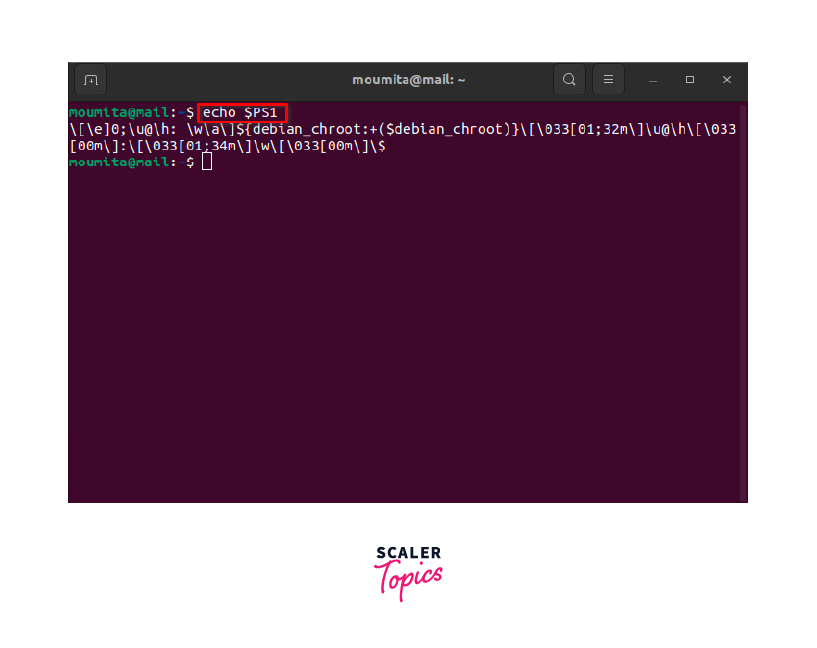
Step 3: Decide on the custom prompt format. You can customize the prompt with various escape sequences and variables to display information like username, hostname, current working directory, time, and more. Here are some commonly used escape sequences:
\u: Username
\h: Hostname
\w: Current working directory
\t: Time in 24-hour format (HH:MM
You can combine these escape sequences with other characters to create your desired prompt format.
Step 4: Then set the custom prompt in the configuration file. Once you've decided on the custom prompt format, open your shell configuration file with a text editor. For example:
Step 5: Now, add or modify the line that sets the PS1 variable. For example, to set the prompt to display the username, hostname, and current working directory, followed by a dollar sign, you can use:
After making the changes, save the file and close the text editor.
Step 6: Then to apply the changes and make your custom prompt active, either logout and log back in, or run the following command to reload the configuration:
Now, your custom Bash prompt should be active, and you'll see it whenever you open a new terminal session.
Remember that customizing the Bash prompt is highly flexible, and you can experiment with different combinations of escape sequences and characters to create a prompt that suits your preferences and workflow. Additionally, you can use colors and special formatting to make your prompt more visually appealing and easier to read. Just be mindful not to make it overly complex, as it might clutter the prompt and reduce its usability.
How do I Display the Current Bash Shell Prompt Setting?
To display the current Bash shell prompt setting, you can simply echo the value of the PS1 environment variable. Open a terminal and type the following command:
This will print the current value of the PS1 variable, which represents your current Bash prompt setting. The output will show the format of your prompt, including any escape sequences and characters you have configured.
How do I Modify or Change the Prompt?
To modify or change the Bash prompt, you need to set the PS1 environment variable to your desired prompt format. You can do this by editing your shell configuration file, such as ~/.bashrc or ~/.bash\_profile. Here's how you can proceed:
Step 1: Launch a terminal or command-line interface on your Linux system.
Check the current PS1 value (optional): Before making changes, you may want to see the current PS1 value to understand the default prompt format. You can do this by running the following command:
Step 2: Then determine how you want your prompt to look. You can use various escape sequences and characters to include information like username, hostname, current working directory, time, and more. Refer to the previous response for commonly used escape sequences.
Step 3: Next, edit the shell configuration file. Open the shell configuration file (~/.bashrc for most users or ~/.bash\_profile if ~/.bashrc is not present) using a text editor. For example:
Step 4: Here, modify the PS1 variable. Look for the line that sets the PS1 variable. If it doesn't exist, you can add it. Set the PS1 variable to your desired prompt format. For example, to set the prompt to display the username, hostname, and current working directory followed by a dollar sign, you can use:
Feel free to customize the prompt format as per your preference.
Step 5: Then save the changes. After modifying the prompt, save the file and close the text editor.
Step 6: Now, to apply the new prompt settings, either log out and log back in, or run the following command to reload the configuration:
Alternatively, you can also use . (dot) to source the file:
Now, the Bash prompt will reflect your changes, and you'll see the updated prompt format whenever you open a new terminal session.
Remember to be careful when modifying the prompt, as incorrect configurations might lead to issues displaying the prompt correctly or even prevent the shell from functioning as expected. Always make sure to back up your configuration files before making changes, so you can easily revert if needed.
Examples
Here are some examples of how you can customize your Bash prompt using the PS1 variable:
Basic Prompt:
Display the current working directory followed by a dollar sign.
Output: /home/user$
Username and Hostname:
Show the username and hostname, followed by a colon and the current working directory.
Output: user@hostname:/home/user$
Colorful Prompt:
Use color codes to make the prompt more visually appealing.
This will display the username in green, the hostname in blue, and the working directory in the default color.
Git Branch:
Include the current Git branch (if available) in the prompt.
Output (inside a Git repository):user@hostname:/path/to/repo(master)$
Time and Newline:
Show the time in 24-hour format and a newline before the prompt.
Output:
Custom Prompt with ASCII Art:
Add some fun and creativity to your prompt with ASCII art.
Output:
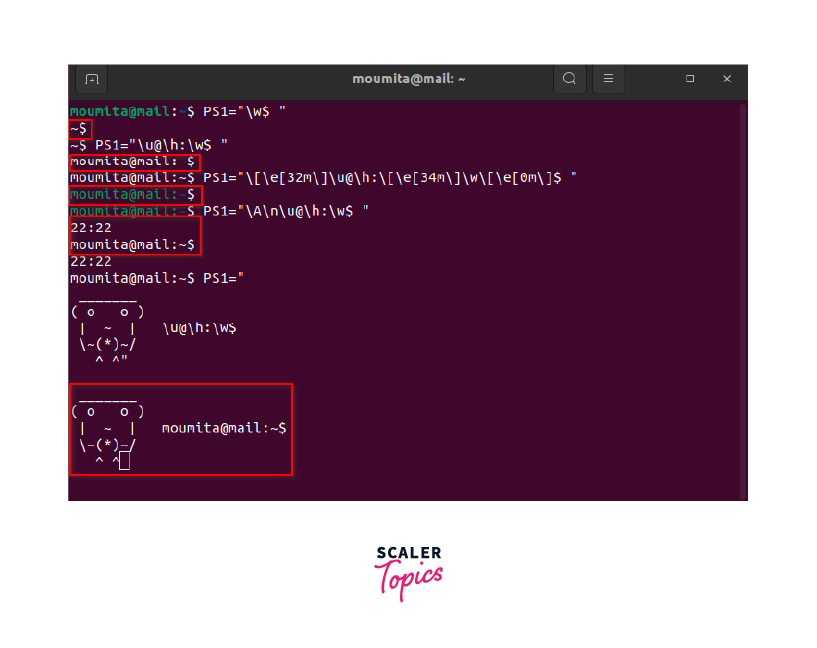
Feel free to mix and match these examples or create your custom prompt based on your preferences and requirements. Just remember to keep the prompt readable and not overly complex to avoid any confusion while using the terminal.
Conclusion
- In this article we have discussed and explained what is ps1 in Linux with examples.
- The PS1 environment variable in Linux represents the shell prompt, and it determines the appearance and behavior of the command prompt in the terminal.
- By customizing the PS1 variable, users can create personalized and informative prompts that display various elements like the current working directory, username, hostname, time, and more.
- This customization can be achieved by using escape sequences and special characters in combination to form the desired prompt format.
- To make the changes permanent, users can modify the PS1 variable in their shell configuration file, such as ~/.bashrc or ~/.bash\_profile, and reload the configuration to apply the modifications.
- The flexibility of customizing the Bash prompt allows users to create unique and visually appealing prompts that enhance their terminal experience and workflow.